Organization Administrator
Sets up Groups, members, roles, access, Team email triggers, and corporate purchasing controls.

Sticker Invasion for Teams
Manage Groups, approved designs, licensing, notifications, purchasing, billing, and reporting from one shared Organization workspace.
New to Teams? Explore the business overviewSearch all chapters and indexes.
Permissions can be scoped to the whole Organization, an exact Group, or a Billing Account. The index uses current Starter Roles plus clearly named custom-role examples; your menus may contain fewer choices than the examples.
Sets up Groups, members, roles, access, Team email triggers, and corporate purchasing controls.
Configures approved designs, adds them to the correct Team cart, and submits checkout requests within the assigned scope.
Creates designs, submits proofs, and shares approved Personal designs with the Organization.
Reviews the exact current Design proof and approves it or requests changes within the assigned scope.
Reviews purchase requests routed to the approver's exact Organization or Group scope and completes eligible funding choices.
Reviews and records exact-version Design rights and external artwork approvals when Licensing is enabled.
Maintains authorized Billing Accounts and, when Group-scoped, the assigned Group approval budget, plus payment methods, Invoice Terms requests, Invoices, and statements.
Reads the Team information allowed by the assigned role; a Report Viewer custom role may also run or export authorized reports.
Chapter 1
For: Everyone
Sticker Invasion Teams gives a multi-location company one place to control shared artwork, ordering, approvals, billing, and reporting. This manual uses Acme Coffee House as an example Organization with three Locations: Downtown Roastery, Riverside Café, and Airport Kiosk.
The Start by role and Find a task indexes above link directly to the relevant chapter. Use the search box to find a menu label, status, or action. The printable layout contains the same customer instructions as the searchable page.
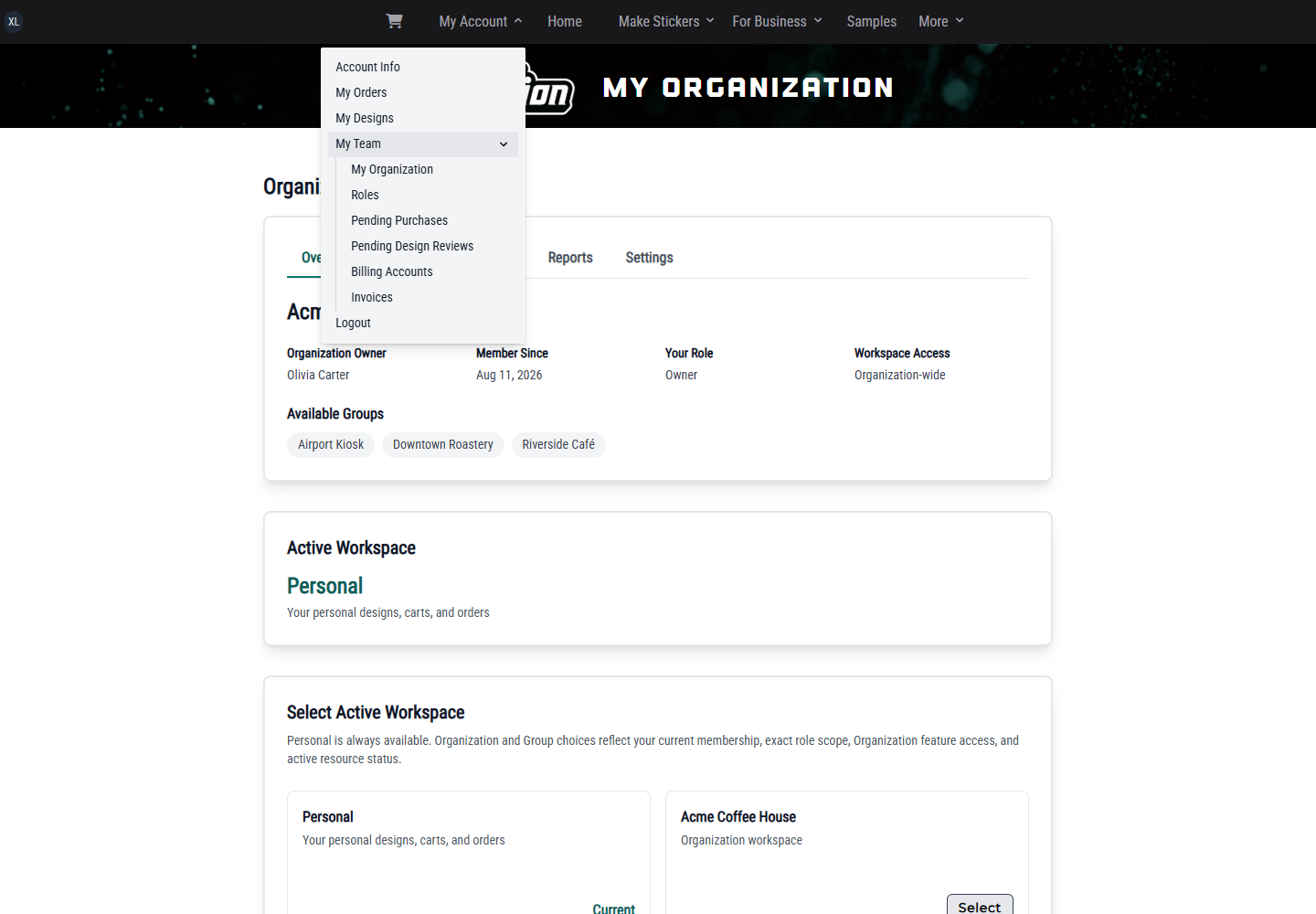
Open the account menu after signing in. Your normal Account Info, My Orders, and My Designs links remain at the top. If you have active Team access, My Team or My Teams contains the Organization, purchase, design-review, Billing Account, invoice, and reporting links you are authorized to use.
Some verified accounts are invited to create a new Team directly from Account Info. When Create a Team appears:
Creation makes you the Organization Owner and creates its initial default Billing Account shell. It does not approve credit, add a payment method, or authorize a charge. If the section is absent, contact Sticker Invasion about Teams access rather than trying to use another member's account.
The workspace selector is a navigation convenience. Select Acme Coffee House to work Organization-wide or choose a Location such as Downtown Roastery when your task is location-specific. Selecting a workspace does not grant access; every page and action checks your current role at its exact scope.
If a menu or action in this manual is absent, first confirm that you selected the expected library or workspace. Then ask an Organization Administrator to check your active access.
Chapter 2
For: Organization Administrator
Use Account menu → My Team → My Organization to open Acme Coffee House. The overview shows your membership, roles, accessible Locations, and only the management links allowed by your role. If a link or action described below is missing, ask an Organization Administrator to review your role and access scope.
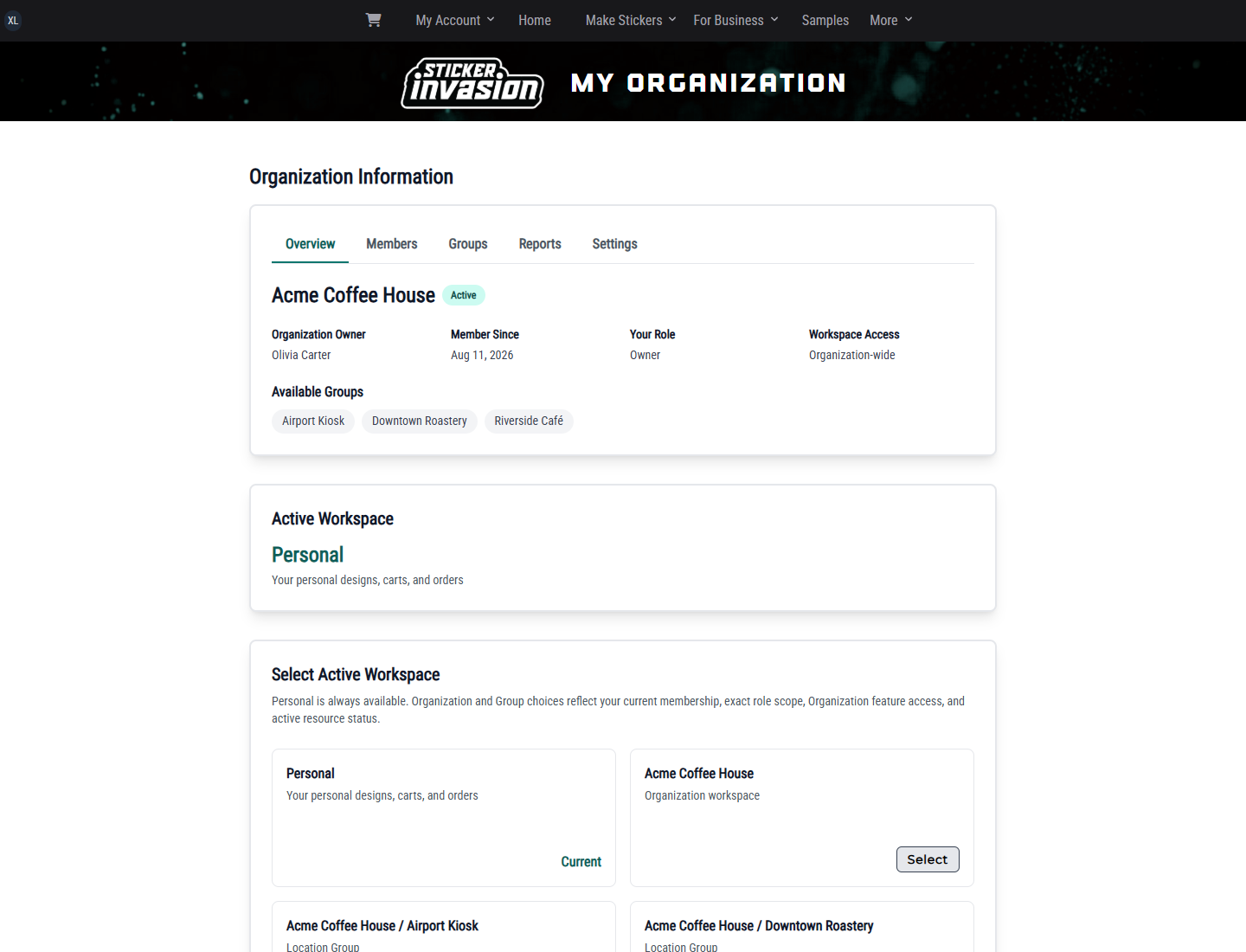
Members with Group-management permission can select Manage Groups from the Organization overview.
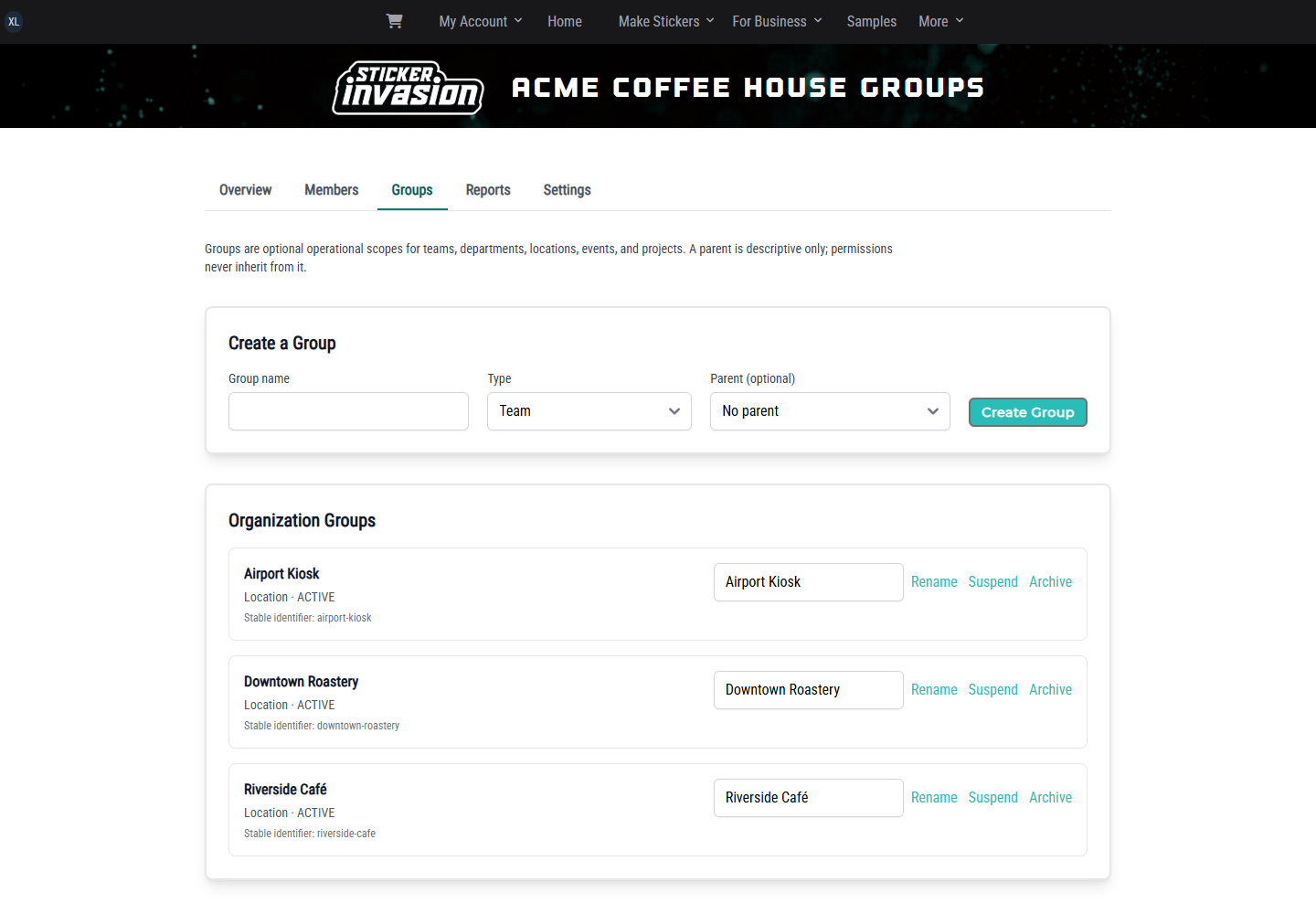
Group type and parent structure are descriptive. Access, status, and Billing Account eligibility do not automatically flow from a parent Group to its children, so assign each member and account to every exact Group they need.
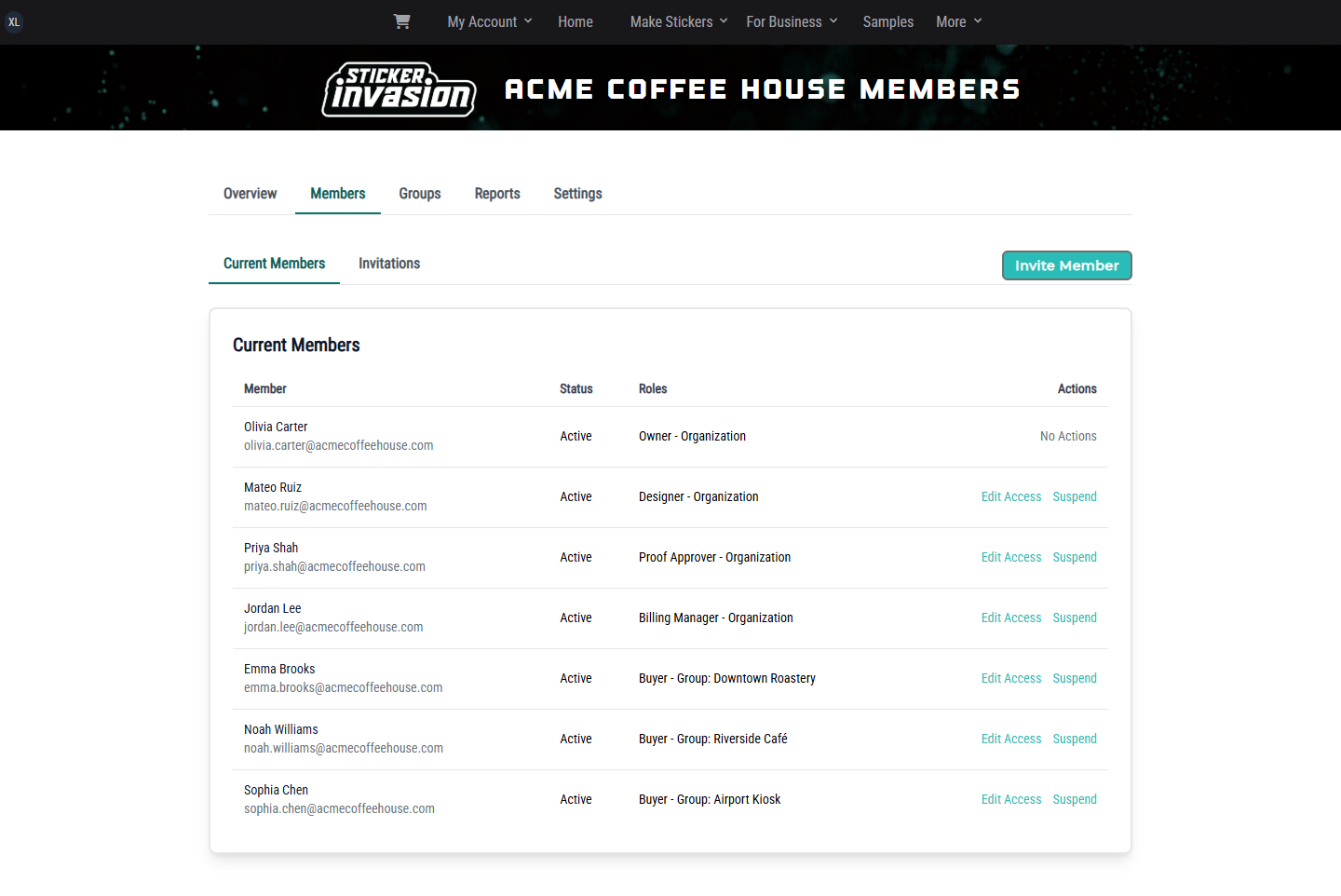
Members with invitation permission can select Manage Members from the Organization overview.
Only roles whose full set of permissions you are allowed to delegate appear in the Role list. Use the smallest role and narrowest scope that lets the person do their work.
The invitation link is single-use and belongs to the exact invited email address.
An expired, cancelled, previously used, or superseded link cannot be accepted. Ask the inviter for a new invitation when the available link no longer opens the Join page.
Open Manage Members and find the address in the Invitations table.
If the page says the invitation was saved but its email could not be sent, use Resend after the delivery problem is resolved.
The Current members table shows each active assignment as a role plus its exact Organization, Group, or Billing Account scope. An access manager who also has role-management permission can select Edit Access for another active, non-owner member.
Organization-wide access cannot be combined with narrower Group or Billing Account assignments. Scoped access must include at least one Group or Billing Account, and every selected scope needs a role. The editor lists only active Locations, non-closed Billing Accounts, and roles you are allowed to delegate. Changes apply immediately while the Organization retains the member's access history.
You cannot use this editor to change your own access or the Organization Owner's access. A suspended member must be reactivated before their retained assignments can be edited.
Use the action beside the person in Current members:
You cannot suspend yourself or the Organization Owner from this page. Suspend and Reactivate require the corresponding member-management permission; the action is denied when your role does not include it.
An Organization Administrator with profile-management access can open the Organization's Settings tab and choose which Team events may send email.
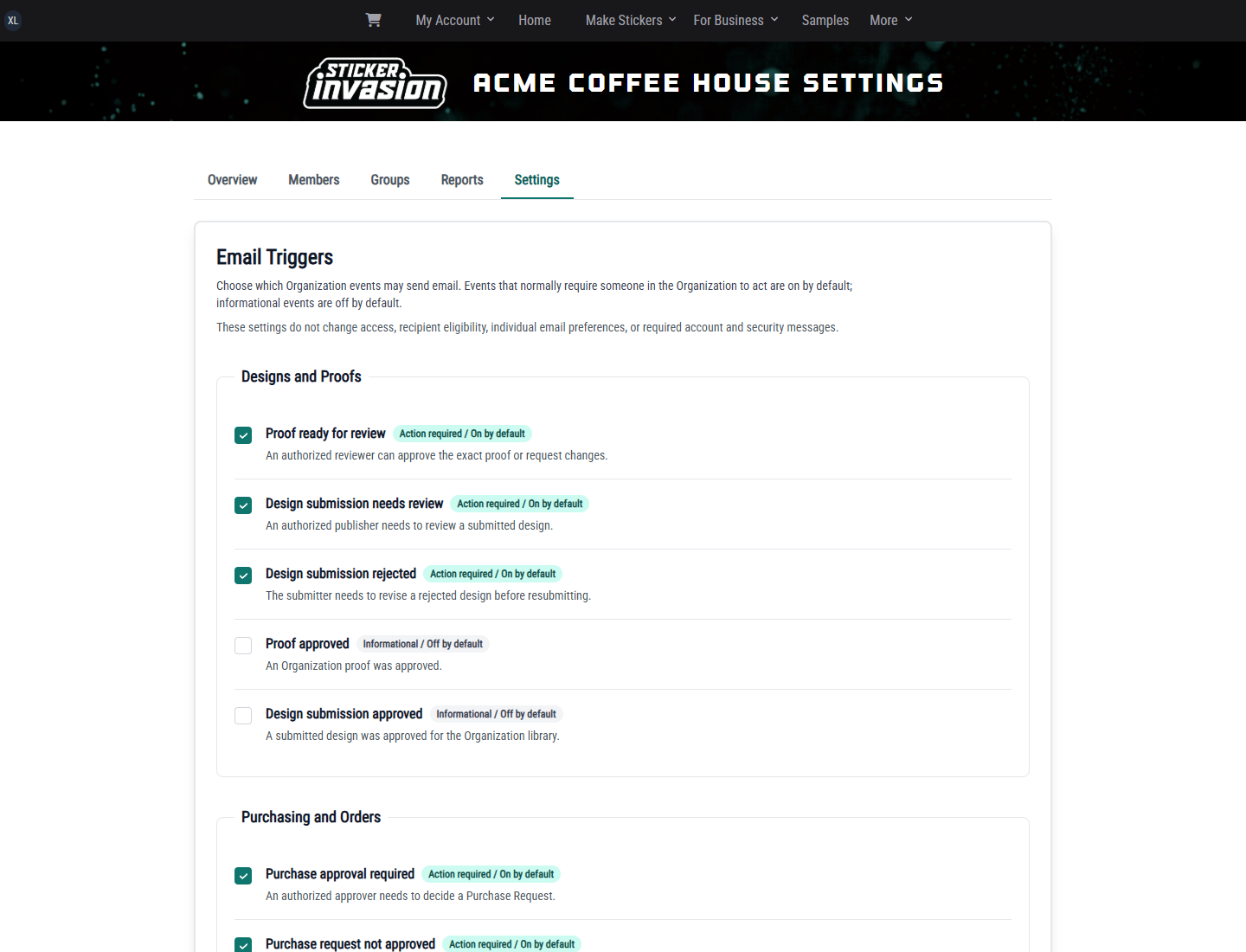
These settings control whether an eligible Organization event may send email. They do not change who can see or perform an action, which eligible members receive it, required account/security messages, or a member's individual email suppression. The personal Account Info page therefore shows Teams Emails as informational text rather than a member-level checkbox.
Open Account menu → My Team → Roles when the Roles link is available. Starter Roles are maintained by Sticker Invasion and cannot be edited or archived. Common choices include:
Proof approval and purchase approval are separate responsibilities. Proof Approver does not by itself allow someone to approve a purchase request. Assign Purchase Approver when a member should decide purchases and use the eligible funding options shown during approval. Create a custom role only when that responsibility needs a narrower funding bundle or additional permissions.
Custom roles are reusable across member assignments in the same Organization.
To change a role, select Edit Role, update its name, description, or capabilities, and select Save Role. The page shows how many active members are affected. Removing a capability requires the confirmation I understand that removed capabilities immediately affect all current members using this role.
Before selecting Archive Role, reassign every current member using it and cancel or complete every pending invitation that references it. An archived role cannot be used again. As with invitations, a role manager can select only capabilities they already hold and are allowed to delegate.
Chapter 3
For: Designer, Buyer, Proof Approver
Open My Designs to work with reusable artwork. The Libraries panel makes ownership and scope explicit:
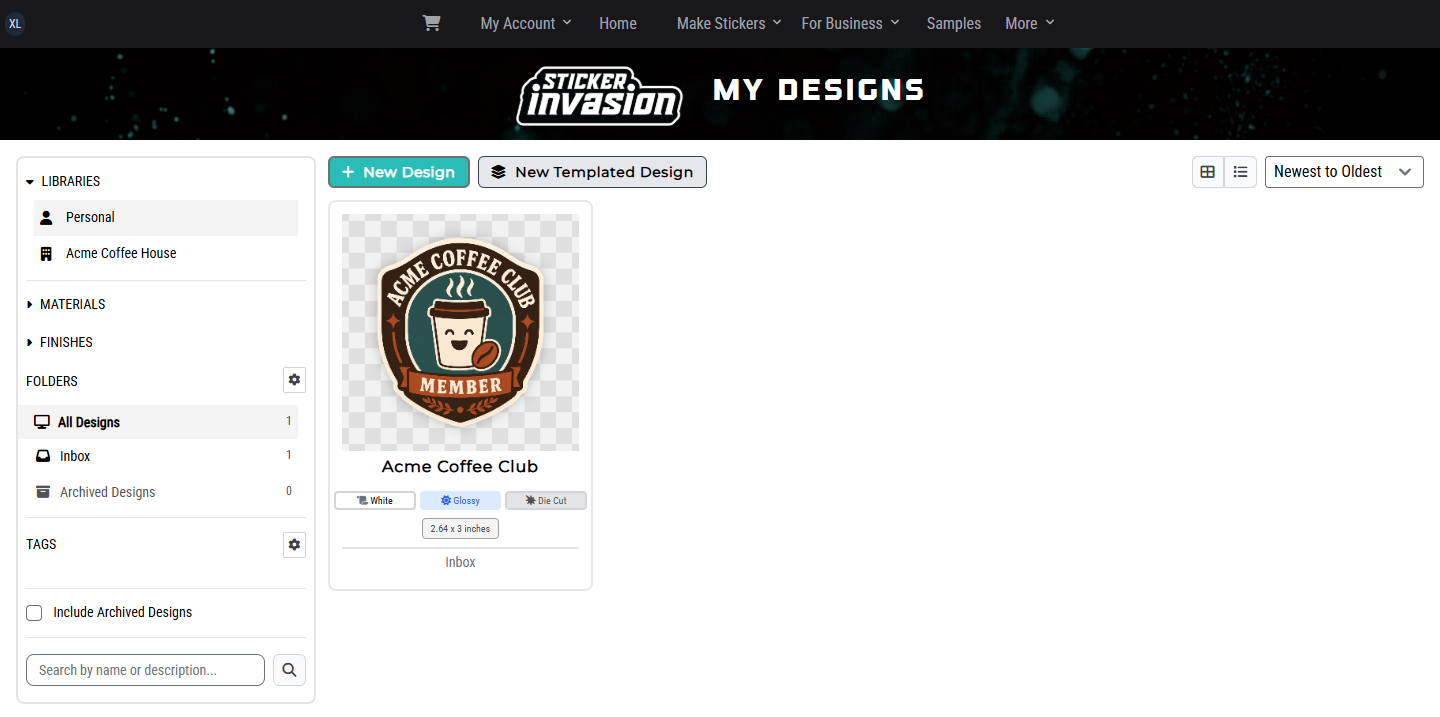
Changing the selected workspace can choose a convenient starting library, but it does not move a design or change its owner. Always check the selected library before creating, editing, or ordering a design.
The exact current design version must have an approved proof. Until then, the design card can show Waiting for Proof, Proof Available, or Proof Revision Requested. Open a design to see its proof status and, when permitted, the Review Proof link.
An approved standard design has a Quick Order panel. Choose a quantity and an eligible cart destination, then add it to the cart. The approved proof is reused, so a standard Quick Order does not require another proof.
An approved root template instead has Customize & Add to Cart. Complete its controlled fields before it enters a cart.
An authorized Design Access Manager can open an Organization-owned design and use its management tabs:
50, 100, 250, 500.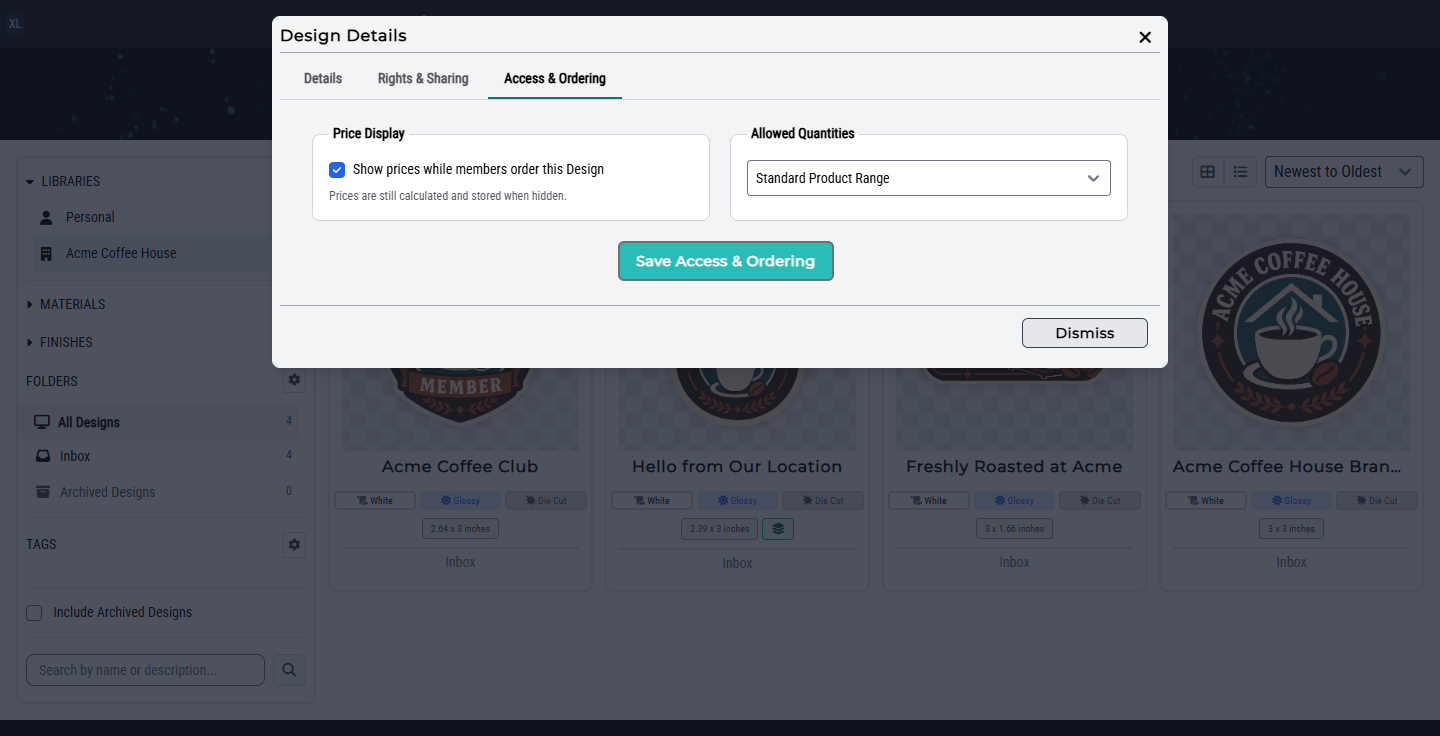
Restricted designs remain available to platform administrators and members with Organization-wide Design access; Proof Approvers retain access to the proof review. When prices are hidden, the system still calculates and stores the commercial amounts, but ordinary members and purchase reviewers see a price-hidden message. Quantity restrictions are enforced in Quick Order, template configuration, cart validation, checkout, and reorder rather than acting as suggestions.
The next three chapters follow each path through its proof and ordering handoffs.
A Designer or another member with Design editing access can keep shared artwork organized without creating a new Design:
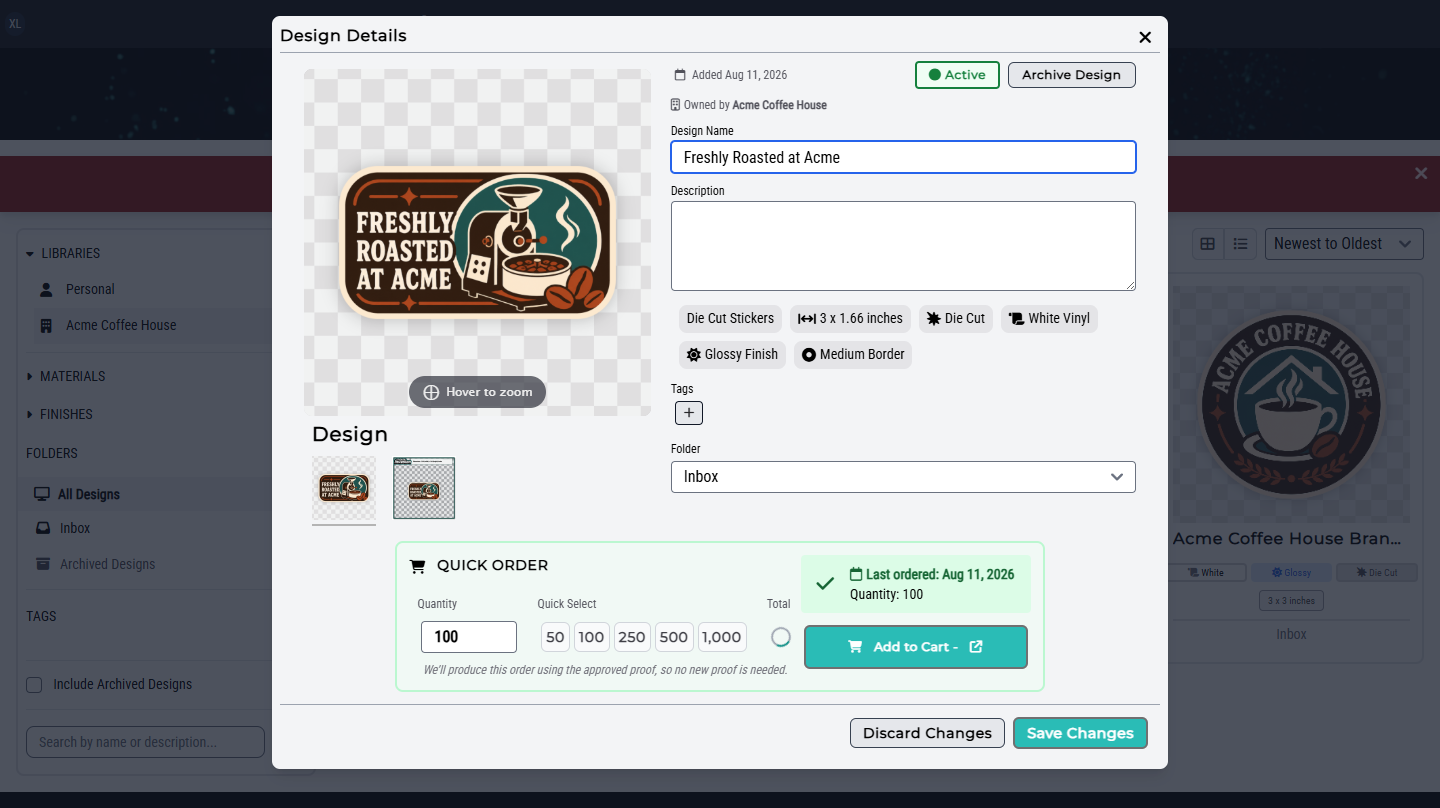
Archiving does not remove historical Orders or reports. Editing descriptive details does not replace the exact approved artwork version; start a new Design workflow when the artwork itself must change.
Chapter 4
For: Designer, Design Publisher, Buyer
Use this path when you already own an approved Personal design and want the company to order from a managed copy.
Select the Personal library, then open the design. Submit to Organization appears only when you own the Personal design, its exact current proof is approved, and you have permission to submit to at least one Organization or Location.
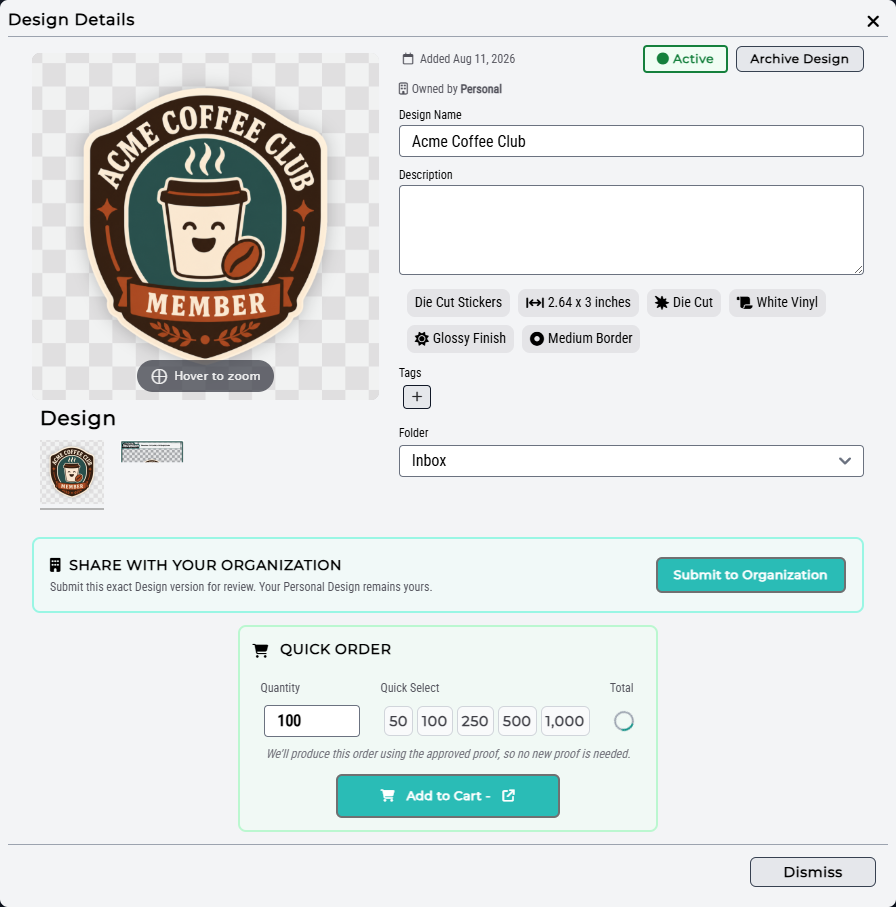
If the action is missing, check the proof status and your destination access. A design that is still waiting for a proof cannot be published.
Select Submit to Organization, choose Acme Coffee House or an available Location, and optionally leave a concise note explaining intended use. Submit the exact current version.
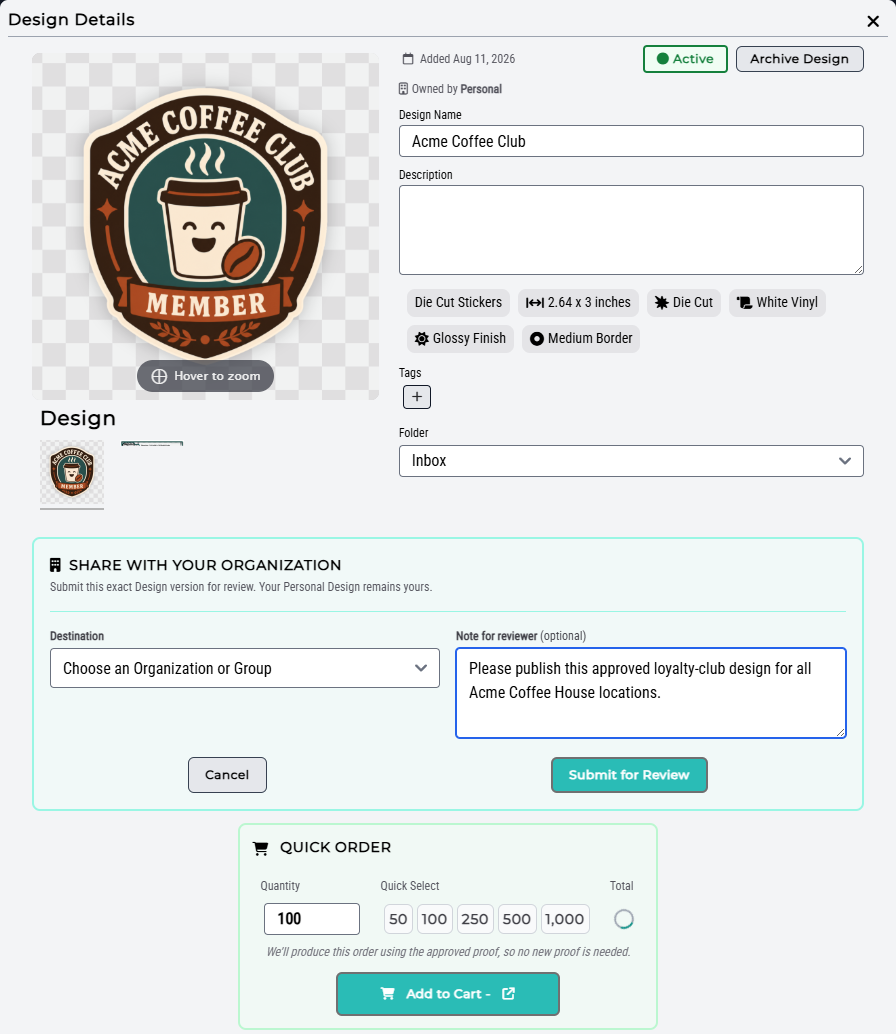
The Personal design stays in your library. Submission does not transfer it and does not immediately make an Organization design.
An authorized Design Publisher opens Pending Design Reviews. The review card identifies the submitted version, submitter, destination, approved proof, and note. Choose Approve and publish to create the Organization copy, or Reject and explain what should change.
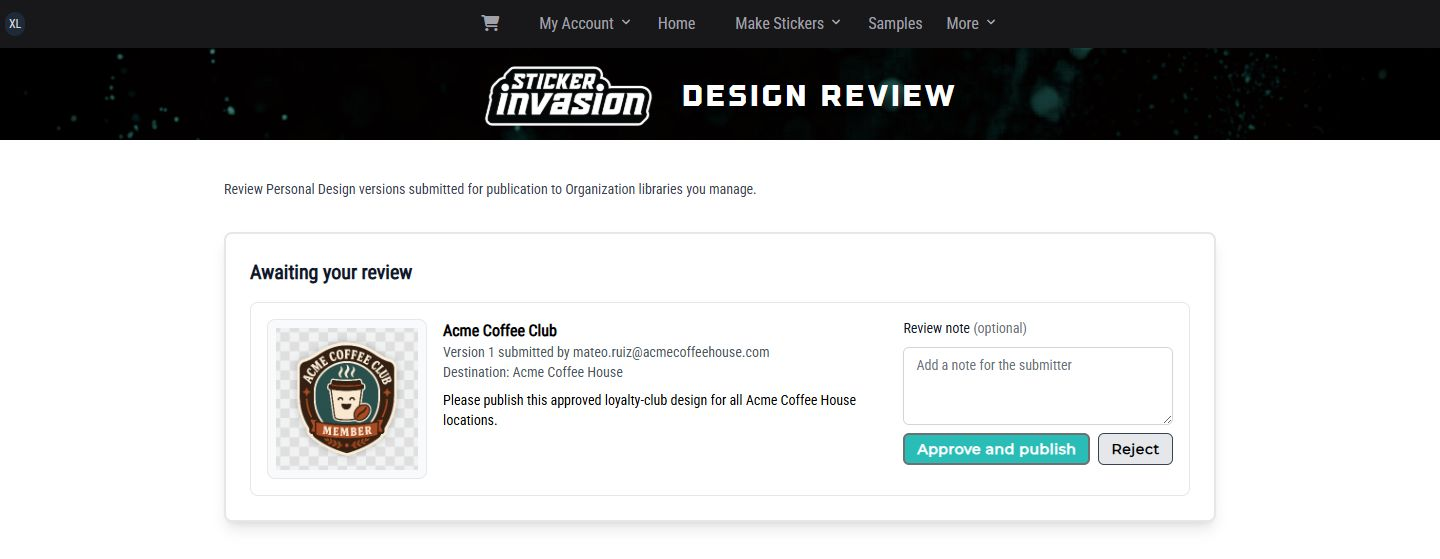
Approval creates a separate Organization-owned design with the approved submitted version. This boundary lets Acme Coffee House manage its shared copy without changing the Personal source.
Open the destination Organization or Location library and select the published design.
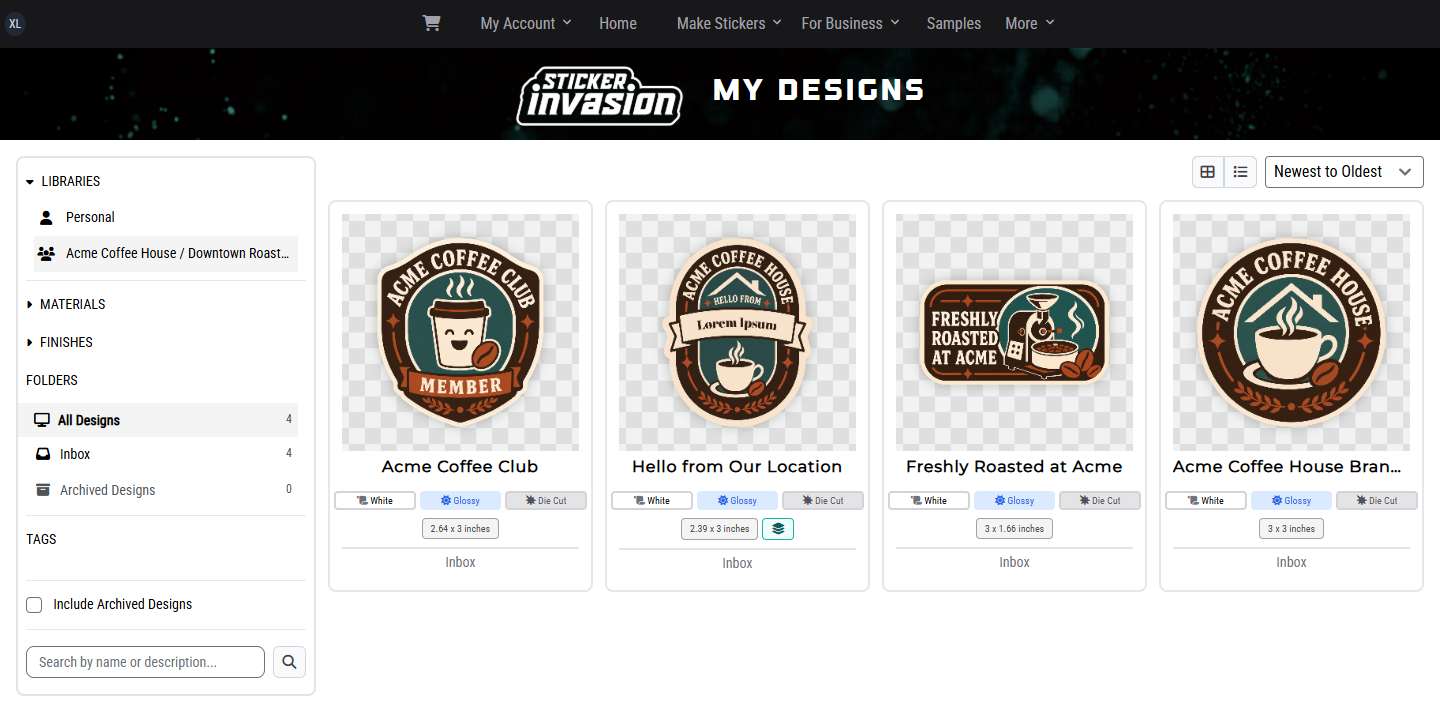
Use Quick Order to choose quantity and an eligible Acme Team cart. Continue with the cart and checkout chapter. No new proof is needed while that published standard version remains current and approved.
Chapter 5
For: Designer, Proof Approver, Buyer
Use New Design when artwork should belong to the Organization from the start.
Select the Acme Coffee House Organization library or the intended Location library before clicking New Design. The button appears only when your role can create designs in at least one available library.
Choose the product that matches the finished item. Available choices include die-cut, kiss-cut, embossed, circle, rectangular, bumper, sticker sheet, and roll-label products.
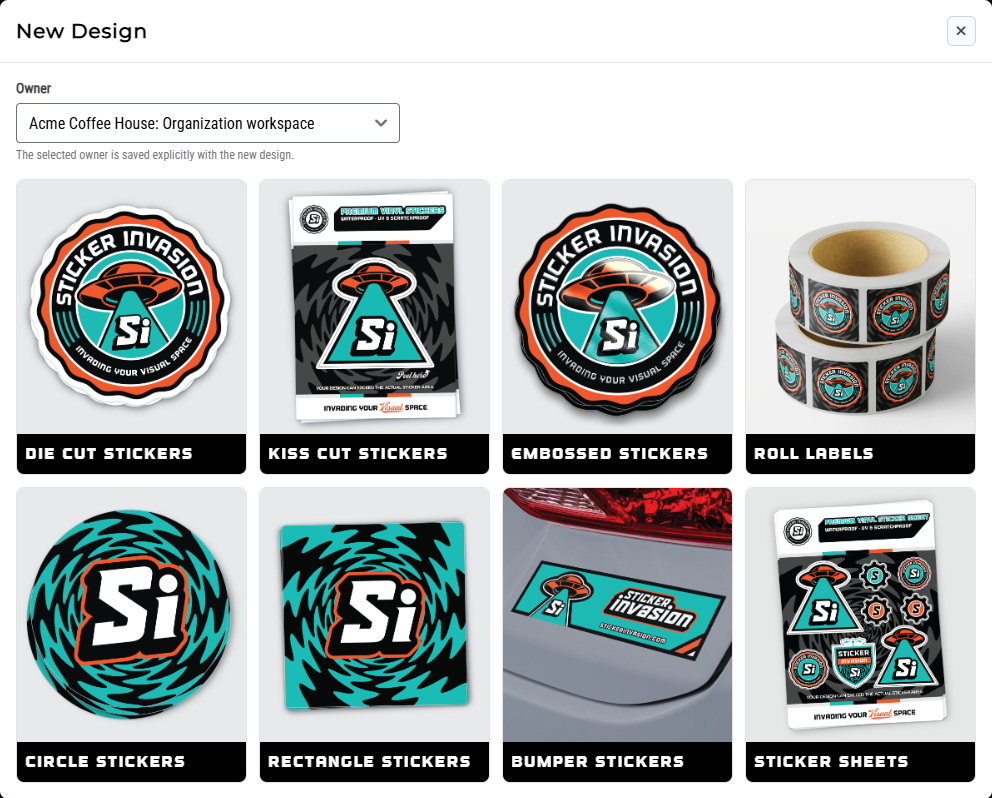
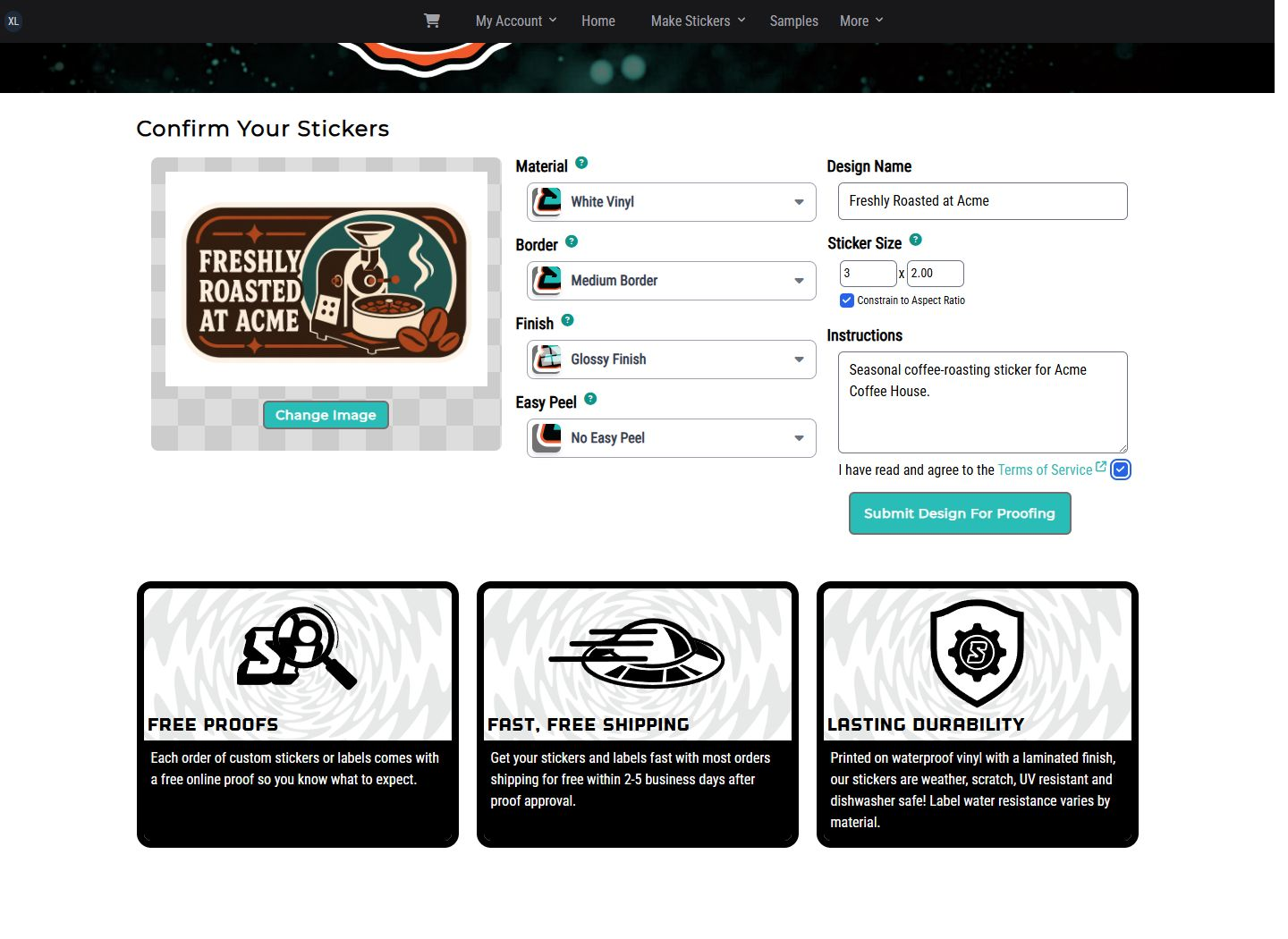
Choose product options, upload the artwork, enter a clear design name, and add any production instructions. Review the terms and select Submit Design For Proofing.
For example, Acme's Designer can create Freshly Roasted at Acme directly in the company library so it never depends on a Personal owner.
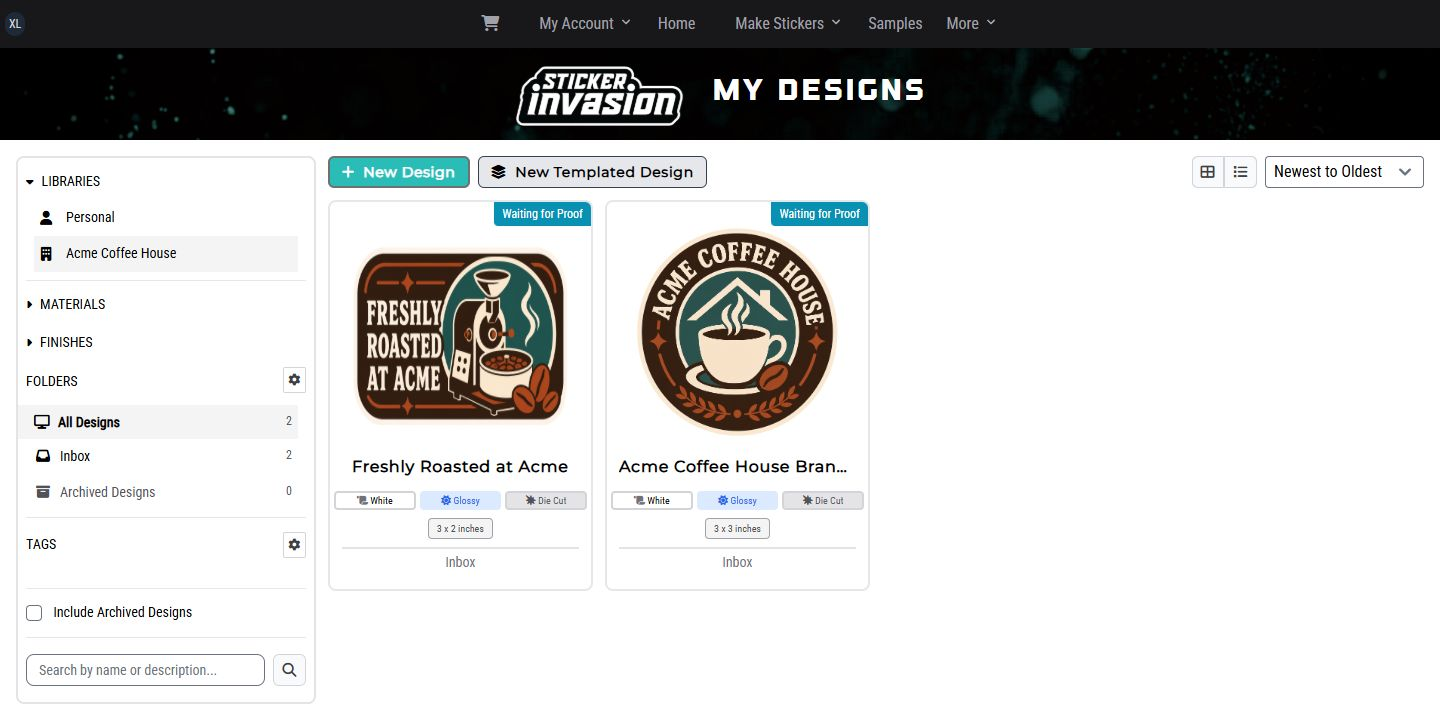
The new design returns to My Designs with Waiting for Proof. It cannot be added to an order yet.
When the proof is available, an authorized Proof Approver opens Review Proof. Compare the full proof with the requested size, cut, artwork, and notes. Choose Approve only when it is ready to print, or request changes with specific instructions.
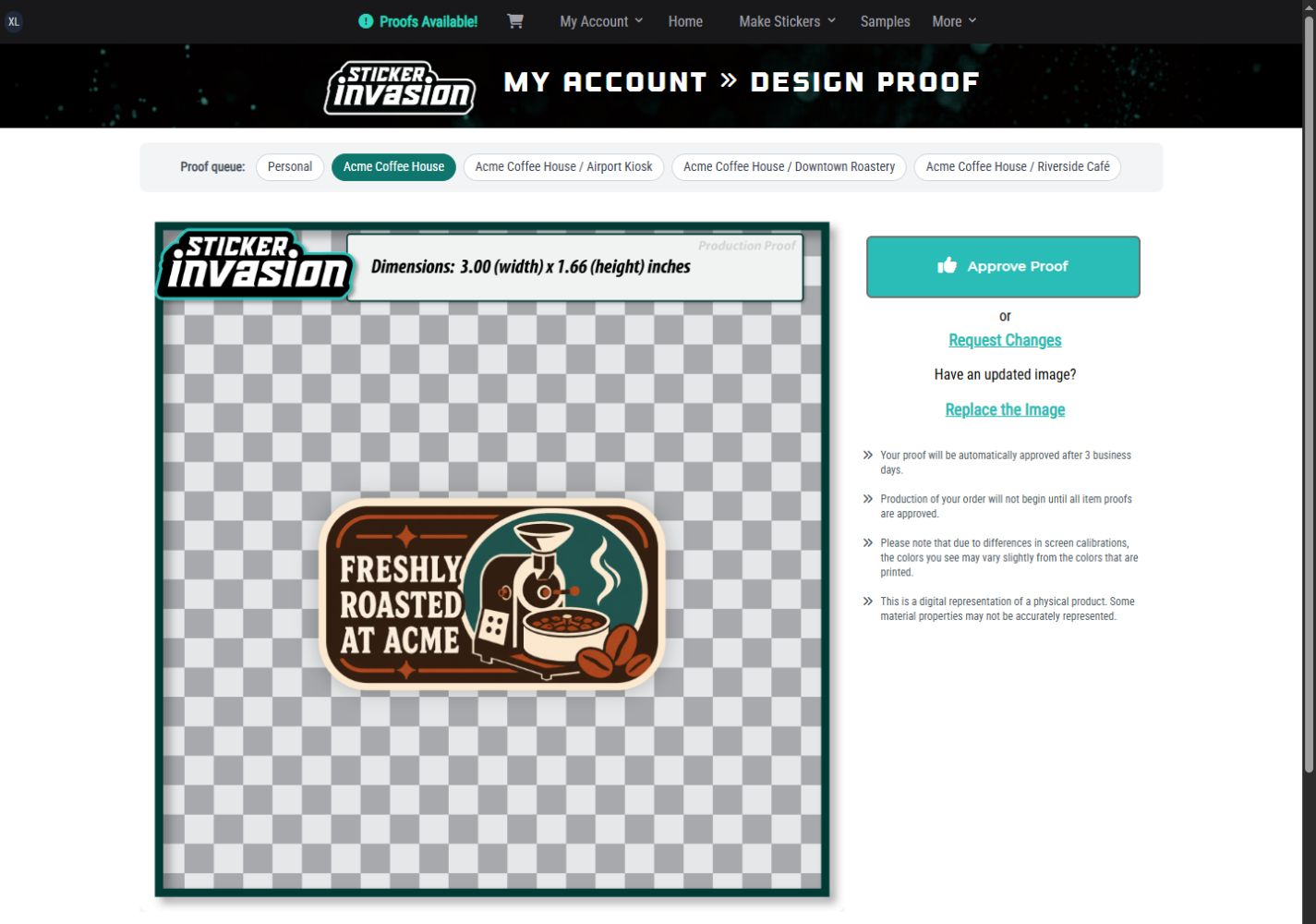
A revision returns to the proof process. Approval applies to that exact version; a later artwork replacement must be reviewed separately.
Open the approved design in My Designs. Quick Order uses the approved proof, so choose the quantity and eligible Team cart without starting another proof.
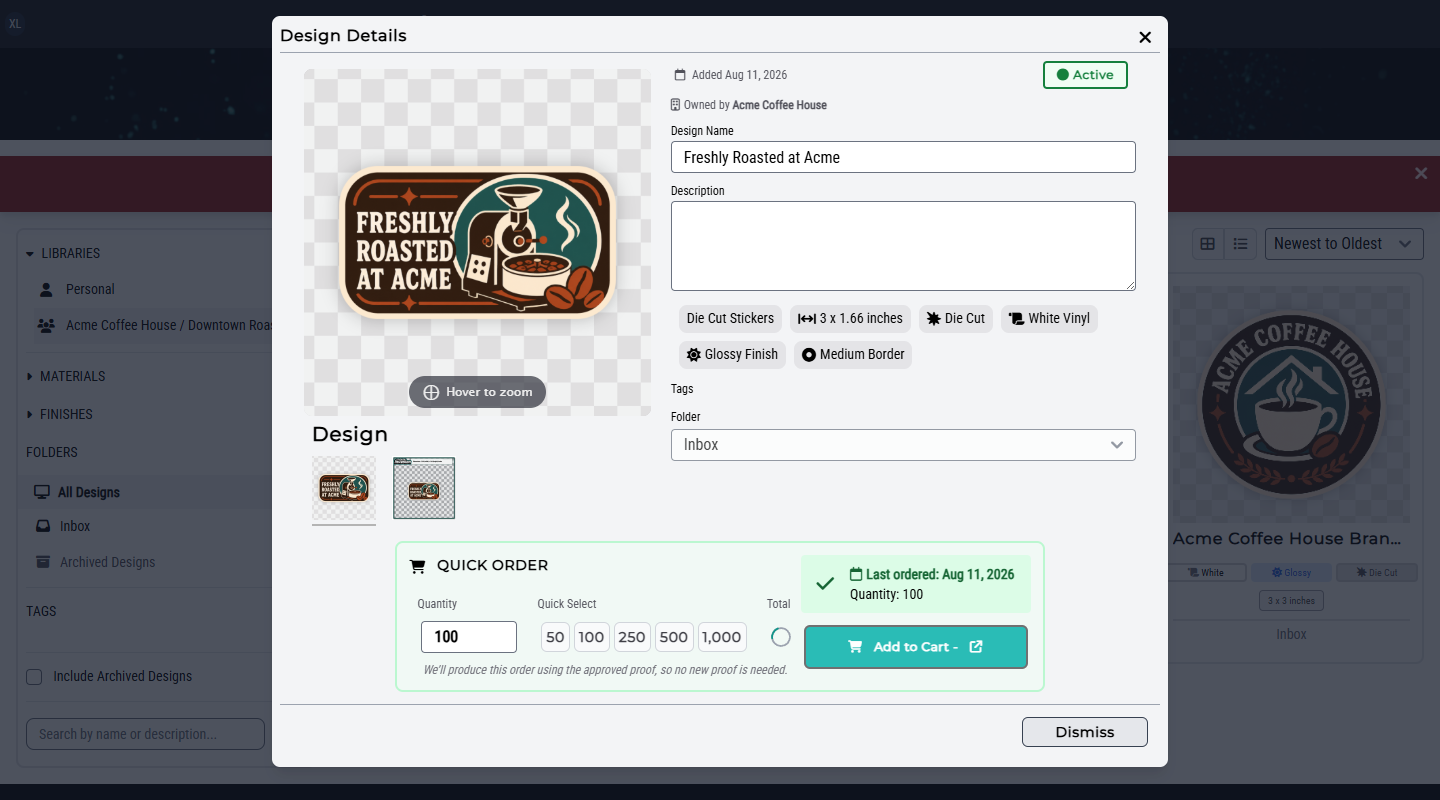
If more than one cart is eligible, verify the Organization, Location, and Billing Account before choosing Add to Cart.
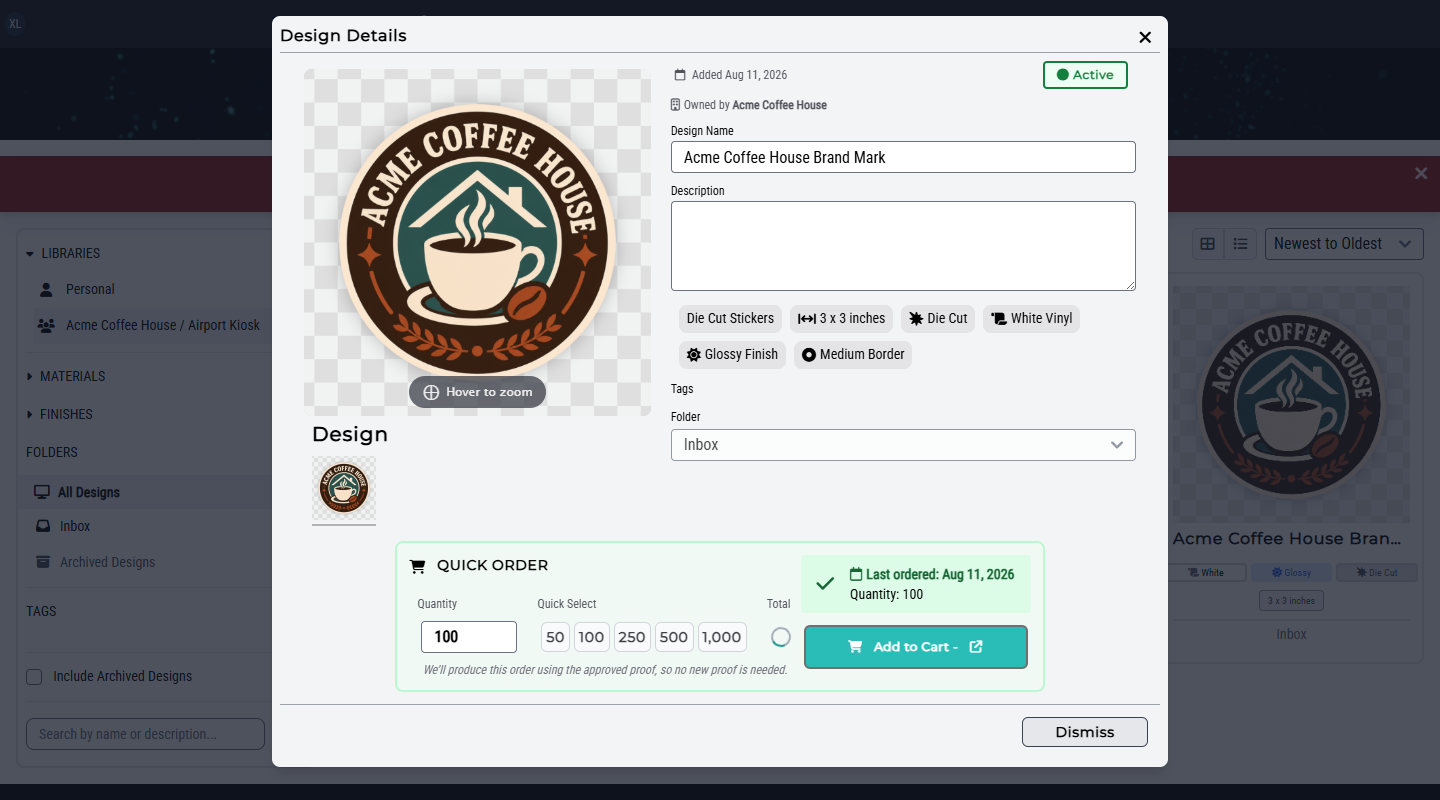
The Airport Kiosk example uses the same approved-design path with Acme Coffee House Brand Mark. The Airport Kiosk Buyer opens Quick Order, confirms the current price and quantity, and adds it to the Airport Team cart.
Chapter 6
For: Designer, Proof Approver, Buyer
A templated design protects the approved layout while letting a Buyer change controlled values such as Location name, a short message, contact information, a code, or an image.
Select the intended Organization or Location library, then choose New Templated Design and a product.
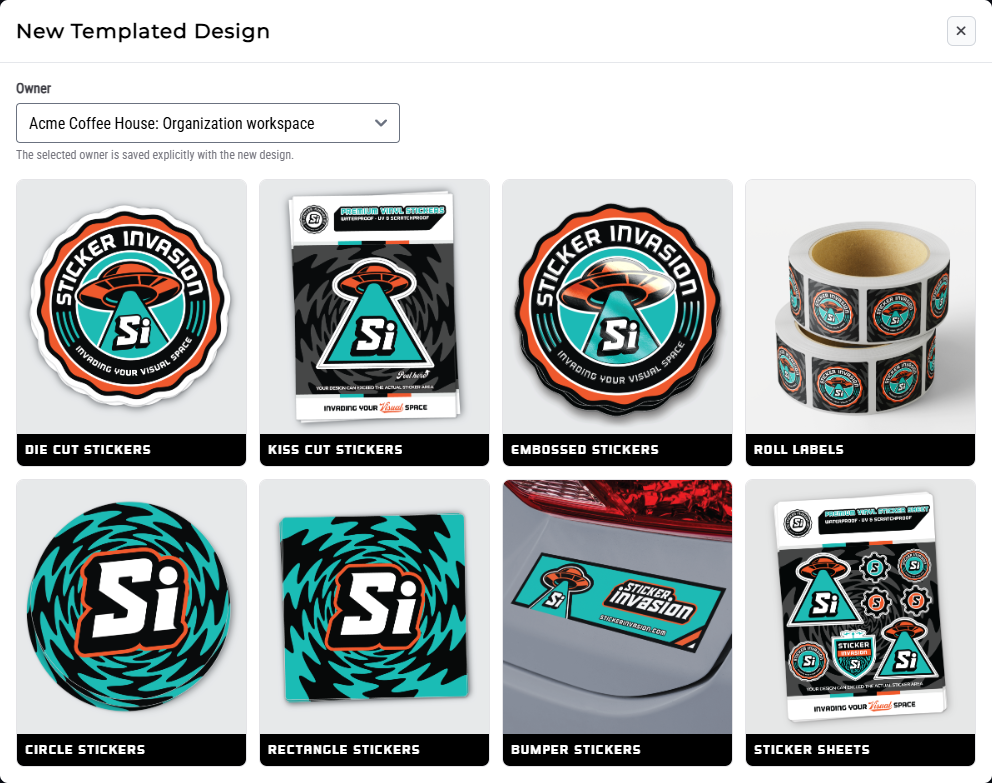
Upload the master artwork, name the template, and use Instructions to identify exactly which parts should become editable. For Acme's Hello from Our Location design, Location Name is the controlled field while the logo, colors, and cutline remain locked.
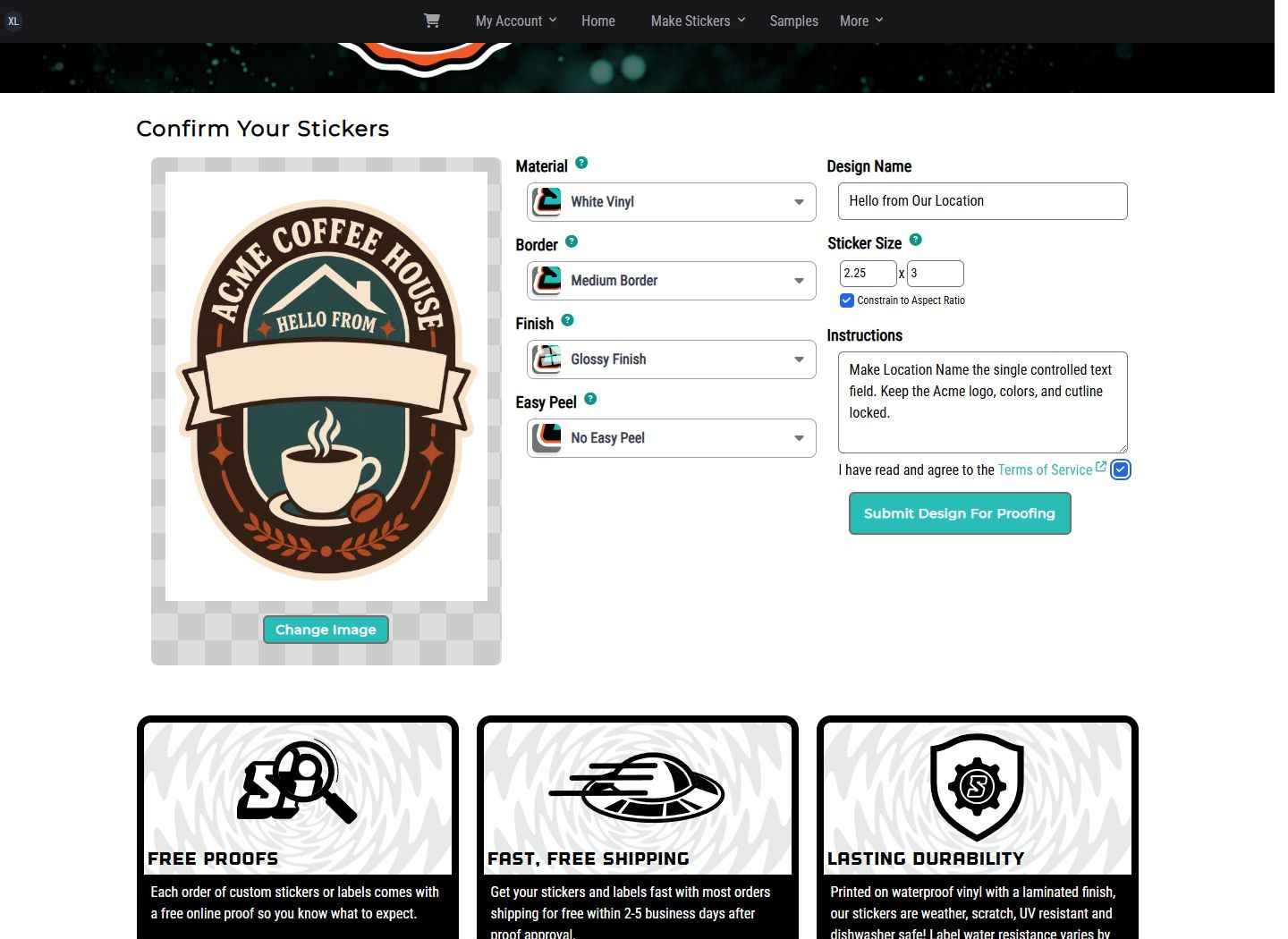
Select Submit Design For Proofing. The root template must receive its field definition and an approved proof before Buyers can configure it.
Review the master proof with special attention to locked artwork, field placement, maximum text lengths, sample values, and image or code requirements. Request changes if any variation could break the approved layout.
After approval, the design opens with Customize & Add to Cart instead of standard Quick Order.
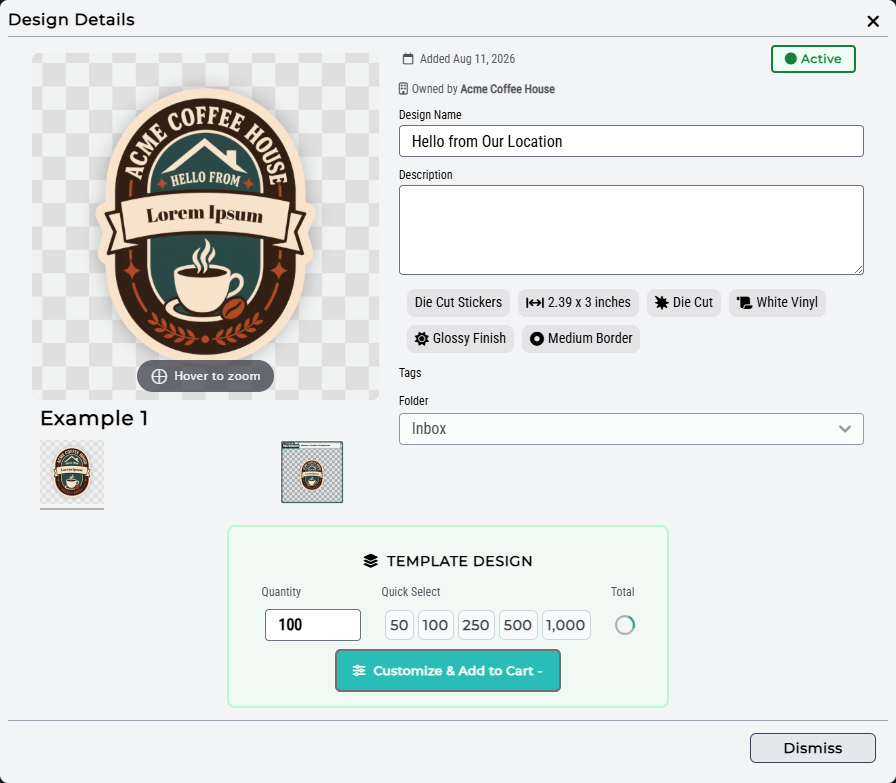
In single-value mode, enter each required field, upload any requested image or choose from an approved image list, choose the quantity, and select the eligible Team cart. Review spelling, capitalization, image selection, and contact details before adding the item.
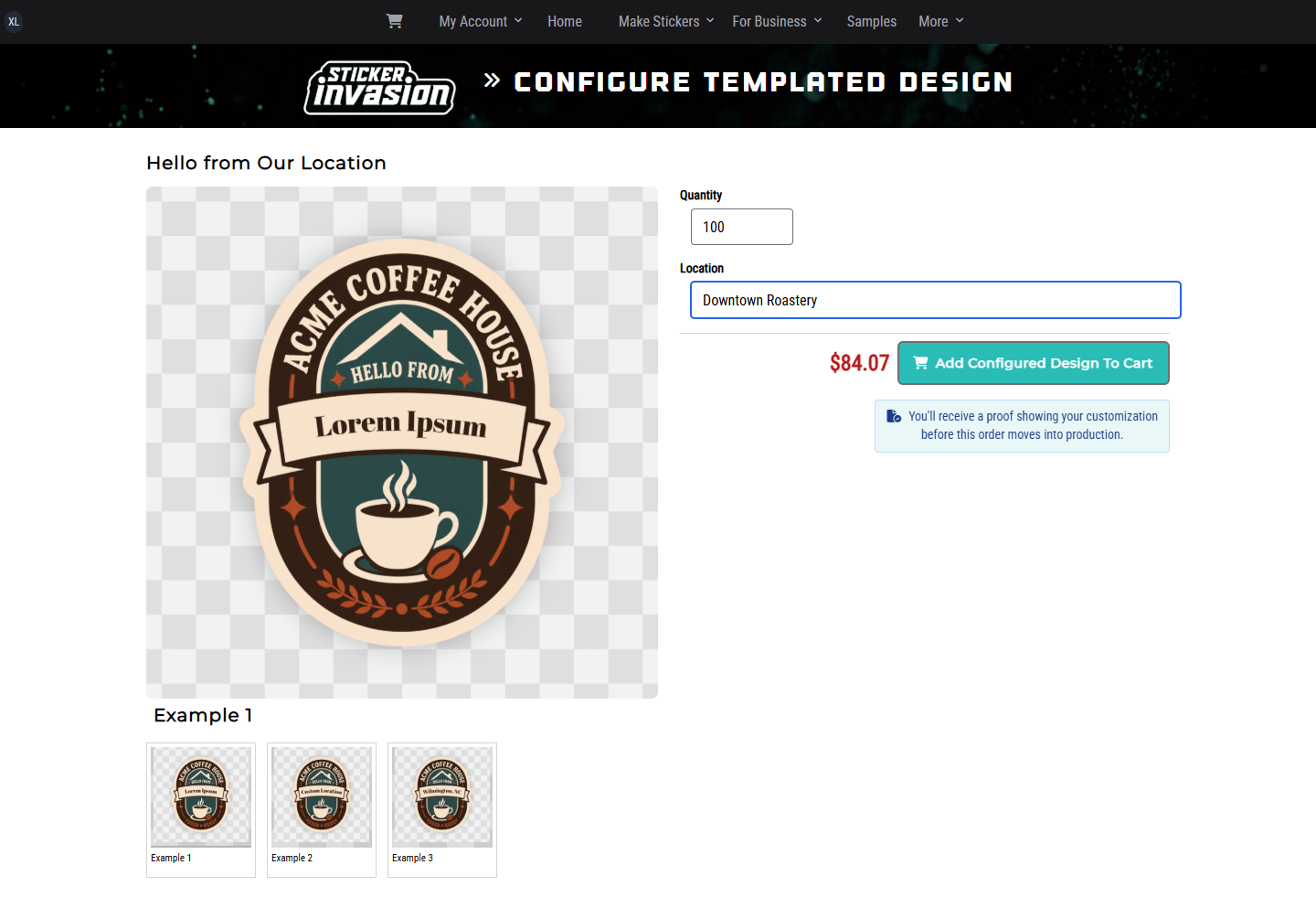
The same root template can be reused without changing its locked artwork. In the Riverside Café workspace, the Riverside Café Buyer enters that Location's name and adds the configured version to the Riverside Team cart.
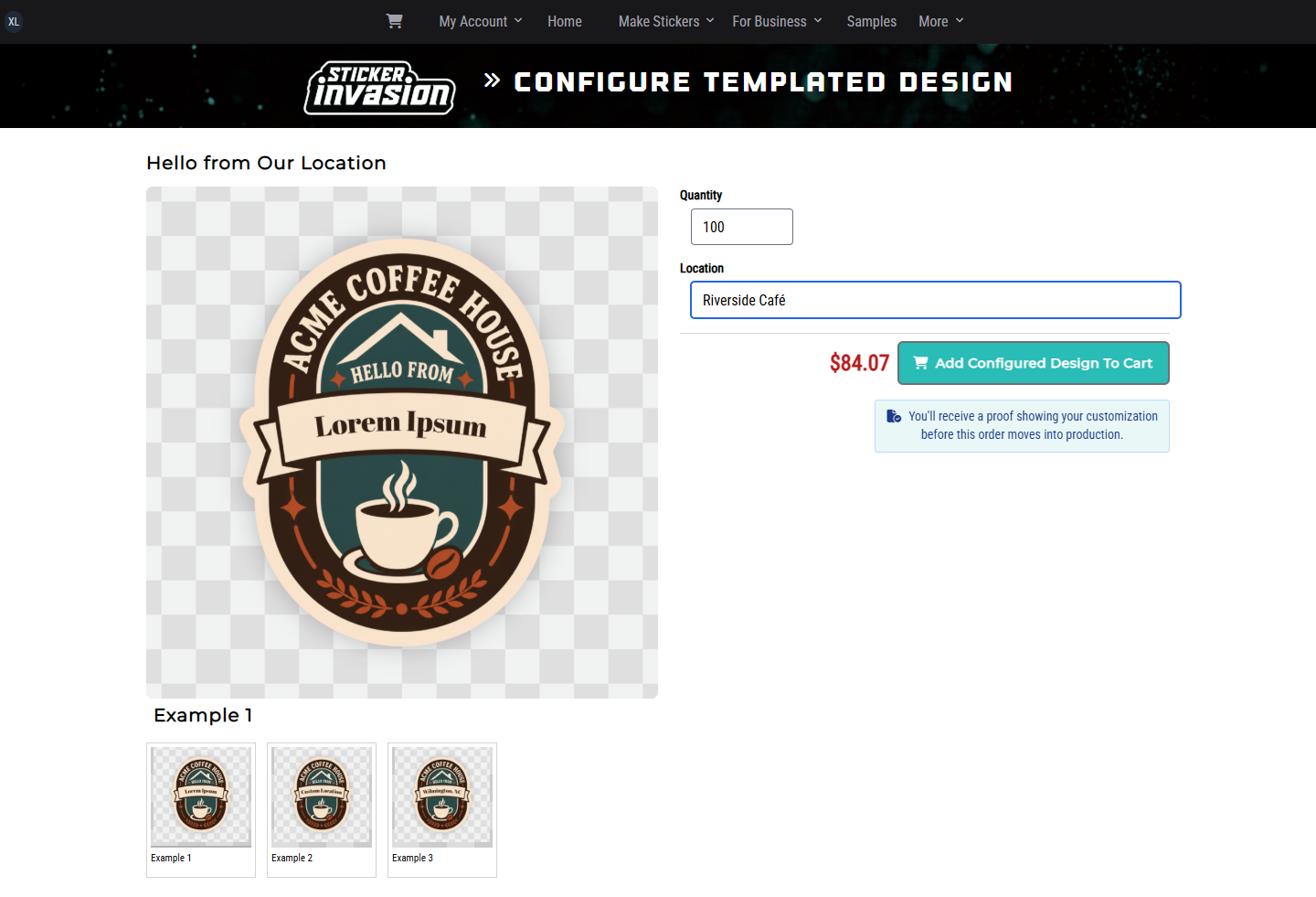
When this order is placed, Sticker Invasion creates the customized design instance and starts its proof process. Approve that customized proof before production just as you would any other order proof.
If the template supports variable data, download or follow the displayed sample columns and prepare one CSV row per variation. The header row must exactly match the field keys shown on the page. The number of valid rows determines the item quantity.
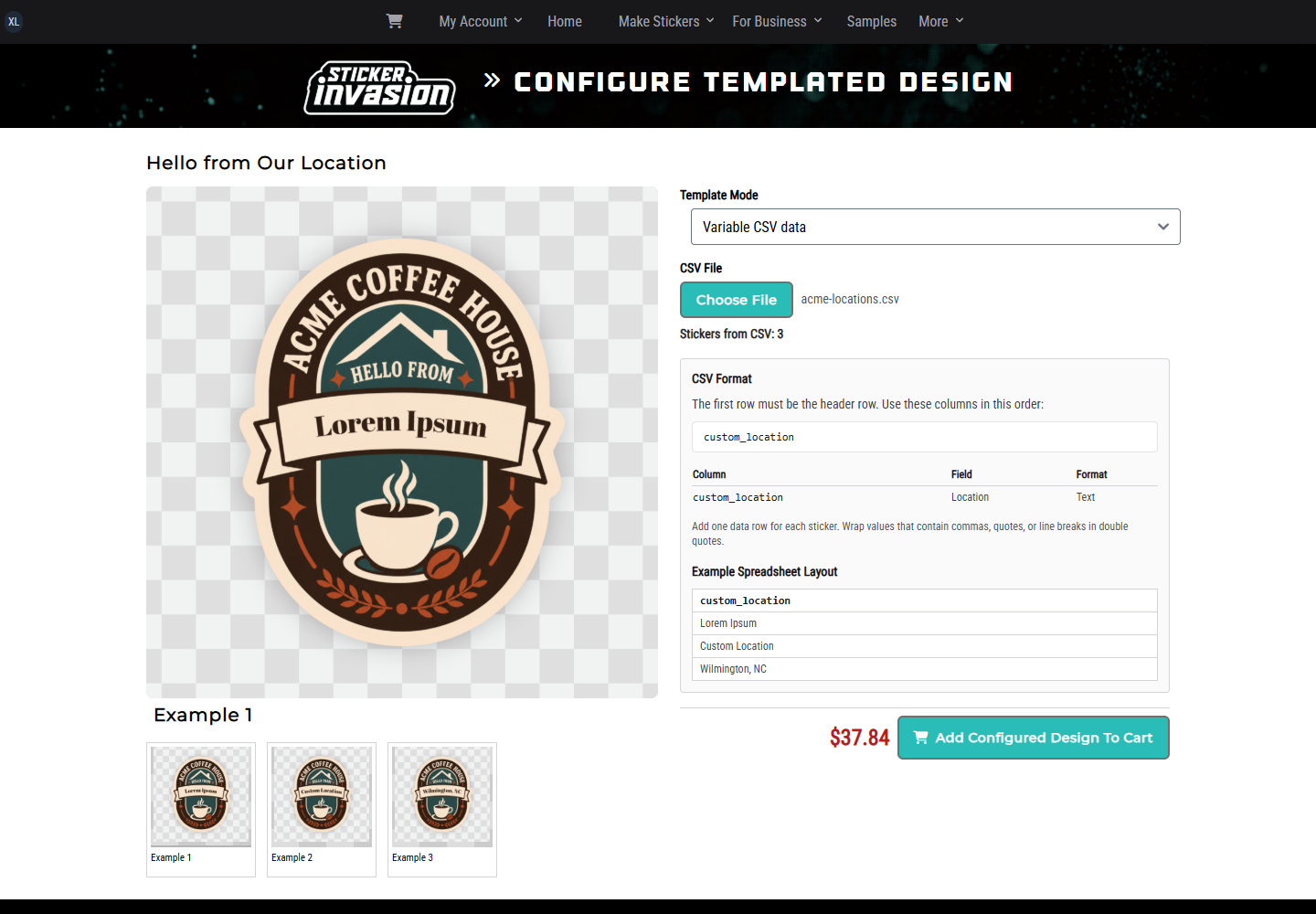
Before uploading, check every row for missing required values and ensure image, approved-image choice, or code values follow the field instructions. The system rejects a file whose headers, row count, or field values do not match the template.
The configured item is added to the selected Team cart. The cart keeps the chosen values with that line. Open the item from the cart if you need to correct the values before checkout.
Chapter 7
For: Licensing Manager, Organization Administrator, Designer
Teams can preserve artwork-rights evidence and outside approval records beside the exact Organization Design version they govern. These tools are available for Organizations that need branded, licensed, collegiate, franchise, entertainment, or other controlled artwork workflows.
Licensing is described publicly in this manual so prospective customers can evaluate the capability. Inside an account, the controls appear only when Sticker Invasion has enabled Licensing for that Organization and the member's role includes the required access.
Open an Organization-owned Design in My Designs, then select Rights & Sharing. The Design Rights panel identifies the exact Design version being reviewed. Assertions and approval records never carry to a later artwork version automatically. When outside artwork approval is required, use the Design Rights and External Artwork Approval subtabs to move between the two exact-version records.
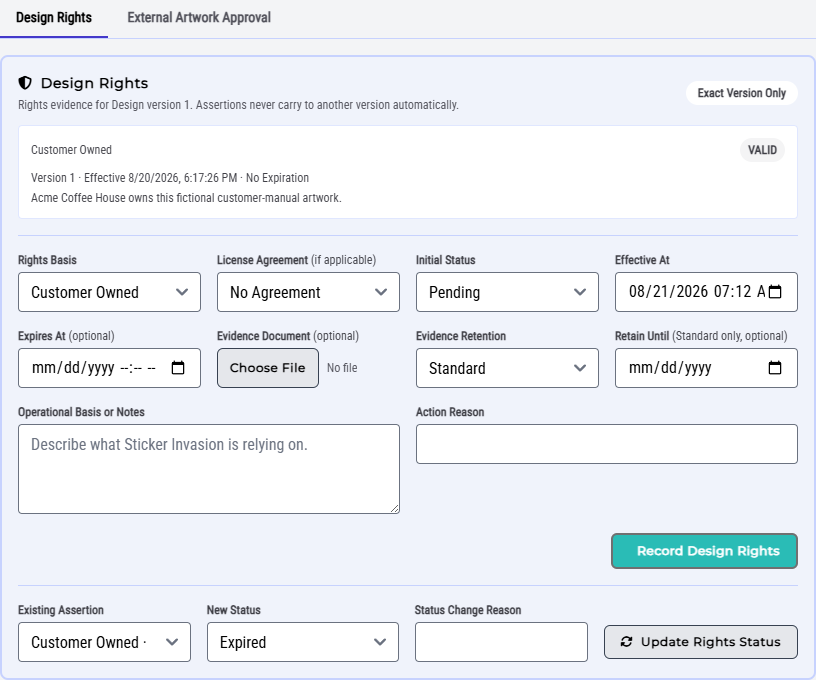
A Licensing Manager can review the rights basis, current status, effective and expiration times, linked agreement when applicable, evidence filename and integrity hash, notes, and the member who recorded it. Members with view-only licensing access see the records without the creation or status-change forms.
A Licensing Manager or another member with Classify Design Rights access records what the Organization relies on for the exact version:
Use Update Rights Status to mark an existing assertion Valid, Expired, Revoked, or Rejected when that transition is available. Status changes preserve the original record and require a reason.
Some licensors use an outside review process. A Licensing Manager with Record External Artwork Approval access can preserve that decision with the Design. When this approval is required, open Rights & Sharing, then select the External Artwork Approval subtab.
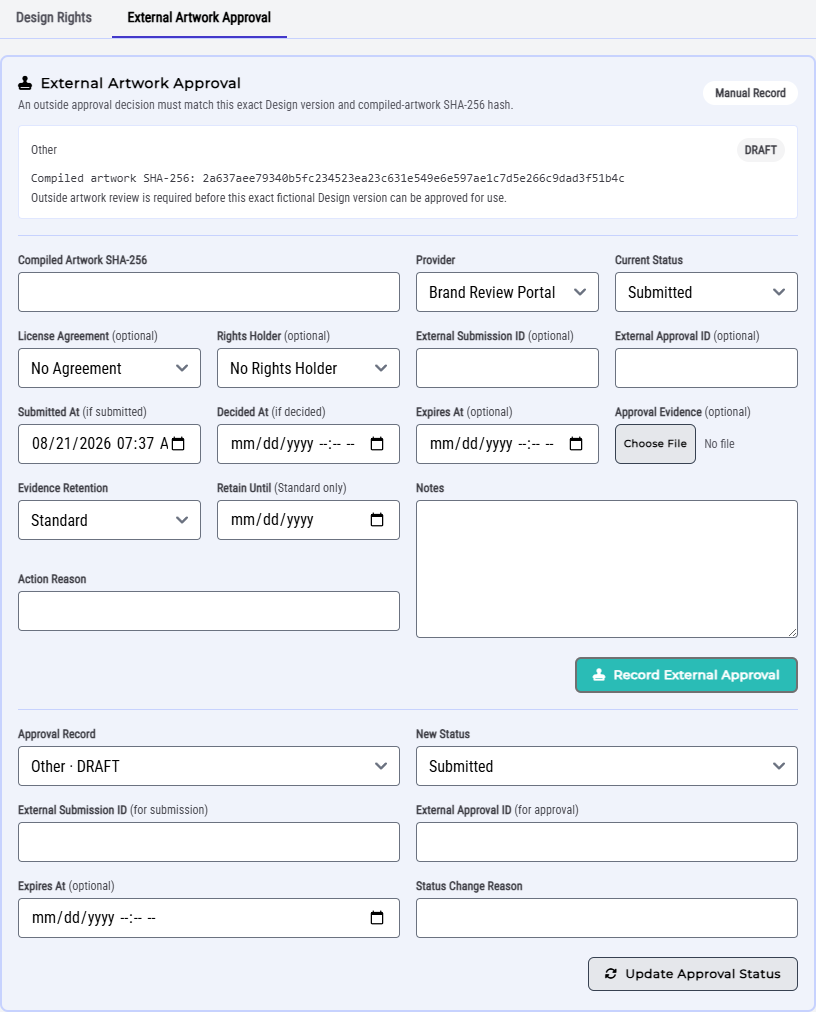
To record the decision:
An approval for a different hash or Design version does not satisfy the current artwork requirement.
When Licensing is enabled, required rights and outside approvals become part of Design orderability. A missing or nonvalid record can stop checkout or production with a customer-facing rights-review explanation. Correct the evidence on the Design rather than bypassing the hold with a new cart.
Sticker Invasion maintains Rights Holders, License Agreements, royalty rules, royalty reports, remittance, and any administrative hold override. Organization members do not configure those internal records. If a configured royalty is passed through to the customer, it appears as a separate labeled licensing amount in the applicable purchase, Order, or Invoice totals; other royalty treatments remain internal accounting.
Chapter 8
For: Buyer, Purchase Approver
Team carts are separated by purchaser, Organization, optional Location, and Billing Account. This prevents one Location's purchasing rules or funds from being mixed with another context.
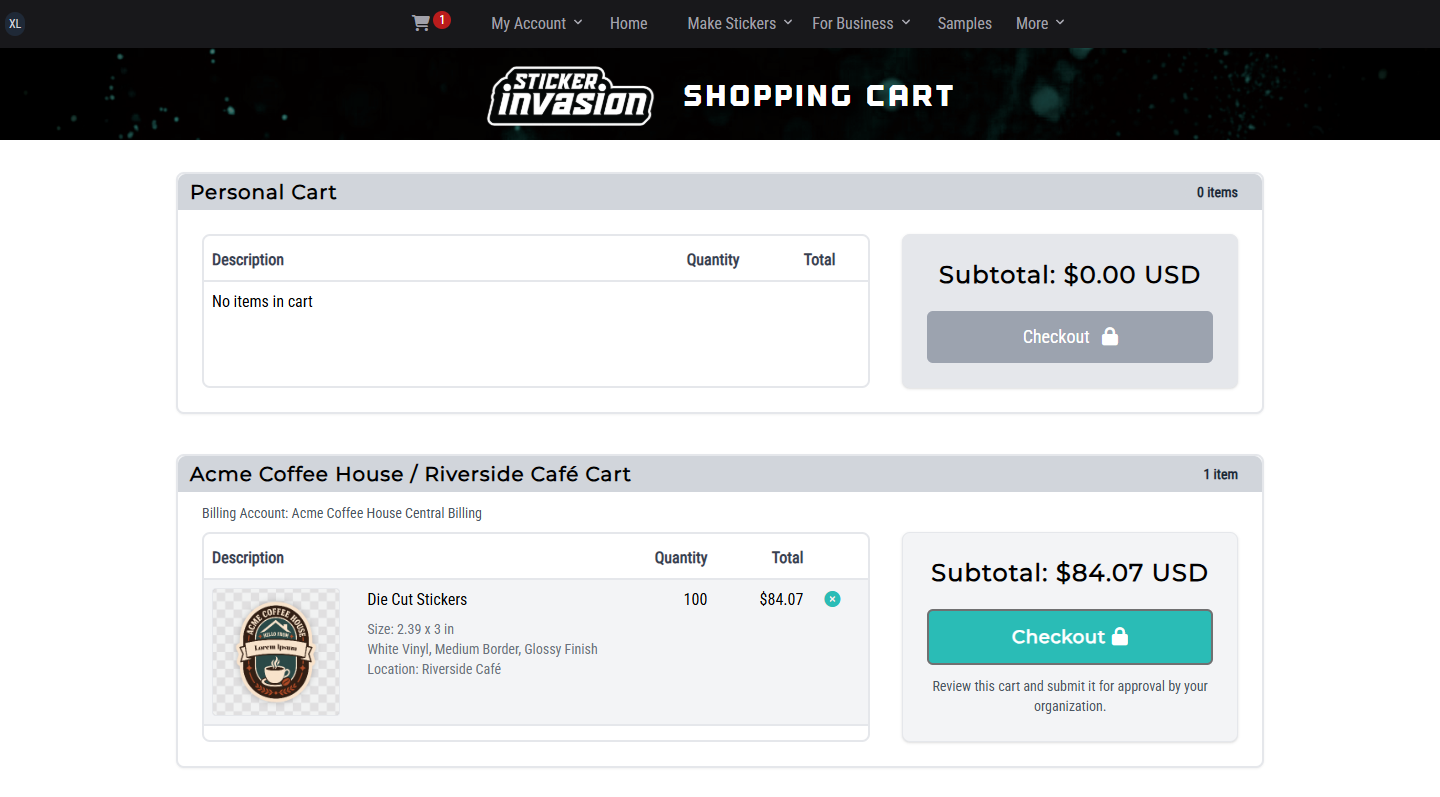
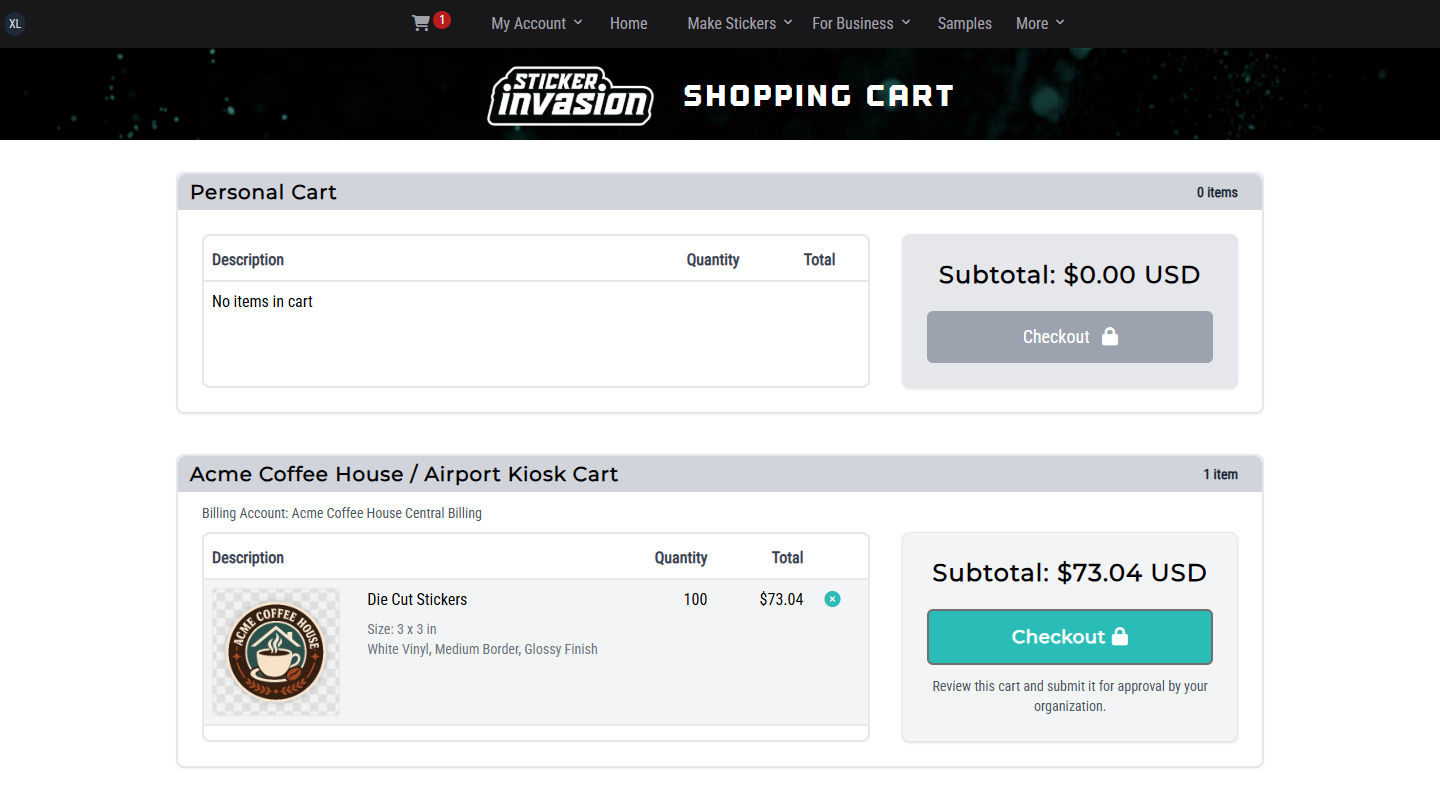
Open the cart and locate the Acme Team section. Confirm its Organization, Location, Billing Account, item count, quantities, and subtotal before selecting Checkout.
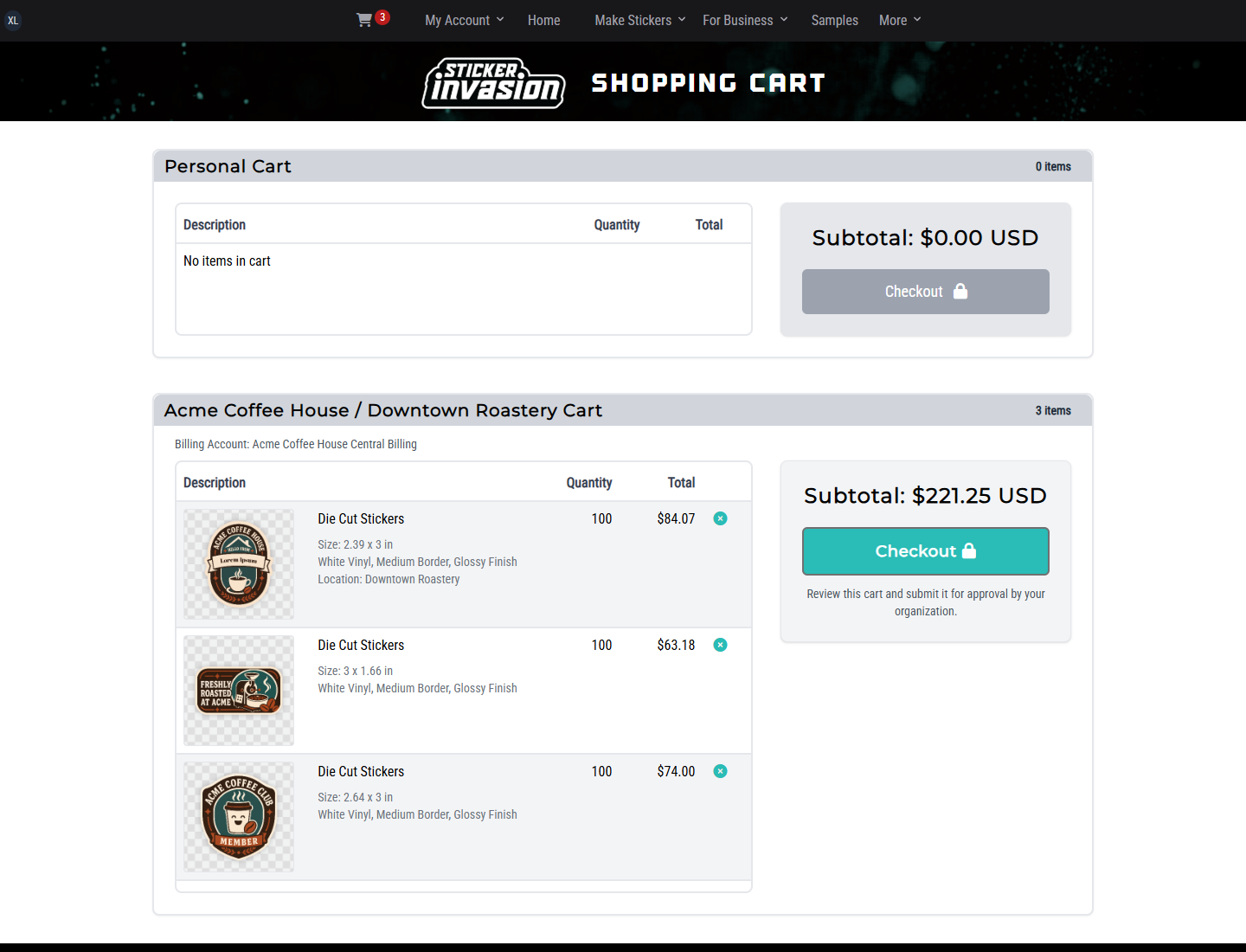
If an item went to the wrong cart, return to My Designs and select the correct eligible destination. Do not rely on changing the workspace to move an existing cart line.
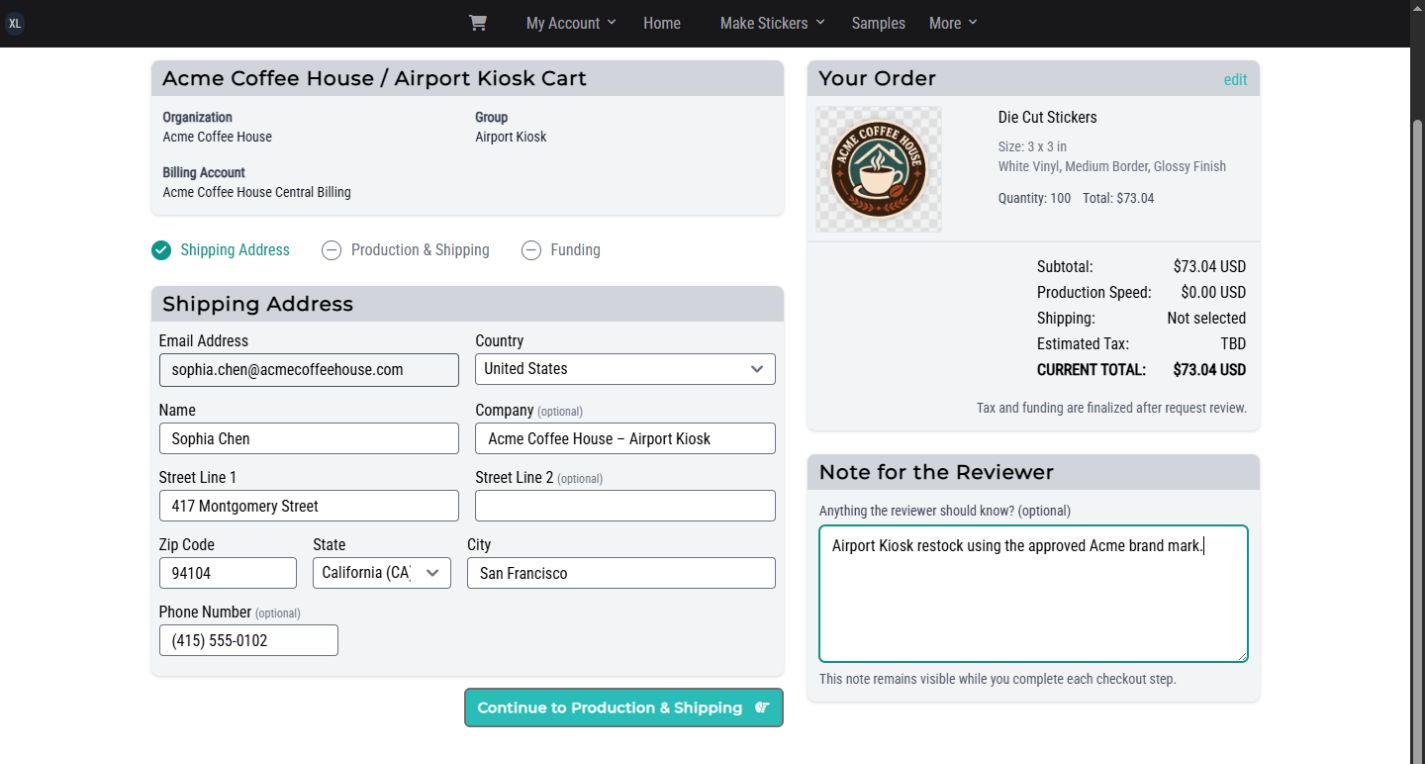
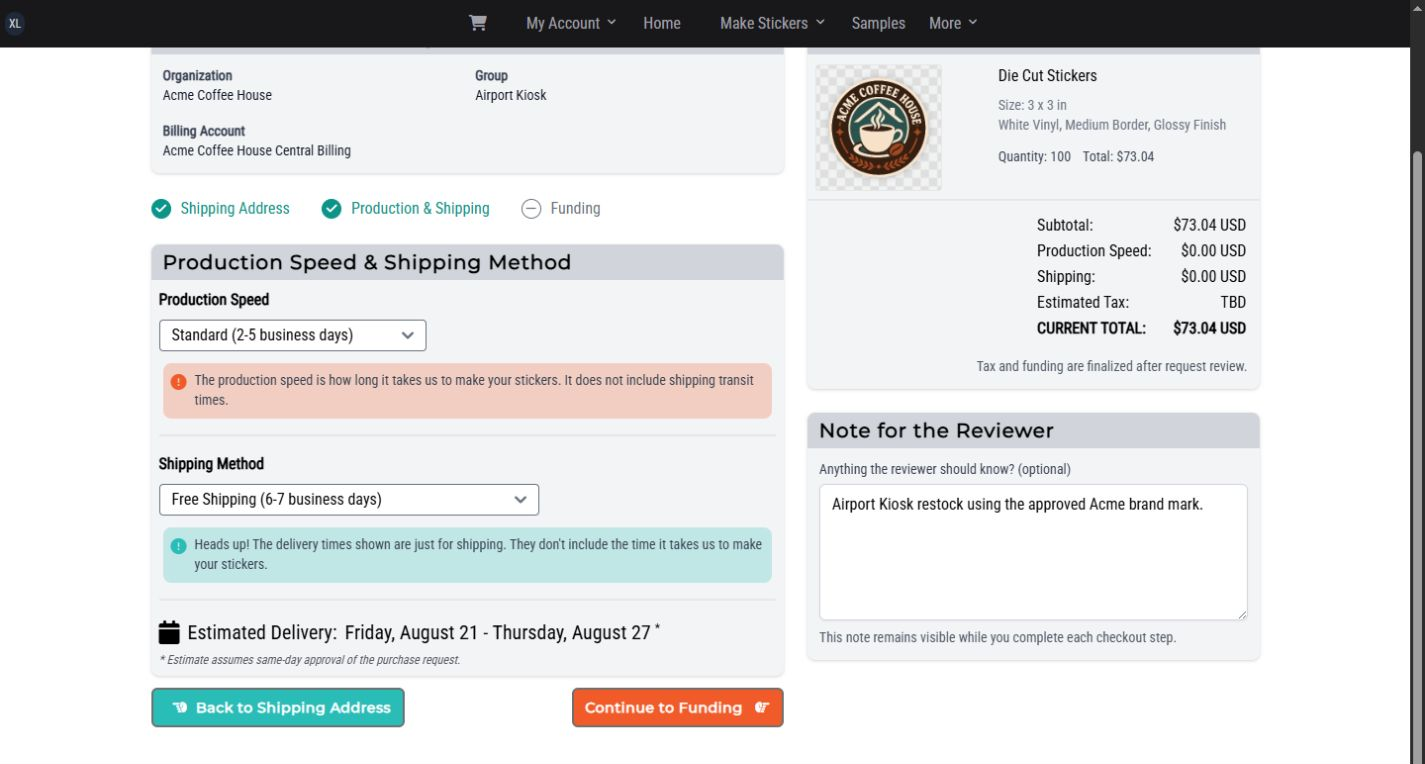
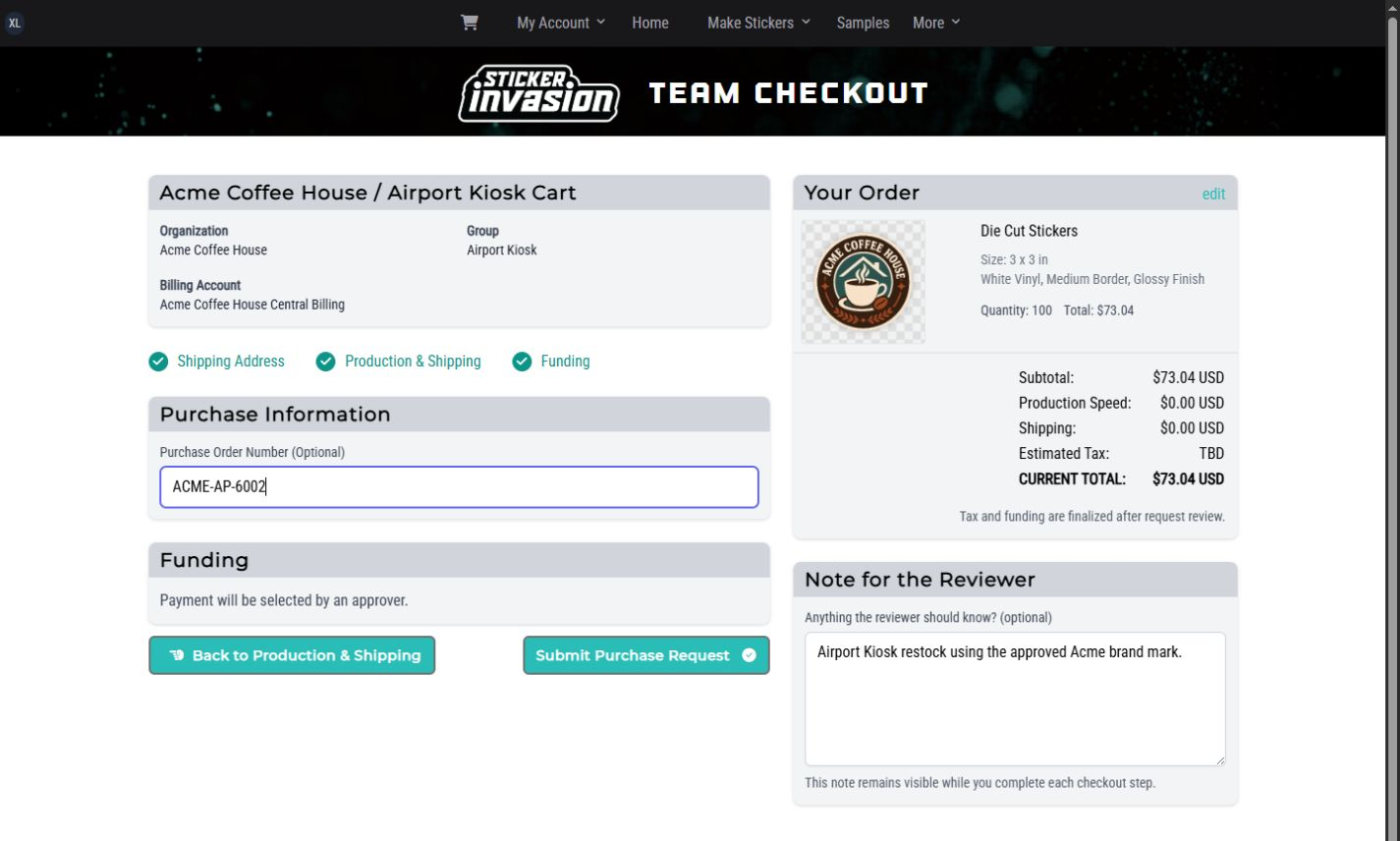
Checkout walks through shipping address, shipping and production choices, and purchasing details. Depending on the Billing Account policy, you may also choose an approver, enter a purchase-order number, or select an available funding option. In the Acme example, the requester selects shipping and production, the PO number is optional, and the approver selects prepaid funding.
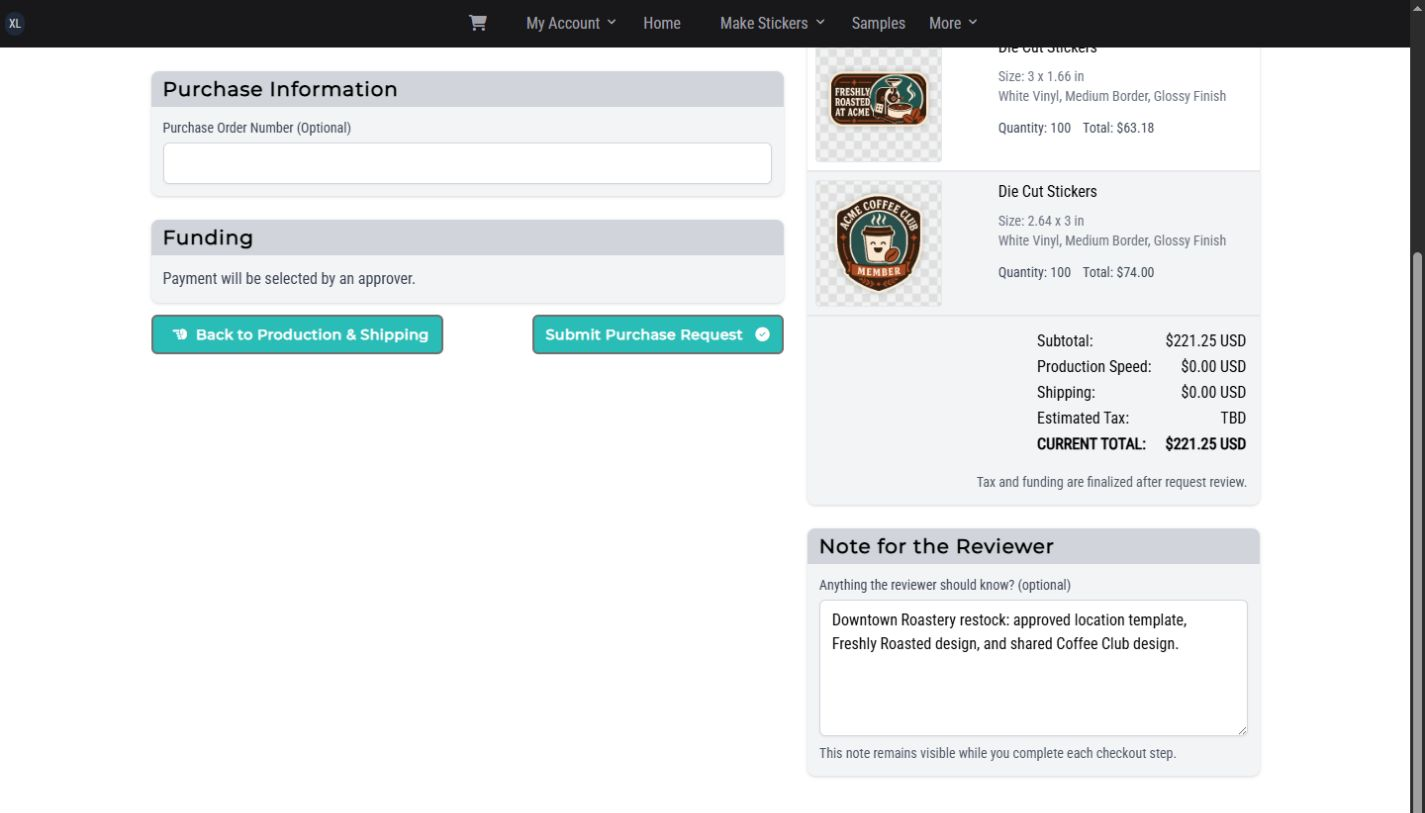
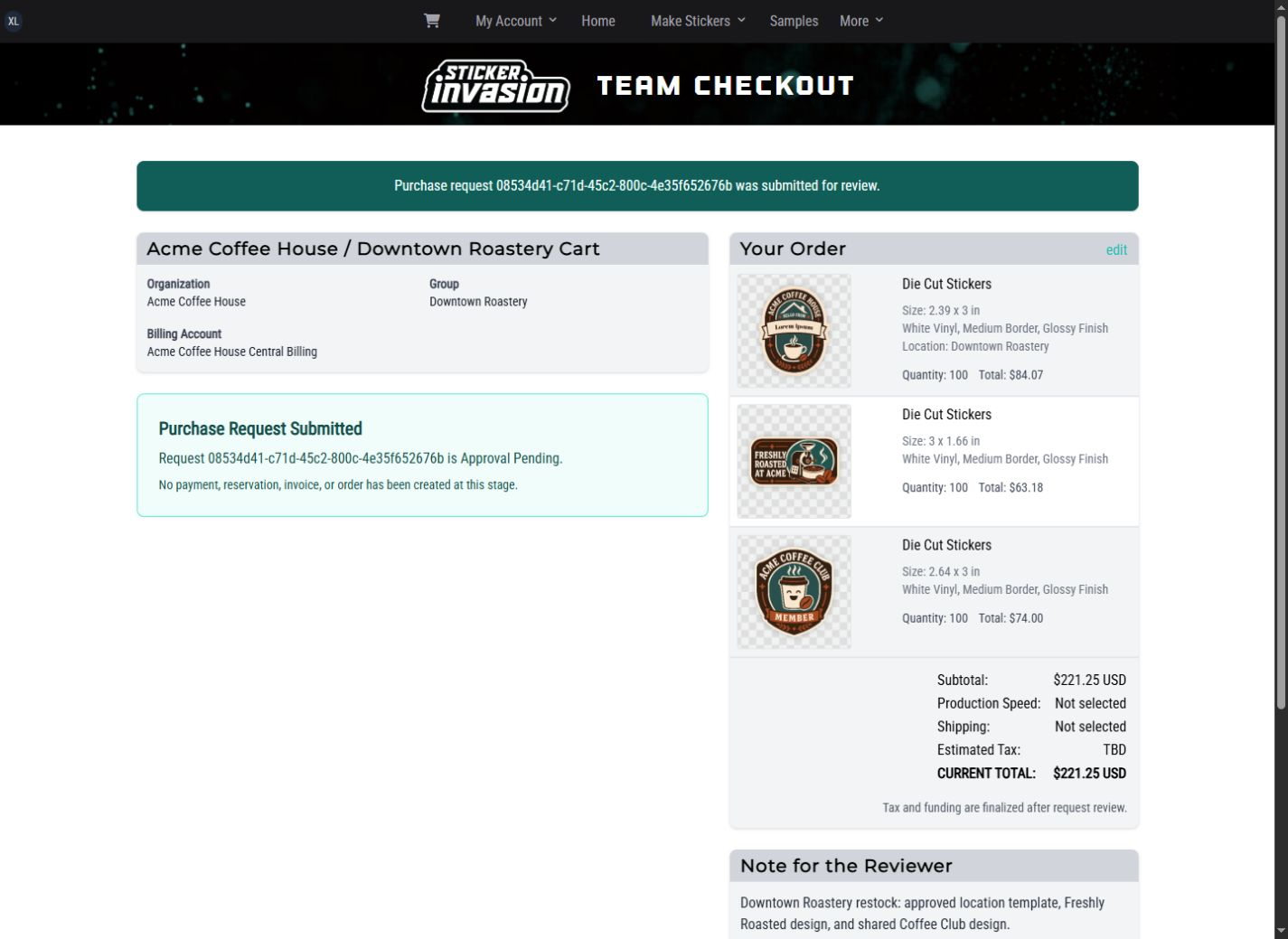
Review the final cart summary and requester note before submitting. A checkout submission freezes the exact cart revision and commercial selections for review. At this stage it does not by itself create an Order, payment, funding reservation, or invoice.
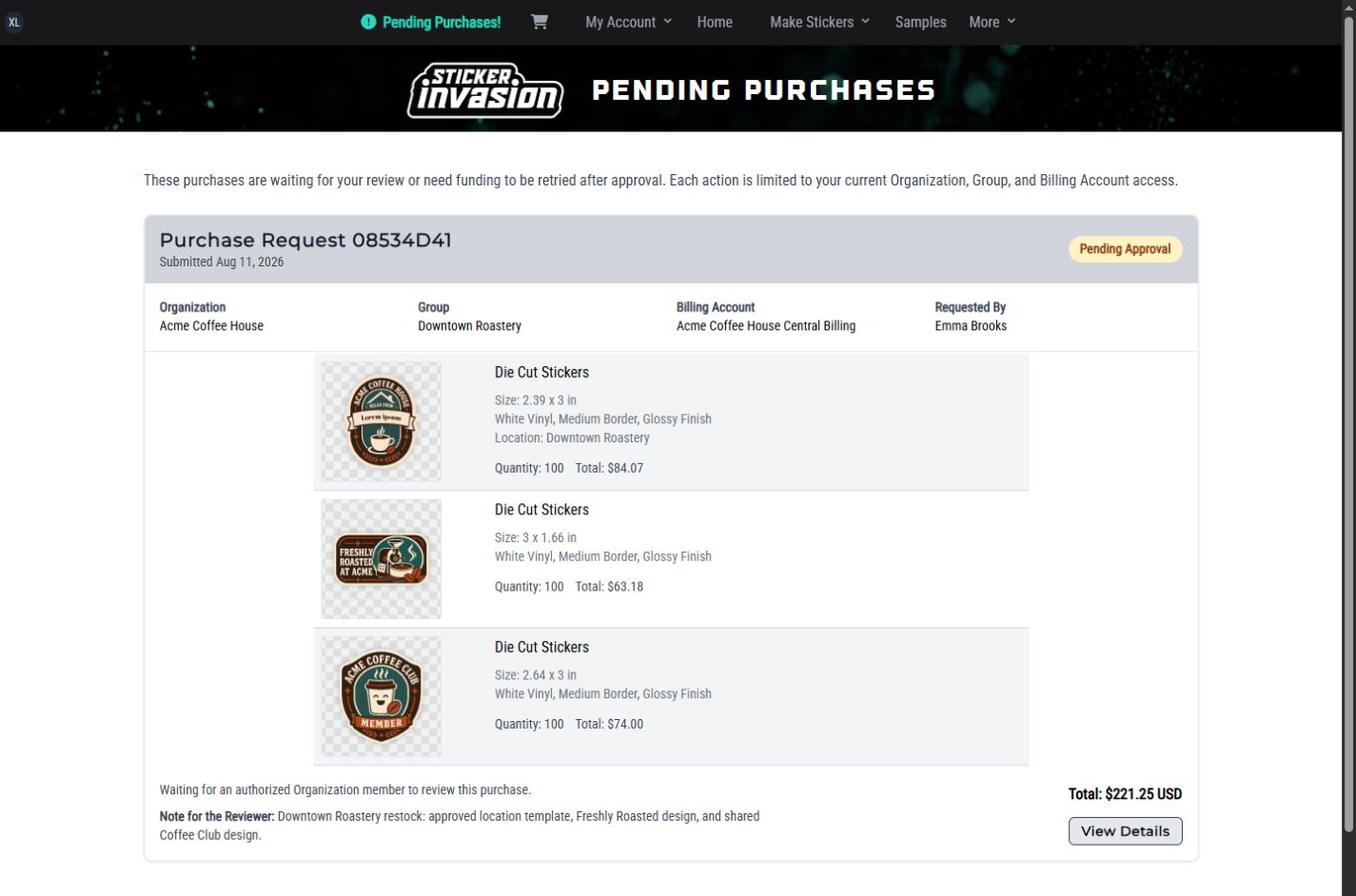
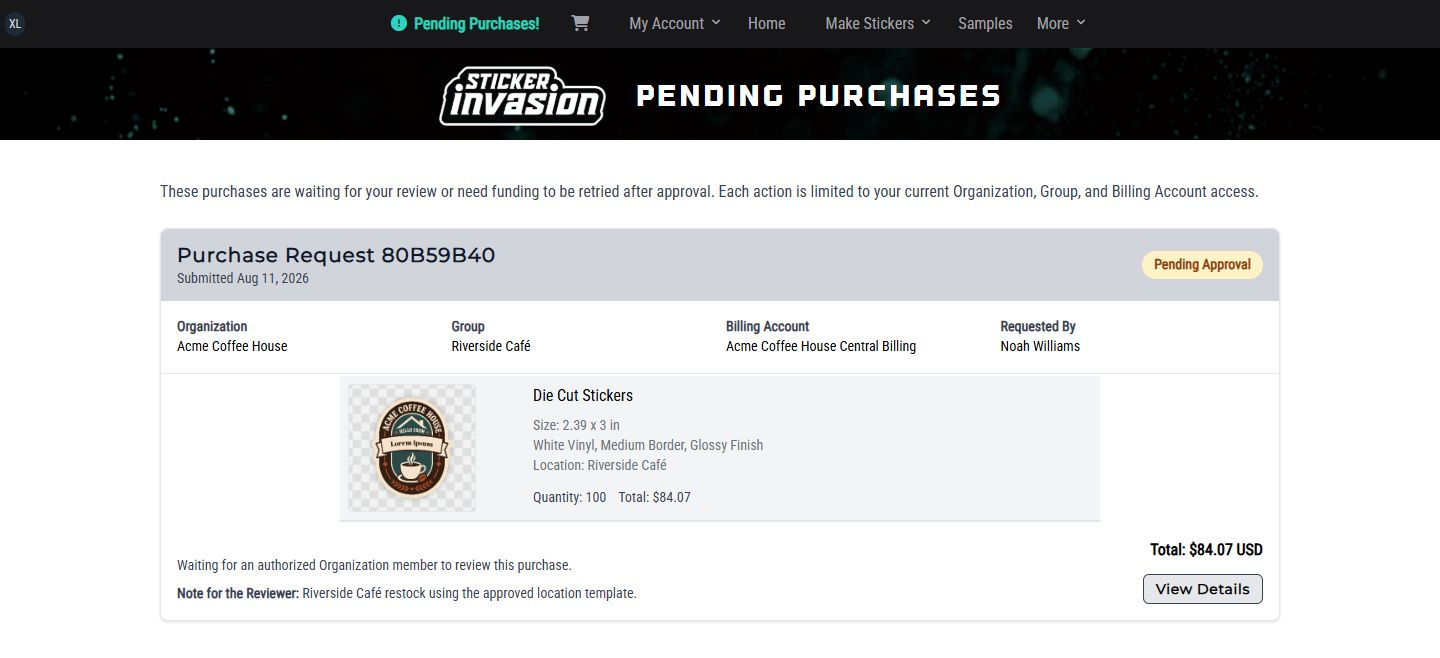
An authorized approver opens Pending Purchases and selects a request within their assigned Organization, Location, and Billing Account scope.
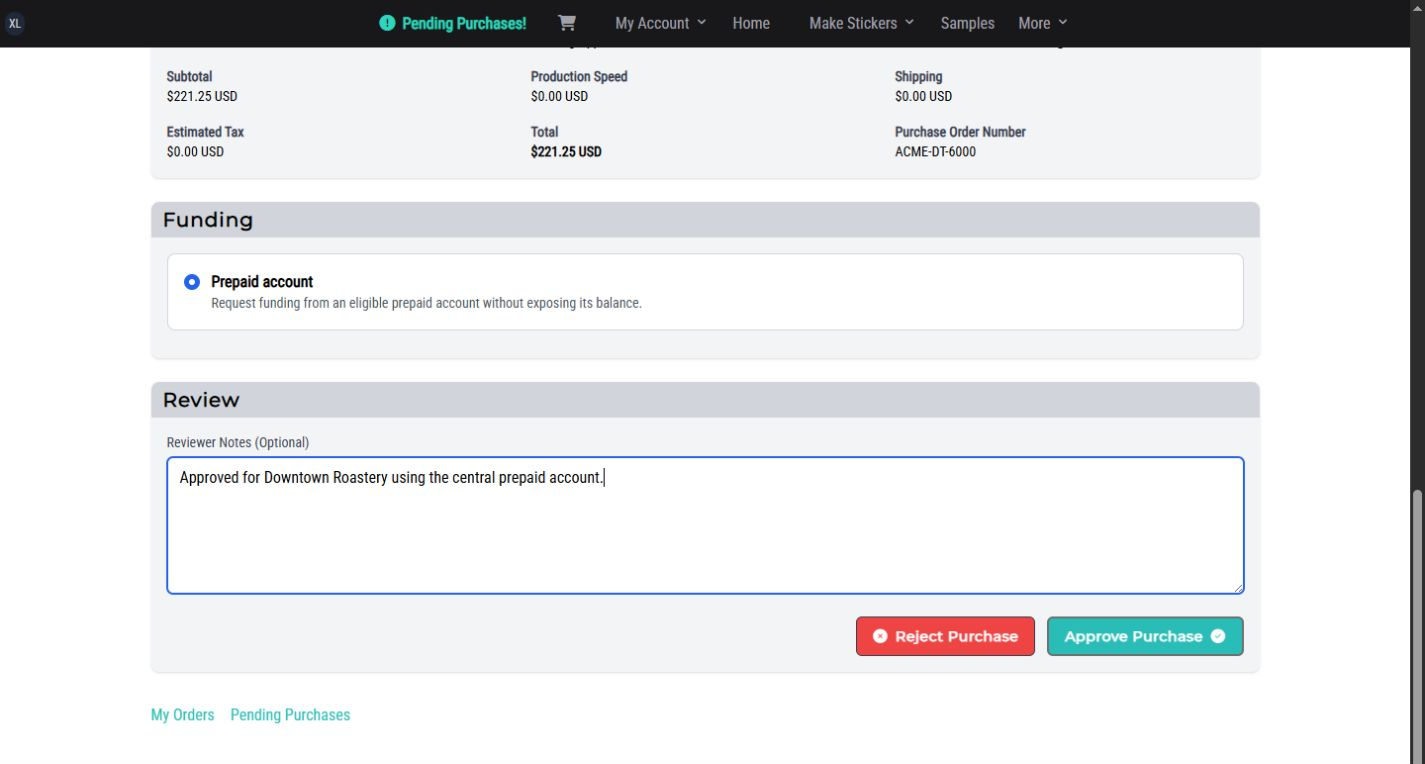
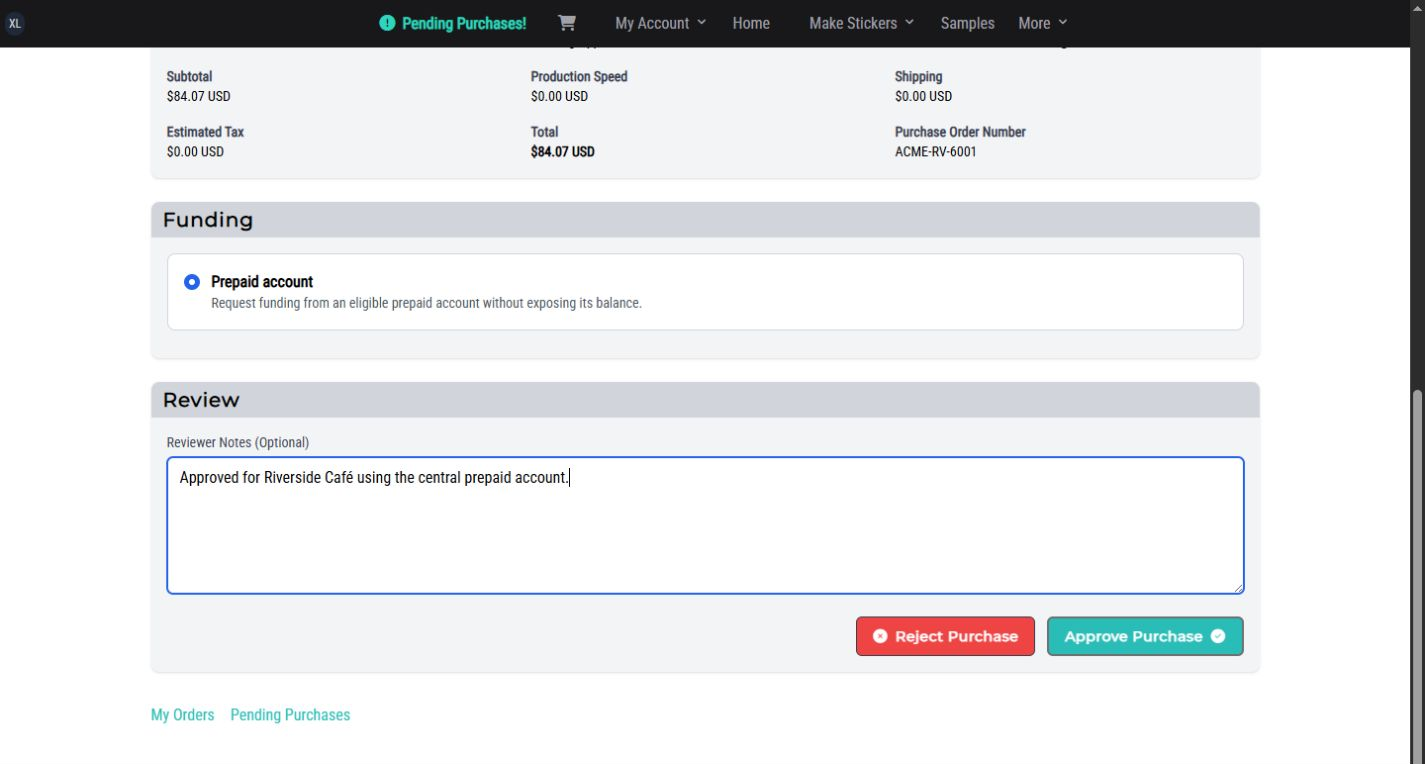
On the request detail page, compare the items, totals, delivery details, PO, requester note, and policy requirements.
An approver with design-review access can select an item's artwork thumbnail to open the exact Design details in a read-only dialog. If the Billing Account assigns shipping, production, or funding selection to the approver, complete those choices before making the decision.
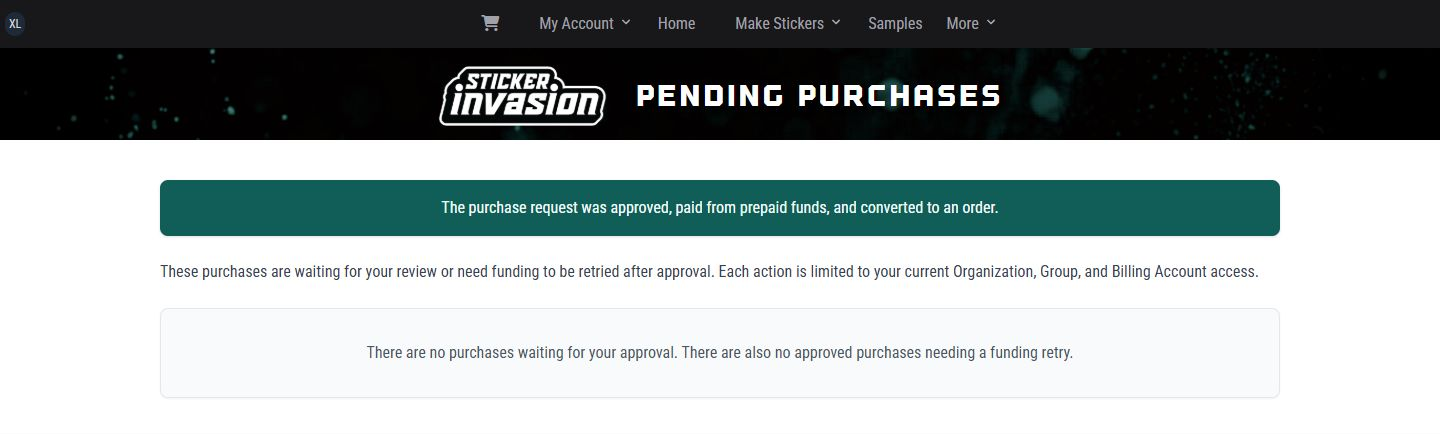
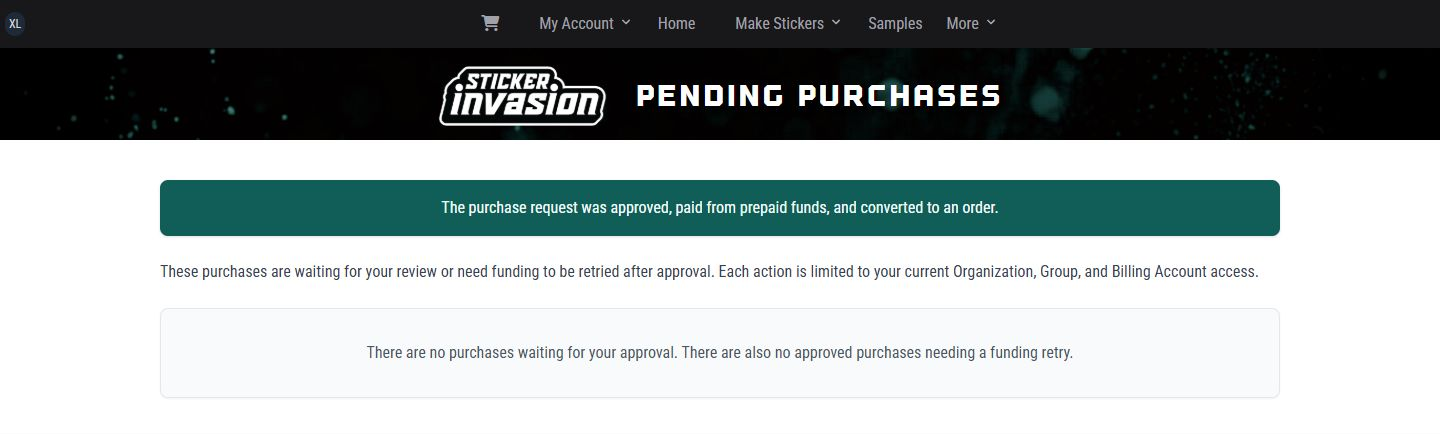
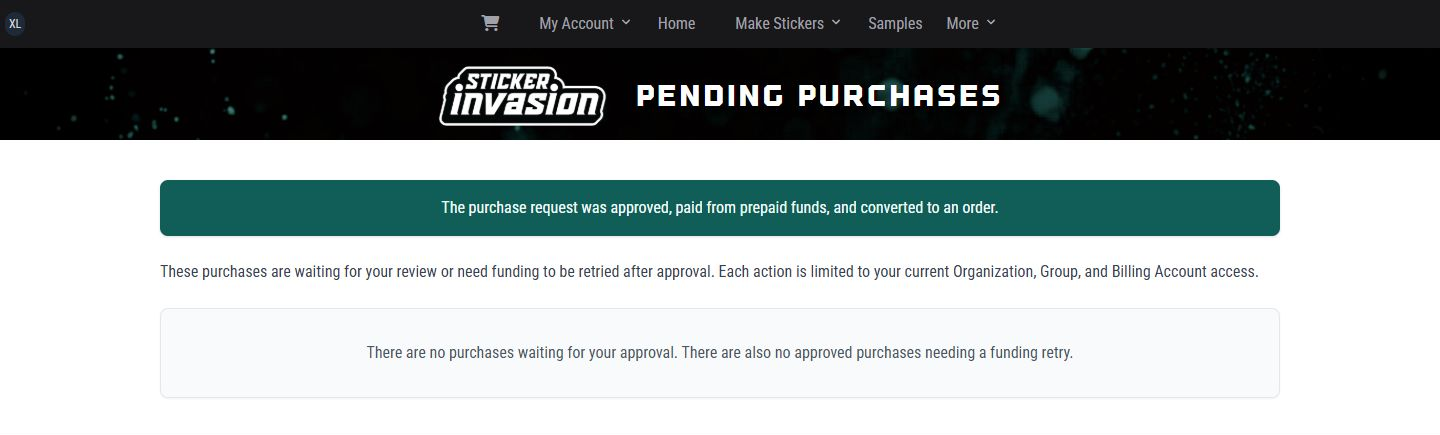
After approval and successful prepaid funding, the confirmation states that the request was converted to an Order.
Once the request shows Order Created, the resulting Team Order appears in My Orders.
An active Billing Account approval budget can approve a purchase automatically or send it directly to one approver tier. It does not create a corporate review followed by a Group review.
Budget approval is separate from funding, shipping, production, proof, and licensing requirements. An automatically approved purchase may still pause for a choice or review assigned to an authorized person.
Open the Purchase Request from My Orders and use the action that matches its current state:
Never submit a second unrelated checkout merely because a request is still processing. Read the customer-facing status and use the available action on that request.
Each Location keeps its own Team cart and checkout context even when all Locations use the same central Billing Account. The Riverside walkthrough starts with a configured Hello from Our Location template.
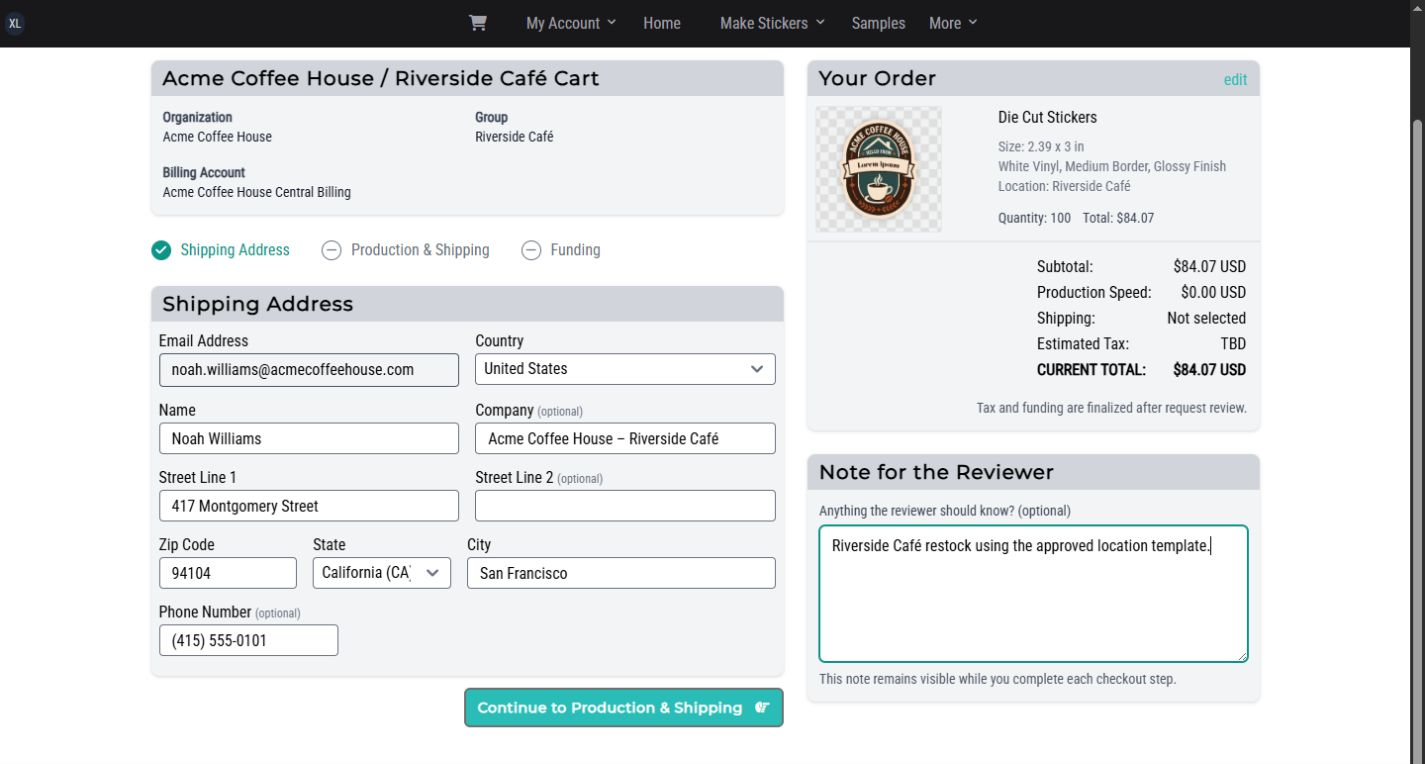
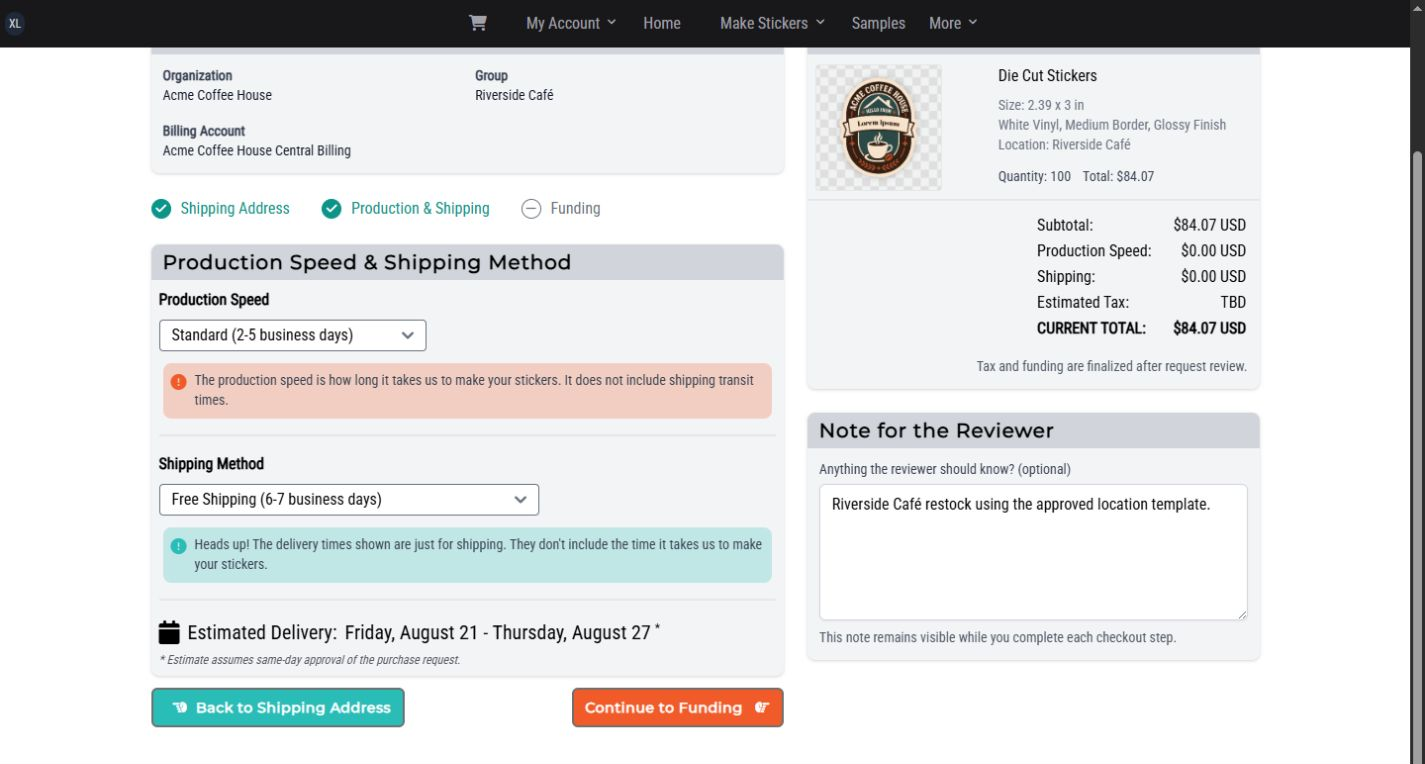
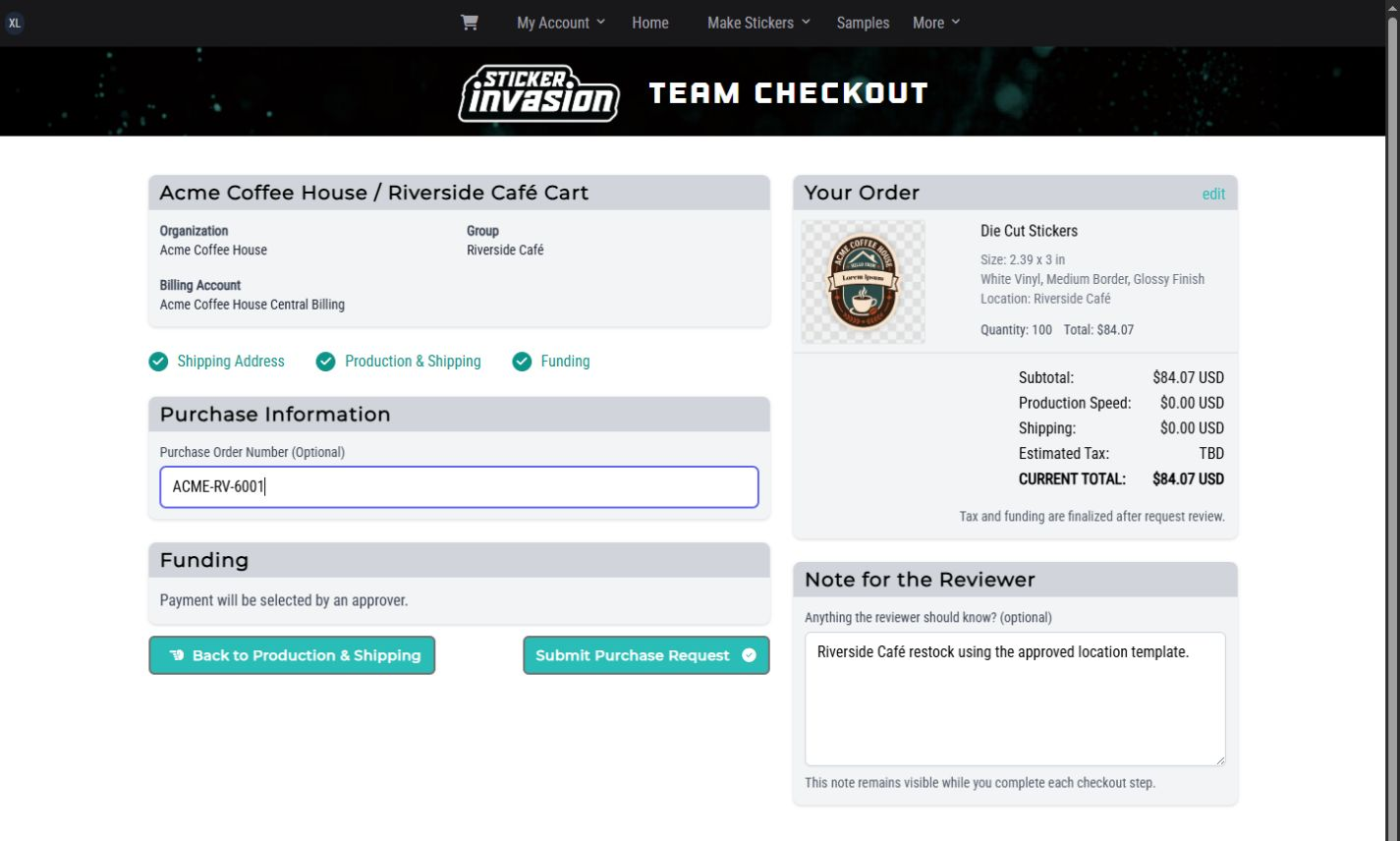
Enter the shipping contact and reviewer note, choose the available production and shipping options, then enter the optional PO before submission.
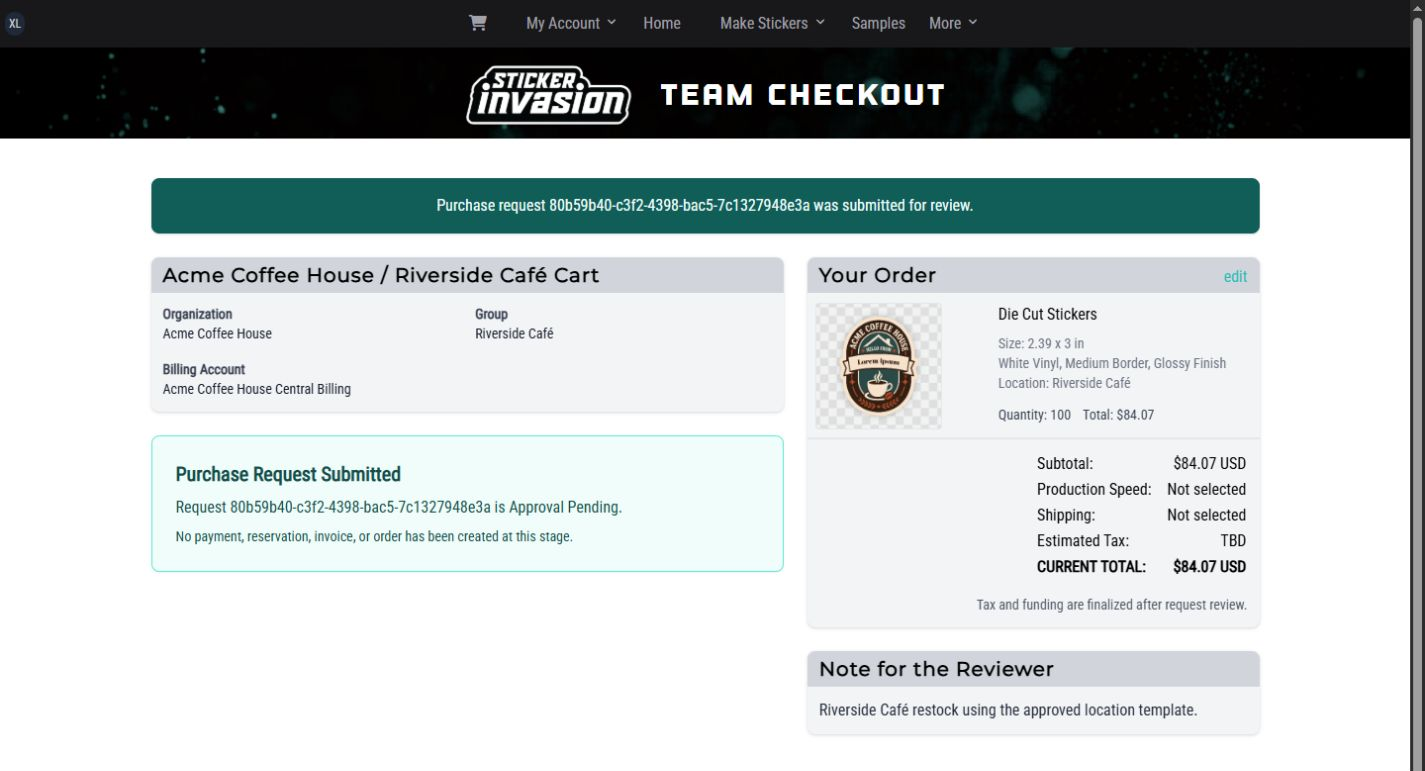
The Organization Owner sees the Riverside request with its exact requester and Location, chooses Prepaid, records the decision note, and receives the Order-created confirmation.
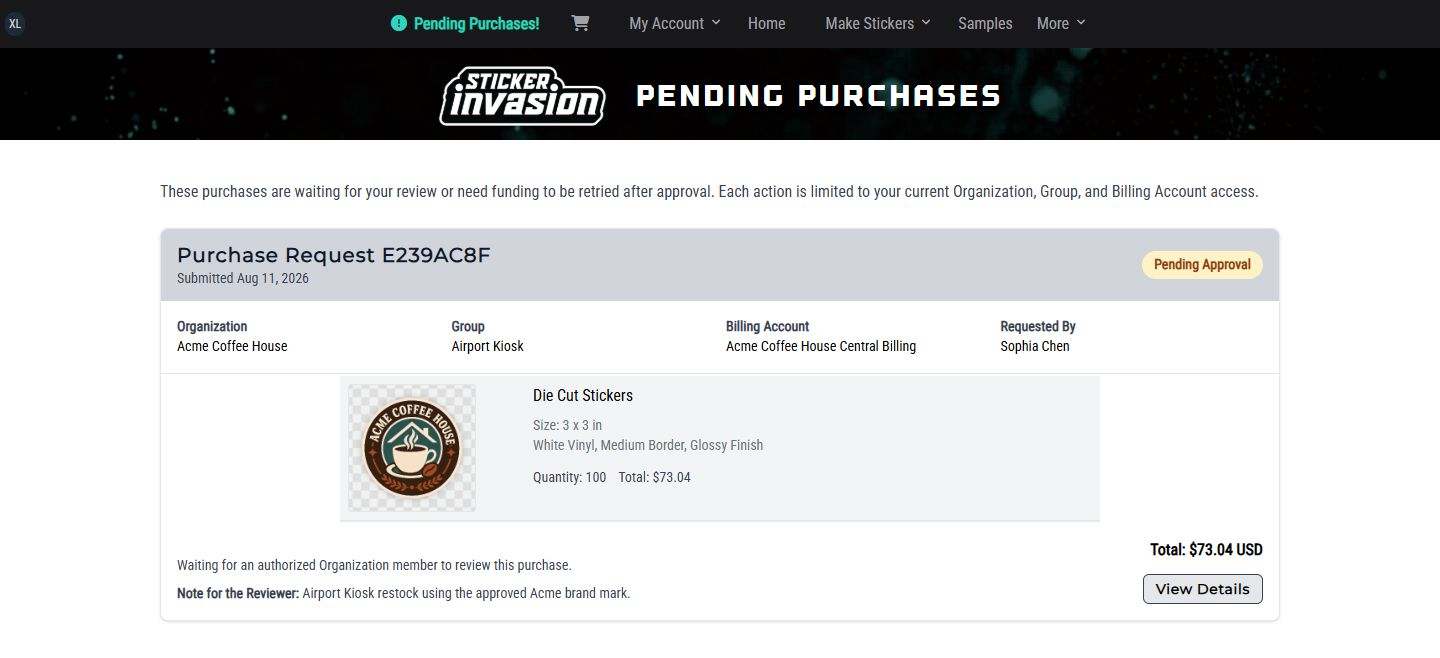
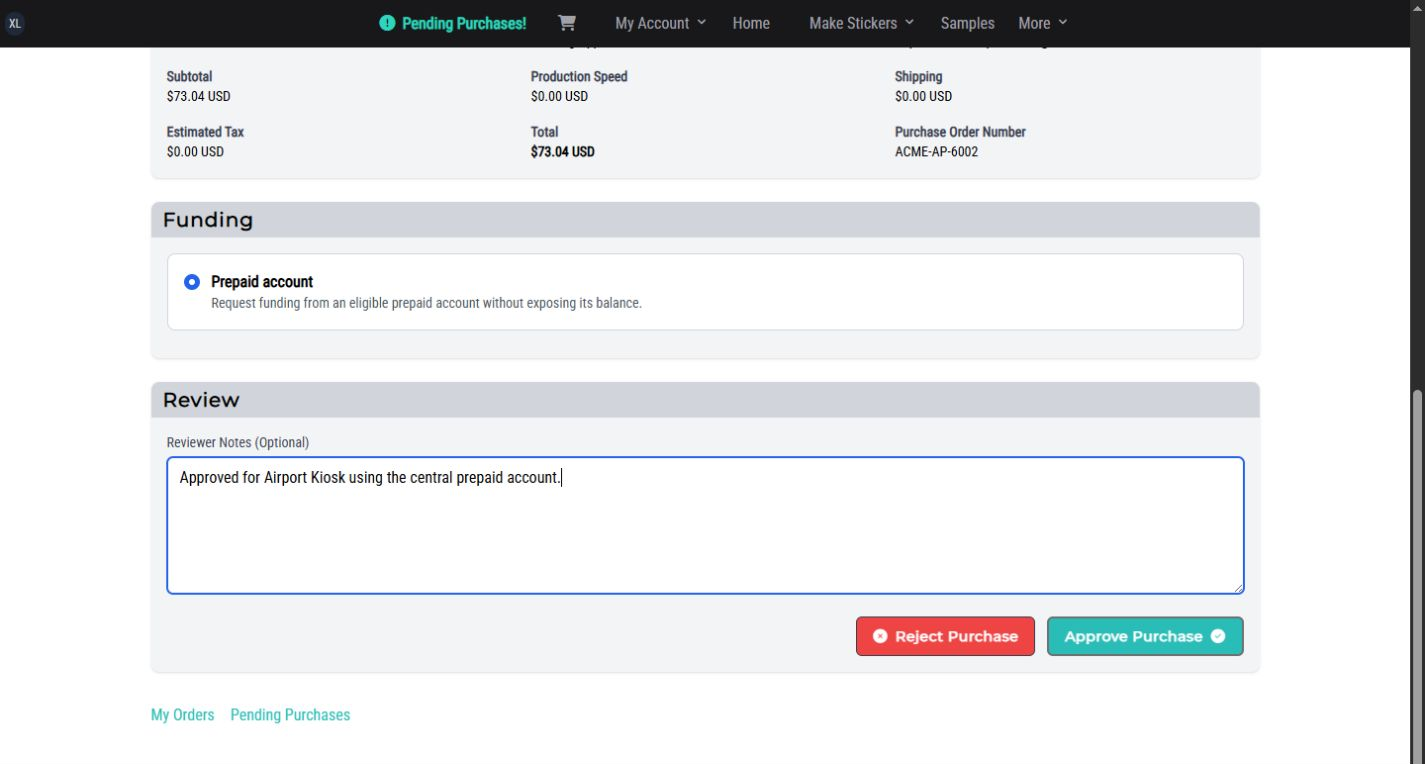
The Airport Kiosk walkthrough uses the approved standard brand-mark design. Its cart, checkout, PO, and purchase request remain isolated from Downtown and Riverside.
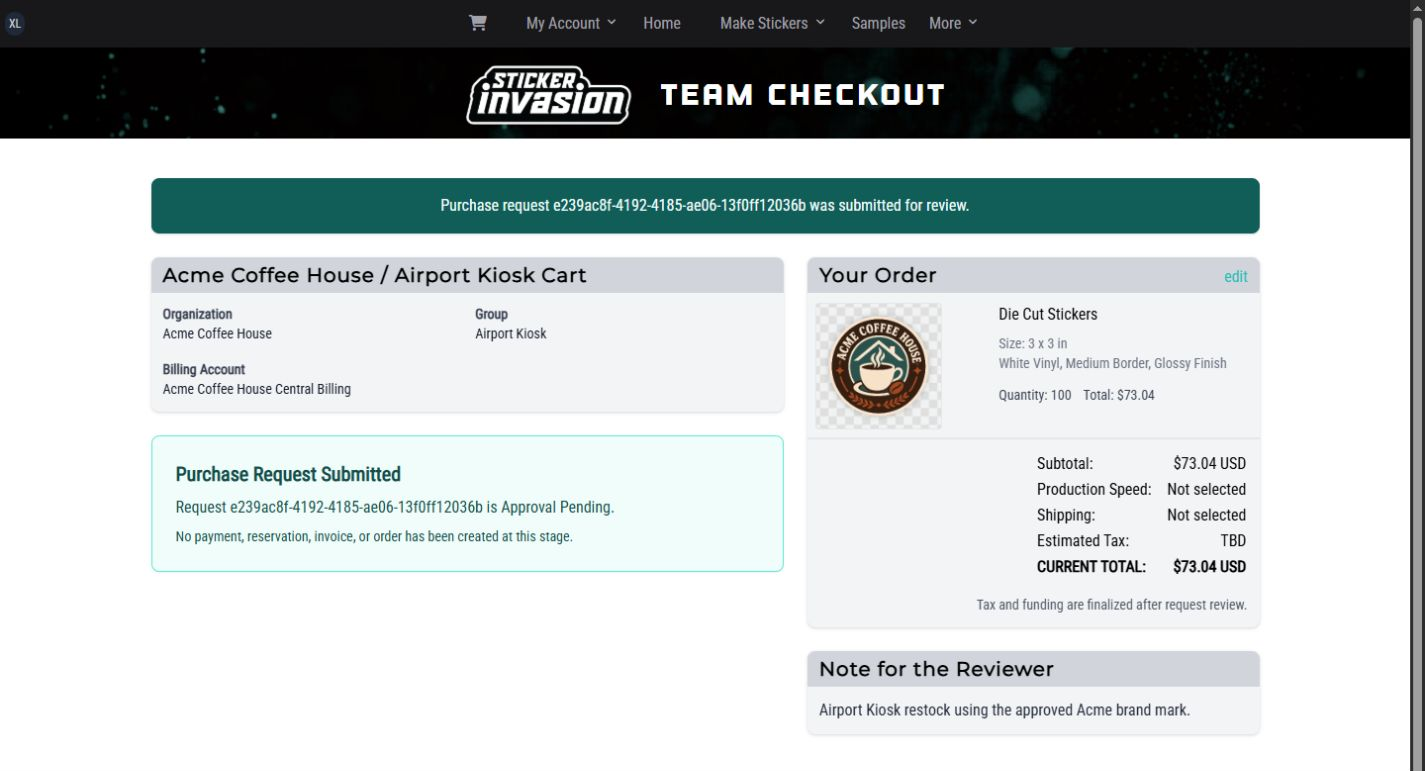
The Organization Owner reviews the Airport requester and Location, approves Prepaid funding, and receives the same completed conversion result.
Chapter 9
For: Buyer, Organization Administrator, Billing Manager, Report Viewer
Team order, billing, invoice, and report pages are permission- and scope-aware. A member sees only the Organizations, Locations, Billing Accounts, and actions allowed by their current assignments. If a menu item or button is missing, ask an Organization Administrator to review that access rather than using another member's account.
Open Account menu → My Orders. The page may show your active Purchase Requests above the Order list; completed requests are replaced by the resulting Order.
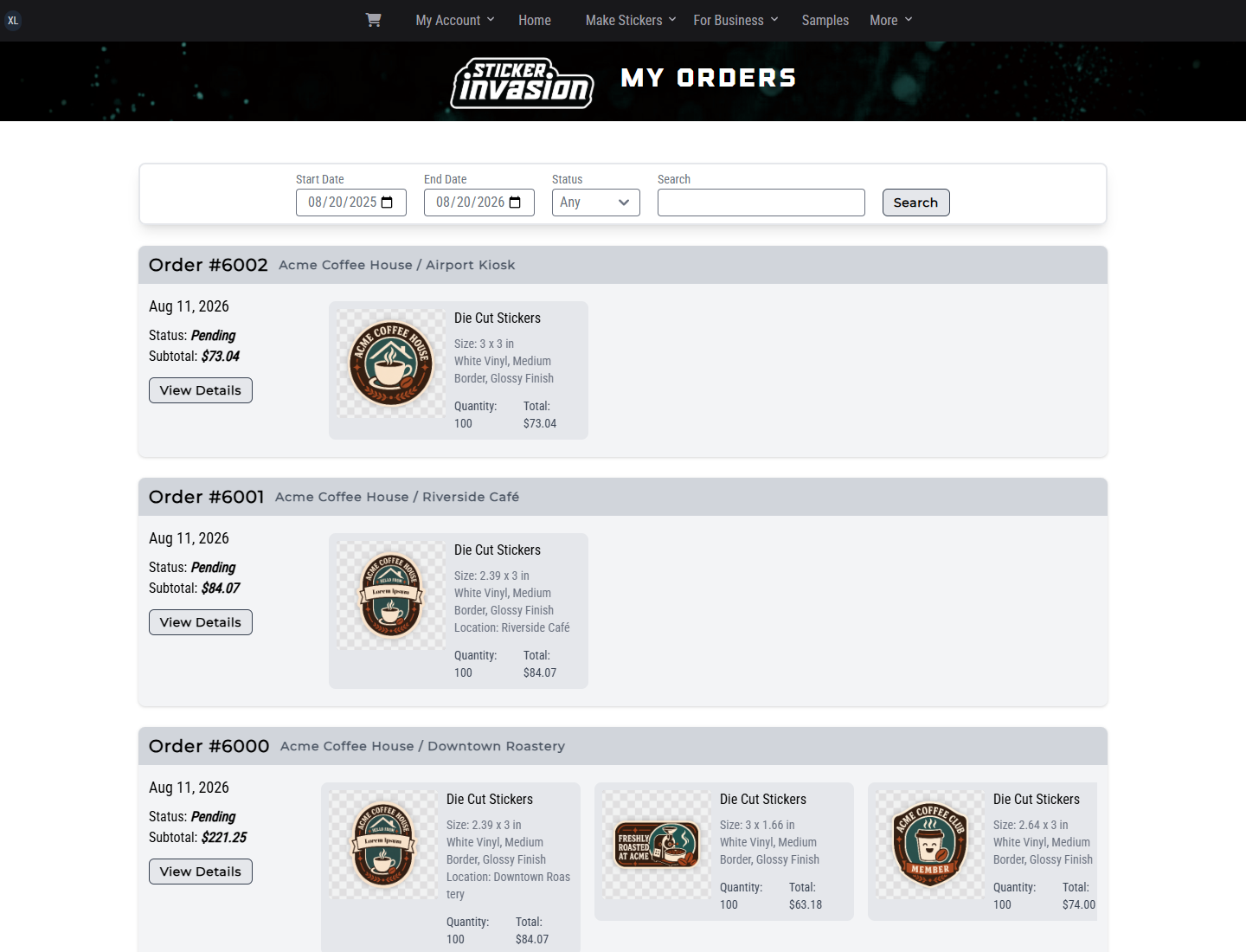
Select View Details to open the Order overview without losing the filtered list.
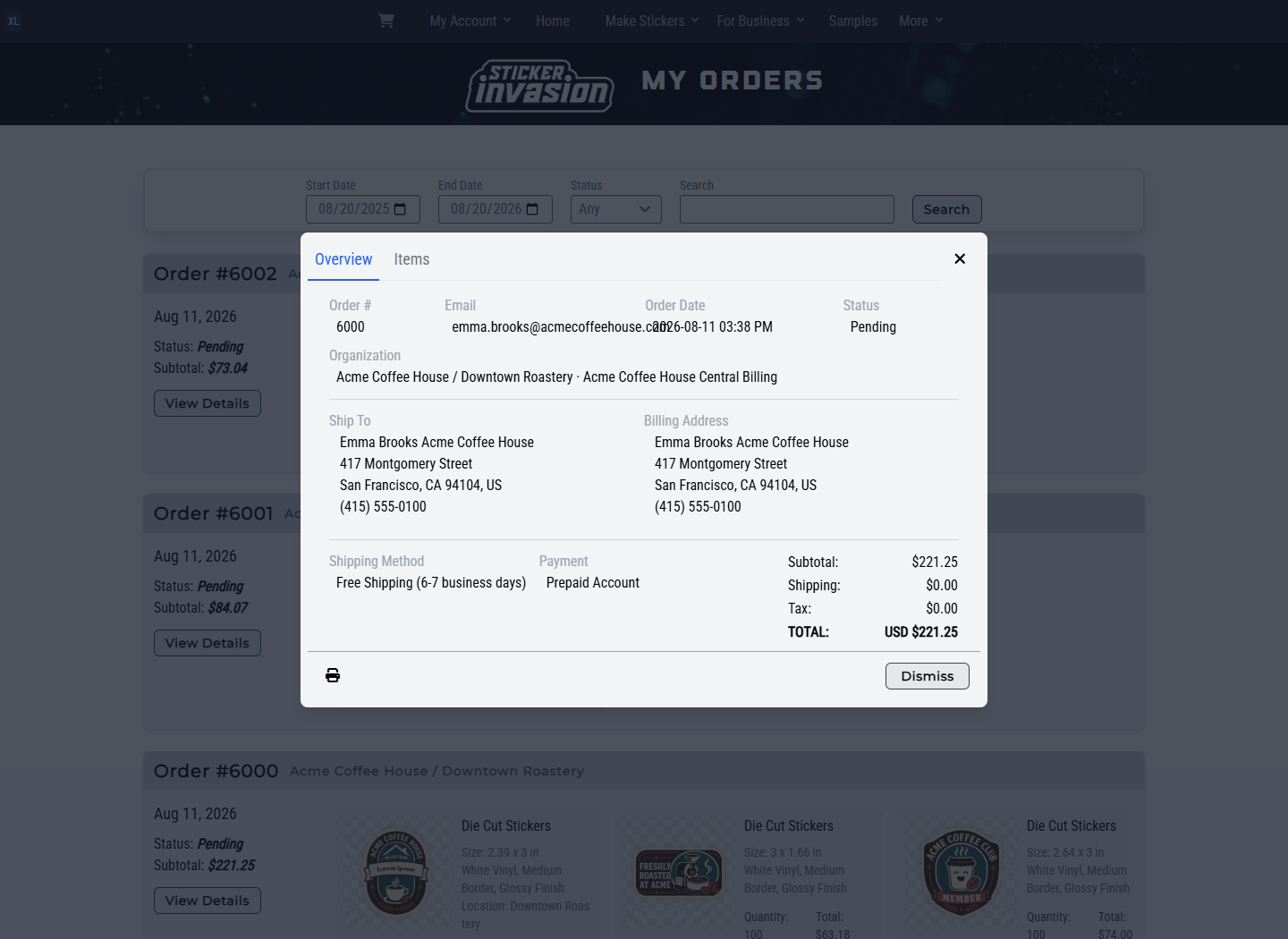
A member with own-order access sees only Orders they placed. Group- or Organization-level order access can reveal additional Orders within the member's exact assigned scope. Losing active membership or access to that scope also removes access to those Team Orders.
The detail window has Overview and Items tabs.
The Organization, Location, Billing Account, and purchasing facts shown on an existing Team Order remain attached to that Order even if the current Organization setup is renamed later.
When an item has a proof, its Order card displays Proof. A card that still needs a decision also displays PROOFS NEED APPROVED.
Members with proof-view access but not proof-decision access can review the page but do not see the decision actions. Approval applies to the exact design version shown, so request changes whenever the artwork itself must be revised.
Select View Details, stay on Overview, and find Shipments.
The Shipments section appears only after shipment or pickup information is available.
The Reorder button appears on eligible item cards after the source Order reaches Production, Shipped, or Delivered and only when your role and current purchasing scope still allow the reorder.
Reorders use the already approved artwork and skip a new proof. Start a new design/order when artwork changes are required. Reorder may be unavailable if the Order is too early in its lifecycle, the design is no longer active and approved, the original Location or Billing Account can no longer purchase, the product no longer matches, or a current price is unavailable.
Every new Organization receives an initial default Billing Account shell. An Organization Administrator or Billing Manager with Organization-level account-management access can create additional accounts when different Groups need separate purchasing or funding policies.
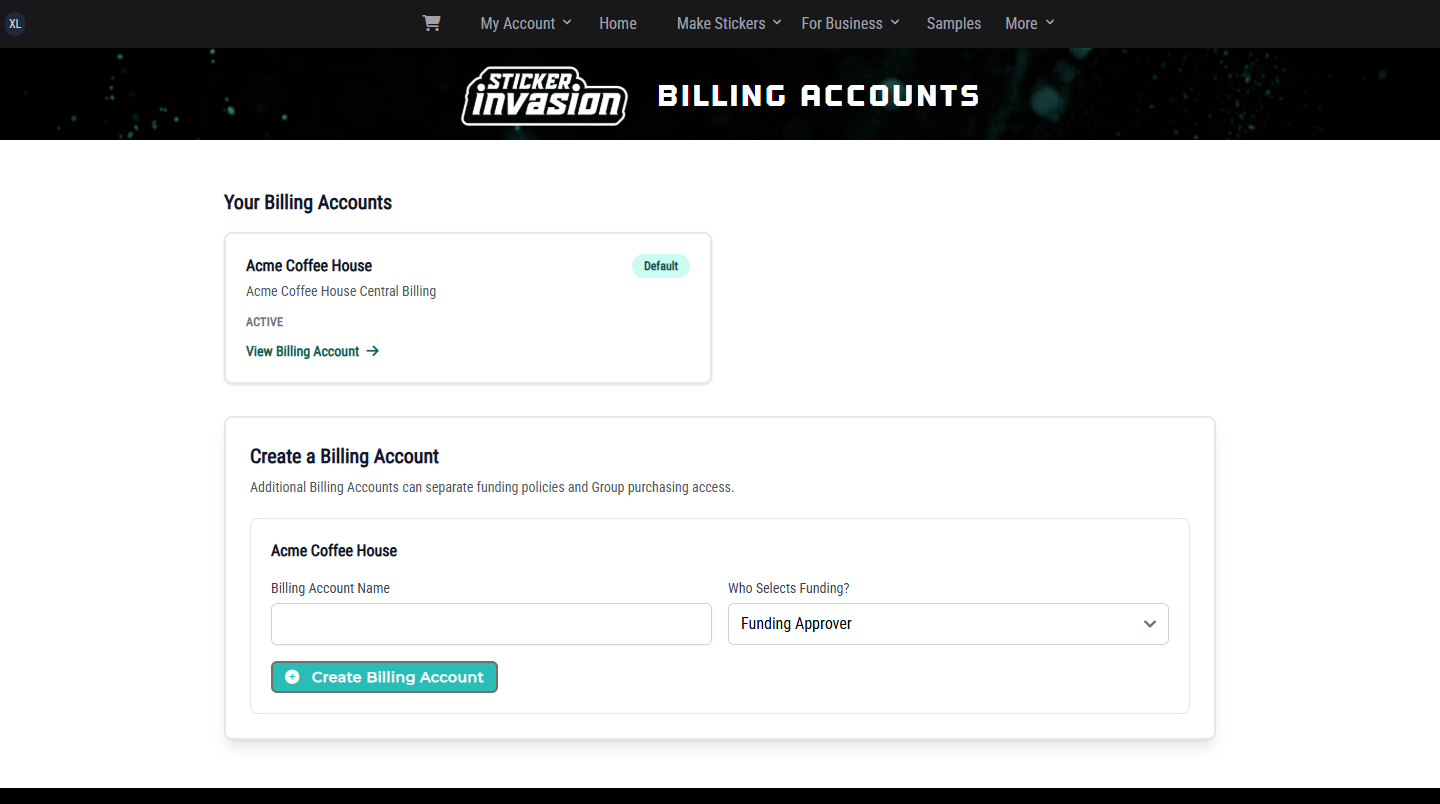
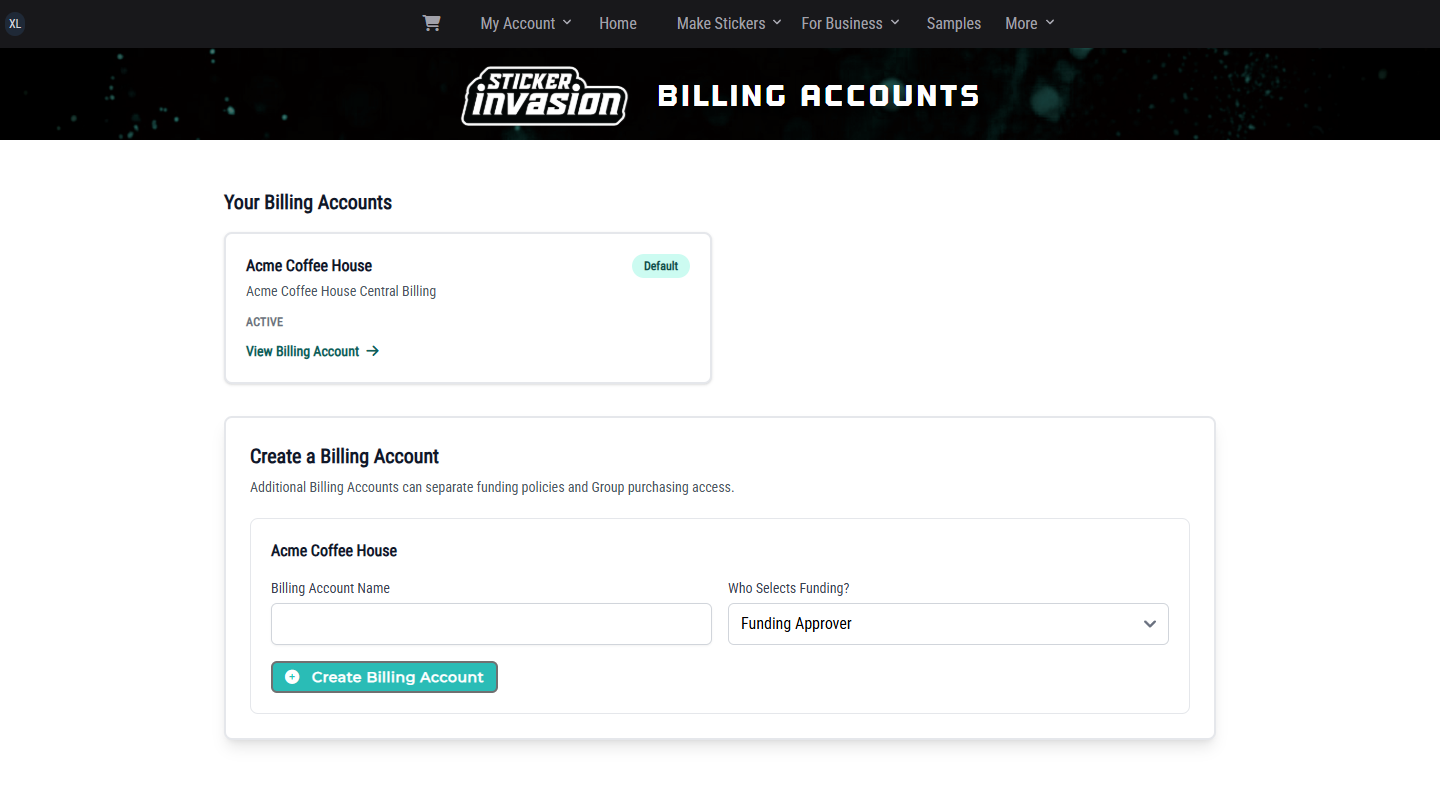
Creating the account does not add funds, approve Invoice Terms, save a payment method, or make it the Organization default.
Open Account menu → My Team → Billing Accounts and select View Billing Account for the authorized account.
The account header shows its Organization, name, status, currency, and Default badge when applicable. Tabs can include Overview, Payment Methods, Prepaid, and Invoice Terms; they appear only when the corresponding feature and your role allow them.
Acme Coffee House Central Billing is configured for Prepaid Balance only, requires purchase approval, and is eligible for all three Locations. Invoice Terms are available for interested customers to request, but Acme's example account does not represent approved credit.
Members allowed to manage the account can use Billing Account Settings on the Overview tab.
These policies apply immediately to new checkouts and to open purchase requests that do not yet have funding selected. A member who can manage payment methods but not account settings sees the account policy read-only.
Under Account Status and Default, use Update Status to switch between Active and Paused, or to close an account. Closing is final and does not change historical Orders. Only an Active account can become the Organization default through Make Organization Default. Credit Hold and Collections are controlled by Sticker Invasion Finance.
Under Group Eligibility, use Eligible to allow a Location to use the account, Group Default to make it that Location's default account, and select the funding methods that Location may use. Select Save Group Eligibility for each changed Location. Account-level permission alone does not bypass a Location's eligibility or funding restrictions.
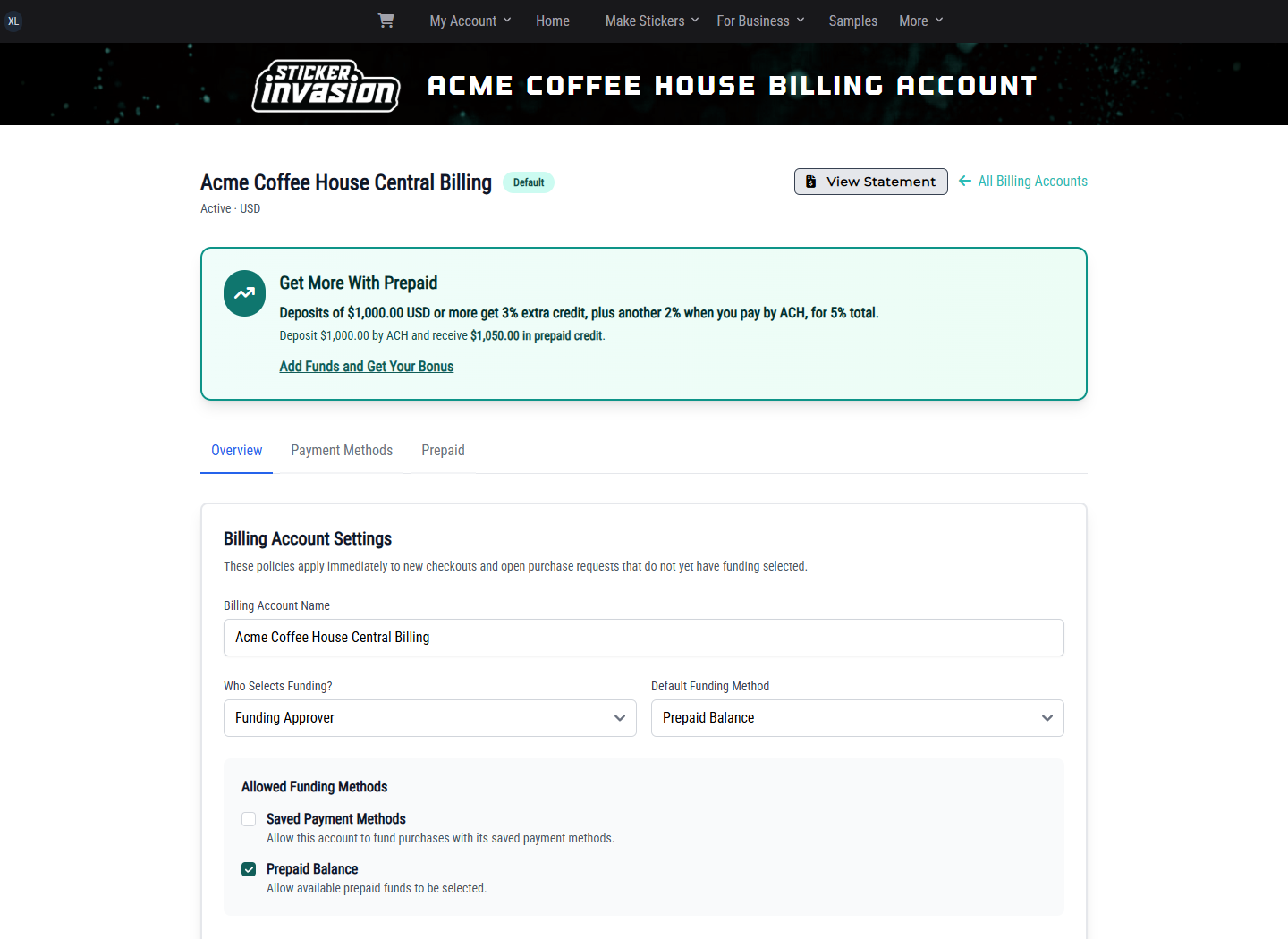
Open the Billing Account and select Approval Budget. The controls shown depend on the exact scope of your role.
An Organization Administrator with corporate approval-policy access configures the Billing Account ceiling:
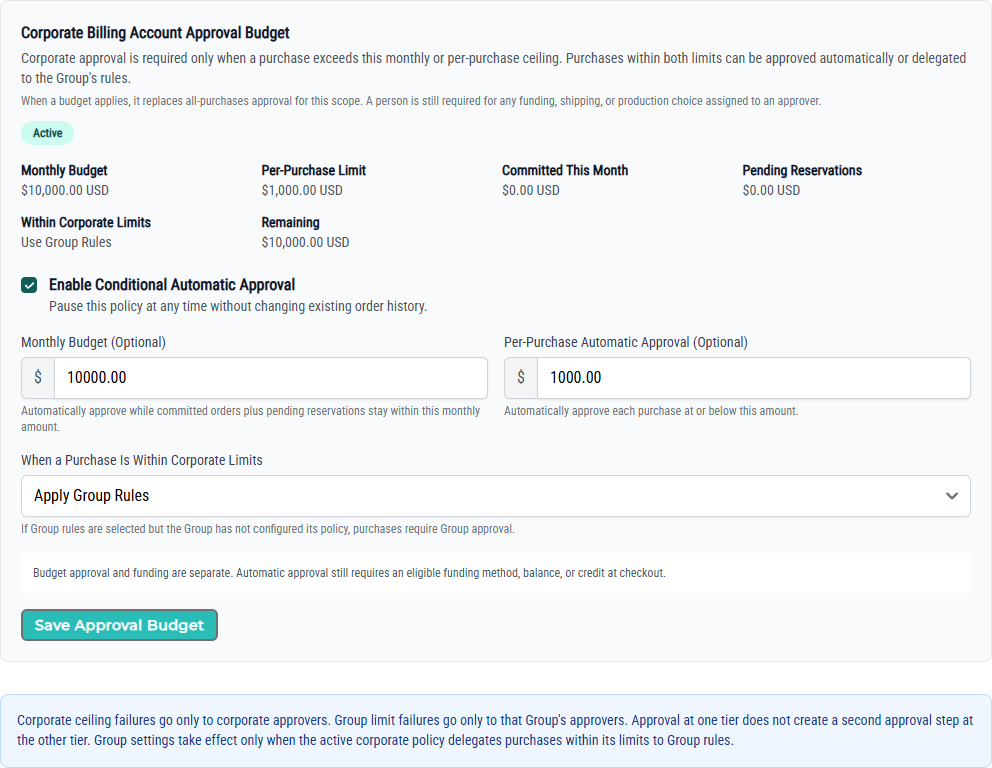
Choose Apply Group Rules when corporate wants each Location, department, or other Group to manage ordinary purchases inside the corporate ceiling. A corporate ceiling exception goes only to Organization-level Purchase Approvers.
A Group-scoped Billing Manager opens the same Billing Account but sees the corporate policy read-only and can edit only the approval-budget panel for their assigned Group. They cannot change corporate limits or another Group's limits.
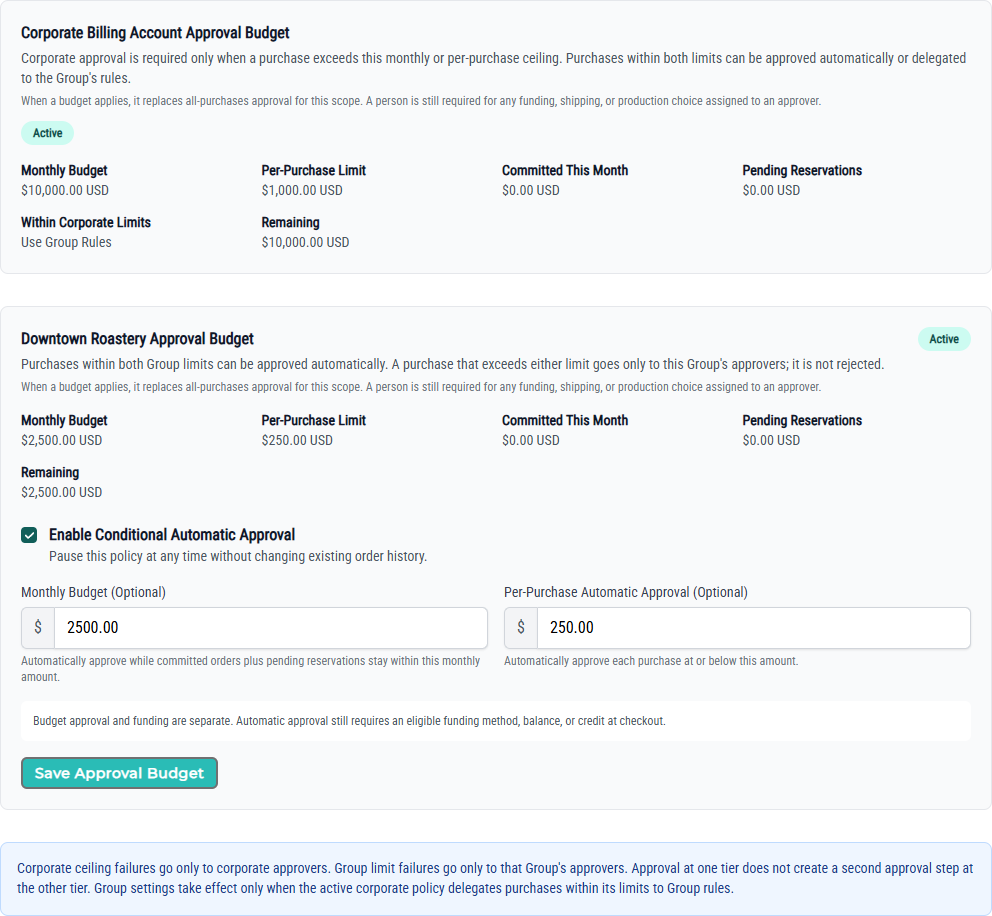
When a purchase is within both tiers, it is approved automatically. When it passes corporate but exceeds either Group limit, it goes only to that Group's Purchase Approvers. If corporate delegates and no Group policy exists, Group approval is required. Group settings do nothing unless the active corporate policy delegates within-limit purchases to Group rules.
The Committed This Month, Pending Reservations, and Remaining amounts help explain how the monthly decision is calculated. Pausing or changing a policy affects later checkout evaluations; it does not rewrite an existing Order or change the approver target already frozen on a submitted request.
This section is optional. It applies only when Organization payment methods are enabled and your role includes payment-method management. In the Acme Coffee House walkthrough, saved methods remain disabled for purchasing because the account uses Prepaid only.
To add a method:
SM, or choose Two Deposit Amounts and enter both amounts in cents. Select Verify Bank Account.Under Saved Payment Methods, an authorized manager can Save Label, Make Default, or Remove a method. A method being used by a pending purchase cannot be removed. Sticker Invasion shows only provider-supplied display information such as type, label, last four digits, expiration, and verification state; never put full account numbers or security codes in labels or notes.
Adding the first verified method may enable saved-method purchasing when the same member can also manage Billing Account settings. Review Allowed Funding Methods afterward if the account is intended to remain Prepaid only.
Open the Prepaid tab. Posted Balance is settled funding, including earned prepaid bonuses; Active Reservations is money held for purchases that have not completed; and Available Balance is what can fund new purchases.
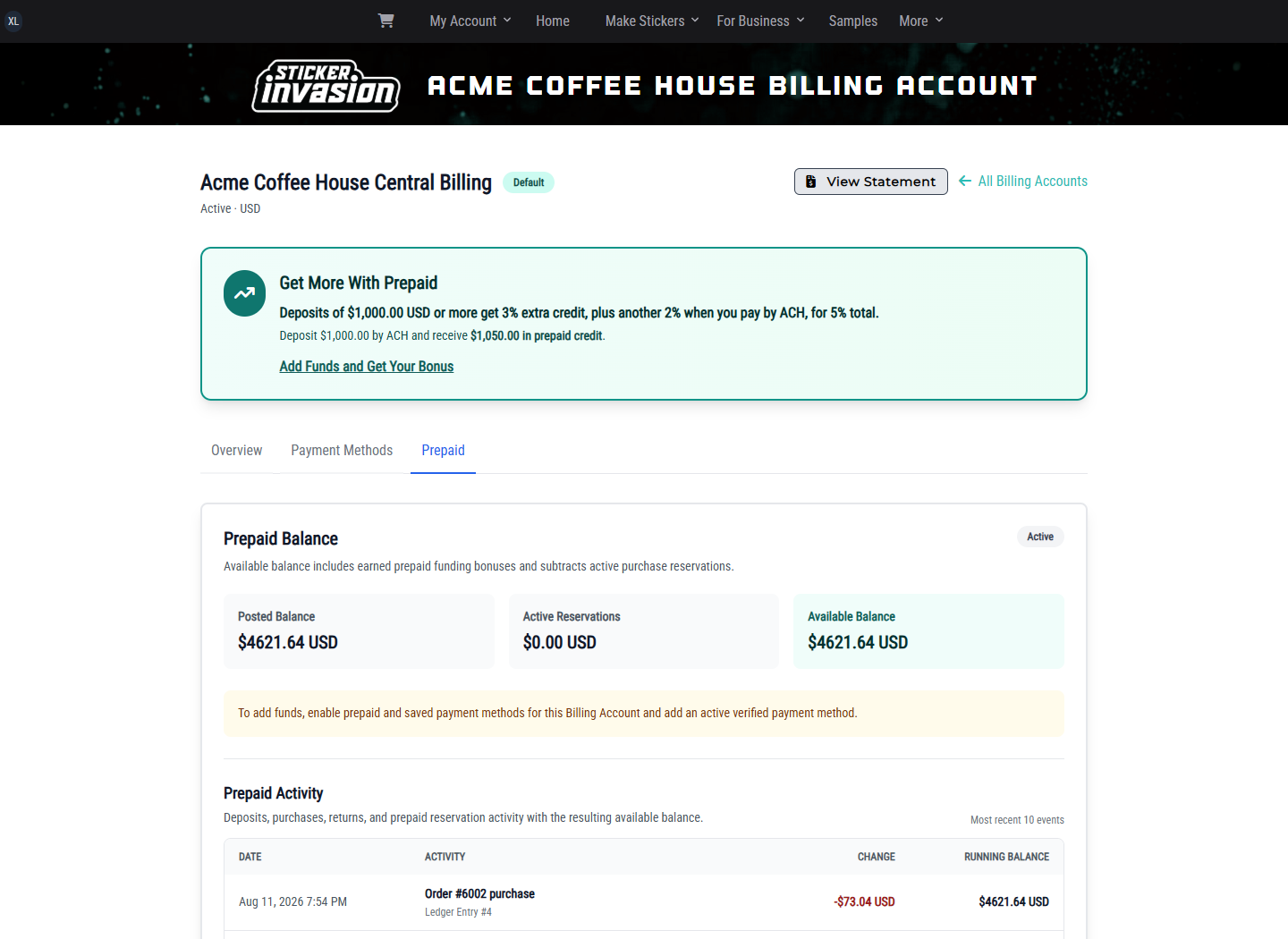
Acme Coffee House begins with an available Prepaid balance, so no funding action is needed for its example Orders. For an Organization that allows customer-funded deposits, Add Funds appears only when the Billing Account allows both Prepaid and saved payment methods and you have an active verified method plus the required funding permissions.
The bonus rate, qualifying minimum, and calculated bonus are frozen when funding starts. Promotional prepaid credit is part of the Billing Account balance; it is not a cash payment or a change to the provider receipt.
When Invoice Terms are available and your role includes terms-request access, open the Billing Account's Invoice Terms tab.
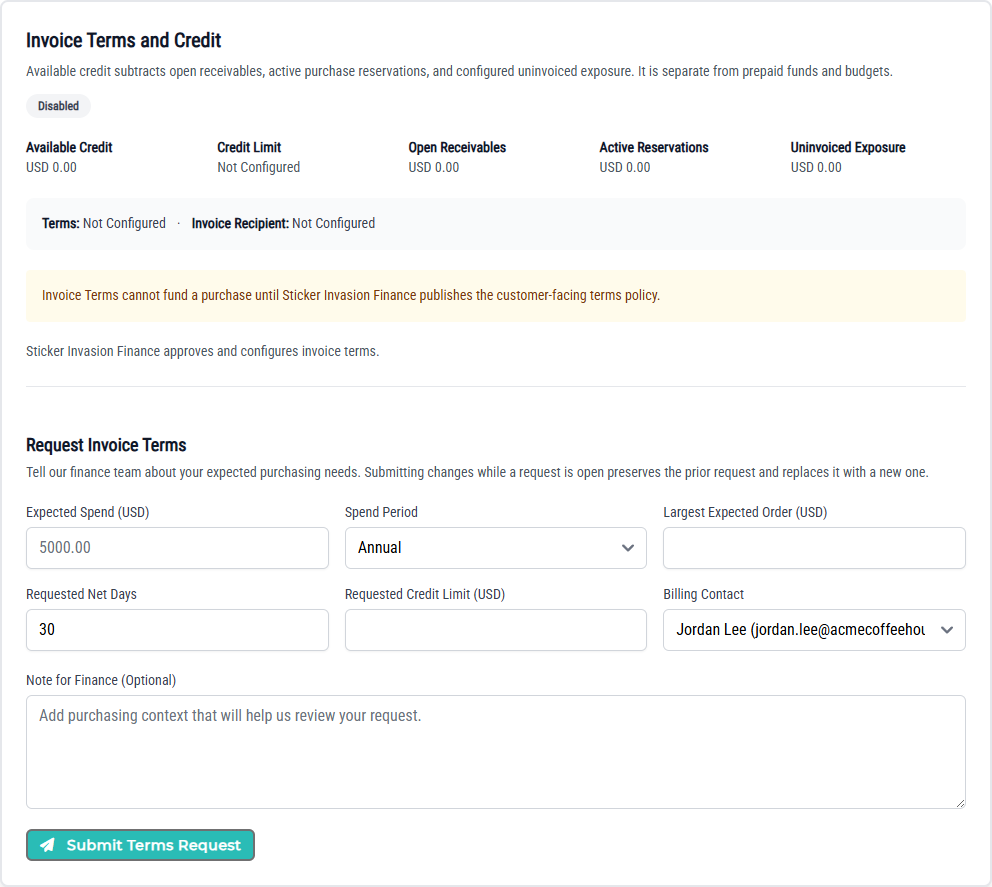
Sticker Invasion Finance approves and configures Invoice Terms. When an approved policy requires acceptance, an authorized Billing Manager or Organization representative must review the customer-facing terms, due date, grace period, late-payment calculation, and any production deposit, then select Accept Invoice Terms. Invoice Terms cannot fund a purchase until every required policy acceptance is current.
Invoice Terms are optional and are not used to fund the Prepaid-only Acme Coffee House Orders. When your Organization uses Invoice Terms and your role allows invoice access, open Account menu → My Team → Invoices.
The payment section appears only for an unpaid balance when your role can both view and pay that exact Invoice. The invoice may also show Credits and Payments. If no eligible method is available and you can manage methods, use Add Payment Method to return to the related Billing Account.
Some Invoice Terms policies require a production deposit. The Billing Account's Invoice Terms tab states whether the deposit is a percentage of the full invoice or a fixed amount. The Invoice and PDF show Production Deposit Required and the remaining deposit until enough payment is applied; production does not begin before that requirement is satisfied. After the deposit is received, the Invoice shows Production Deposit Received while the remaining balance keeps its normal due date.
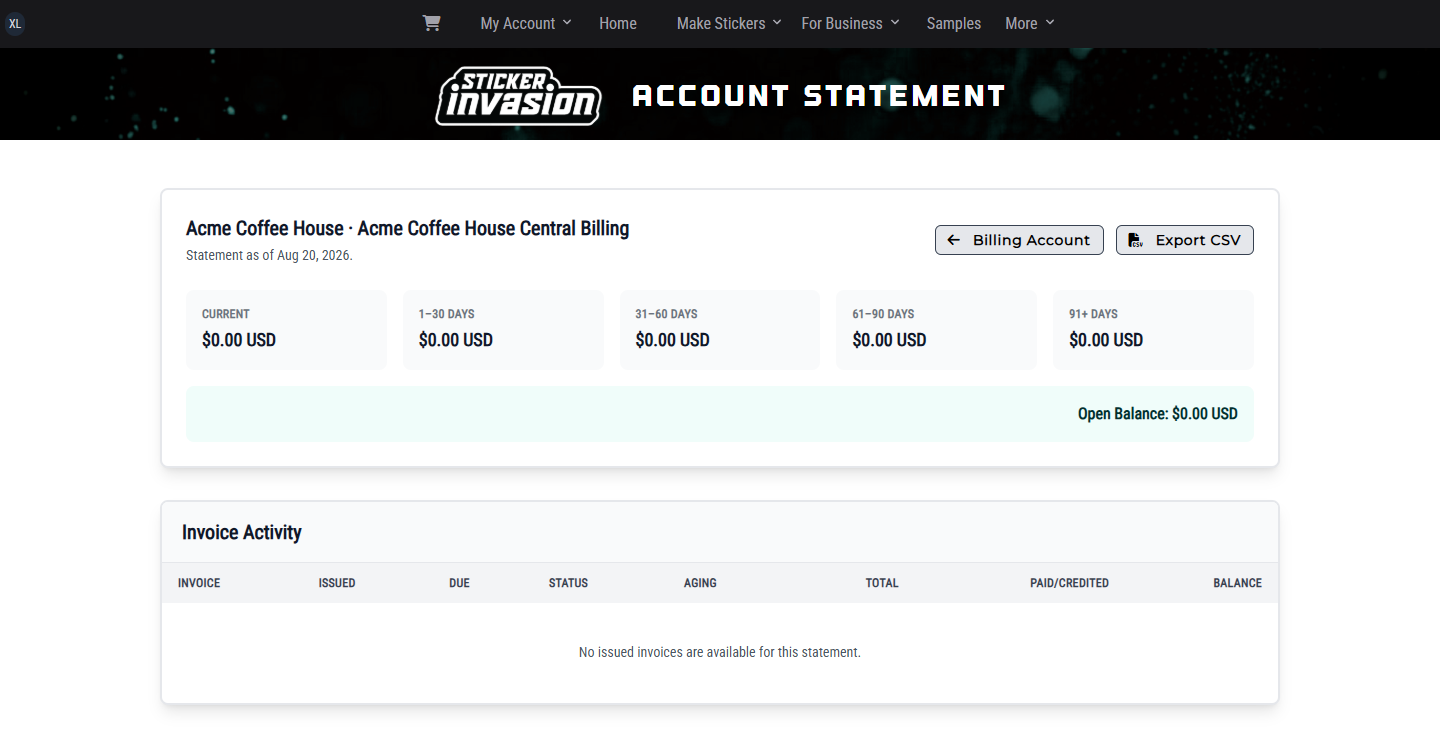
From an authorized Billing Account, select View Statement.
The statement contains issued Invoices for that Billing Account that your current scope allows you to view. It is an as-of view, not a selectable date-range report.
Open Account menu → My Team → My Organization, select the Organization, and open its Reports tab. Report access follows your current Organization, Location, and Billing Account assignments.
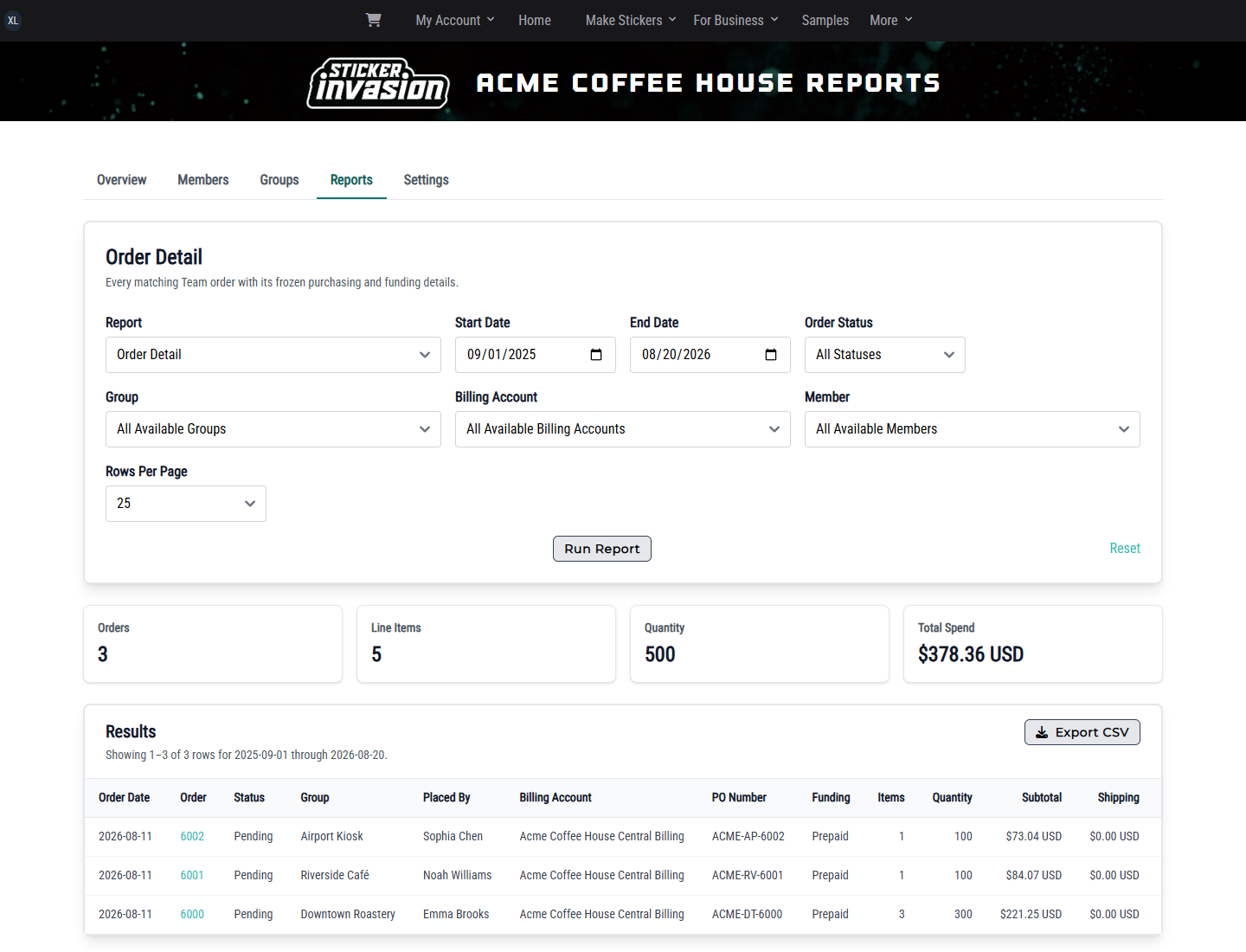
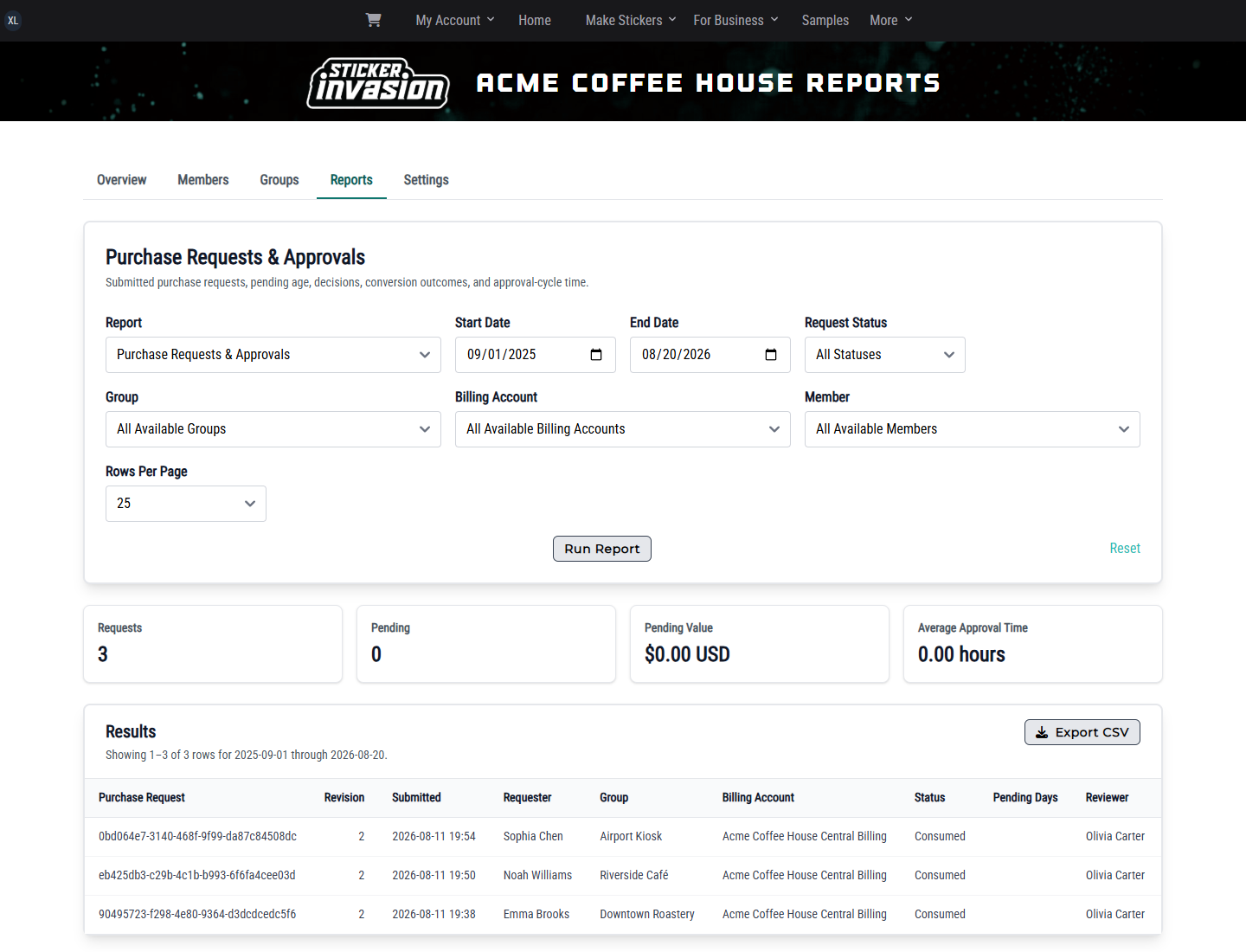
Viewing and exporting are separate permissions. A member may see reports without seeing Export CSV. Historical Organization, Location, Billing Account, member, design, product, funding, and total values remain attached to the original Team Order, so a later rename does not rewrite prior reporting facts.
Chapter 10
For: Everyone
Check that your membership is active and that you are in the expected Organization, Location, or design library. Actions are capability-based: having access to view a page does not necessarily allow creation, editing, proof decisions, purchase decisions, billing changes, or exports.
Open it in My Designs and check the current proof status. Waiting for Proof, Proof Available, and Proof Revision Requested are not orderable states. A standard design becomes available to Quick Order only after the exact current version is approved.
For a template, both an approved root proof and a complete field definition are required before Customize & Add to Cart appears.
If only certain quantities are available, an Organization design manager has restricted that design's ordering policy. If prices are absent, the same policy is hiding them from ordinary Team members; the purchase still retains its commercial amounts.
When Licensing is enabled, open Rights & Sharing and review the exact-version Design Rights and External Artwork Approval records. A missing, pending, expired, rejected, or revoked requirement can keep the Design from ordering even after its proof is approved.
The selected design library may not have an eligible active Billing Account for your Location, or your role may not allow cart creation and ordering there. Ask an Organization Administrator or Billing Manager to verify Location eligibility and your scoped purchasing access.
Billing Accounts can assign shipping, production, funding, PO, and approval choices differently. Follow the fields shown for your account. If a request goes to an approver, your initial submission freezes the request but does not yet create an Order.
Open its detail page from My Orders. Pending Approval needs a purchase decision; Approved: Funding Needed needs the assigned funding selector; Payment Issue or Funding Needs Attention can offer an authorized retry after the problem is corrected. Not Approved, Cancelled, and Expired requests do not become Orders.
Ask an Organization Administrator to review the Organization's Settings → Email Triggers. The event may be informational and disabled, the recipient may not be eligible at that scope, or the member's email may be suppressed. Changing an email trigger does not change the underlying proof, purchase, billing, or Order status.
Open the Invoice and review Production Deposit Required and Deposit Remaining. Pay enough of the Invoice through an allowed method; production is released only after the required amount is successfully received and applied.
Open the Billing Account's Invoice Terms tab. The Organization feature must be available, Sticker Invasion Finance must approve and configure the account, the Group must be eligible to use Invoice Terms, and any required customer-facing policy acceptance must be current. A submitted request is not itself a credit approval.
Order and report visibility follows your current exact scope. Confirm the Organization, Location, Billing Account, date range, and status filters. A workspace selection alone cannot expand access.
If the issue remains, use the Sticker Invasion contact form and include the customer-visible Organization name, request or order number, and the action you were trying to complete. Do not send passwords or full payment details.
| Status | Where | What it means |
|---|---|---|
| Waiting for Proof | Design | Artwork was submitted and is being prepared or reviewed before a customer proof is available. |
| Proof Available | Design | An authorized proof reviewer can approve the proof or request a revision. |
| Proof Revision Requested | Design | Changes were requested and a replacement proof is pending. |
| Approved | Design | The exact current design proof was approved and can be used for its available ordering action. |
| Pending Approval | Purchase | The purchase is waiting for an authorized Organization member to review it. |
| Approved: Funding Needed | Purchase | The purchase was approved and is waiting for an eligible funding selection. |
| Funding In Progress | Purchase | The selected funding source is being processed. |
| Payment Issue | Purchase | Funding needs attention before the purchase can continue. |
| Funding Needs Attention | Purchase | The purchase was approved, but an authorized reviewer must retry order creation. |
| Preparing Order | Purchase | Funding is ready and the Team Order is being created. |
| Order Created | Purchase | The purchase request has been converted into an Order. |
| Not Approved | Purchase | The reviewer did not approve the purchase. |
| Cancelled | Purchase | The purchase request was cancelled and will not become an Order. |
| Expired | Purchase | The purchase request expired before it was completed. |
| Updated | Purchase | A newer version of this purchase request is available. |
| Draft | Purchase | The purchase request has not been submitted. |
Use an illustration's reference ID when asking your Organization Administrator or Sticker Invasion support about that screen.
| Reference | Illustration | Role | Chapter |
|---|---|---|---|
| NAV-010 | Open My Account, expand My Team, and choose an Organization workspace. | Organization Administrator | Open illustration |
| ORG-010 | Review Organization membership, roles, Locations, and management links. | Organization Administrator | Open illustration |
| ORG-020 | Create and manage Locations from Groups. | Organization Administrator | Open illustration |
| ORG-030 | Invite a member, prepare or send the invitation, and review scoped access. | Organization Administrator | Open illustration |
| DES-LIB-010 | Choose a Personal, Organization, or Location library in My Designs. | Designer | Open illustration |
| DES-SHARE-010 | Open an approved Personal design and select Submit to Organization. | Designer | Open illustration |
| DES-SHARE-020 | Choose the Acme destination and add a note for the reviewer. | Designer | Open illustration |
| DES-SHARE-030 | Review the exact submitted version and approve or reject publication. | Design Publisher | Open illustration |
| DES-SHARE-040 | Use the published Organization copy from the shared library. | Buyer | Open illustration |
| DES-NEW-010 | Select New Design, choose Acme Coffee House as the owner, and choose a product. | Designer | Open illustration |
| DES-NEW-020 | Configure the product, upload artwork, name the design, and submit it for proofing. | Designer | Open illustration |
| DES-NEW-030 | A newly submitted design shows Waiting for Proof until review is available. | Designer | Open illustration |
| DES-NEW-040 | Approve the proof or request specific changes. | Proof Approver | Open illustration |
| DES-NEW-050 | Choose quantity, Team cart destination, and Add to Cart from Quick Order. | Buyer | Open illustration |
| DES-TPL-010 | Select New Templated Design, choose Acme Coffee House as the owner, and choose a product. | Designer | Open illustration |
| DES-TPL-020 | Describe which parts of the design should become controlled template fields. | Designer | Open illustration |
| DES-TPL-030 | Open an approved template and select Customize & Add to Cart. | Buyer | Open illustration |
| DES-TPL-040 | Fill the controlled fields for one customized template order. | Buyer | Open illustration |
| DES-TPL-050 | Use the exact field headers to upload a variable-data CSV. | Buyer | Open illustration |
| CRT-010 | Confirm the Organization, Location, Billing Account, items, and subtotal before checkout. | Buyer | Open illustration |
| CHK-010 | Choose shipping and production options, then optionally enter a PO number; the approver selects funding. | Buyer | Open illustration |
| APR-010 | Open a pending purchase assigned to your scope. | Purchase Approver | Open illustration |
| APR-020 | Review totals and notes, select Prepaid, then approve or reject. | Purchase Approver | Open illustration |
| ORD-010 | Filter My Orders and confirm each Team Location and current status. | Organization Administrator | Open illustration |
| BIL-010 | Open an authorized Billing Account to review purchasing and funding settings. | Billing Manager | Open illustration |
| RPT-010 | Filter an Organization report and export the authorized rows to CSV. | Report Viewer | Open illustration |
| DES-TPL-RIVERSIDE-010 | Enter Riverside Café in the approved Location field before adding the configured design. | Buyer | Open illustration |
| DES-AIRPORT-STANDARD-010 | Use Quick Order to add an approved standard design to the Airport Kiosk cart. | Buyer | Open illustration |
| CHK-020 | After submission, the checkout confirms that review is pending and no Order exists yet. | Buyer | Open illustration |
| APR-030 | Successful approval confirms that prepaid funding completed and an Order was created. | Purchase Approver | Open illustration |
| CRT-RIVERSIDE-010 | Confirm the Riverside Café context, customized Location value, quantity, and subtotal. | Buyer | Open illustration |
| CHK-RIVERSIDE-SHIP-010 | Enter the Riverside shipping contact and a reviewer note. | Buyer | Open illustration |
| CHK-RIVERSIDE-SHIPMETHOD-010 | Choose production speed and shipping after the available rates load. | Buyer | Open illustration |
| CHK-RIVERSIDE-FUNDING-010 | Enter the optional PO and submit the request for approver-selected funding. | Buyer | Open illustration |
| CHK-RIVERSIDE-SUBMITTED-010 | The submitted Riverside request remains separate from an Order until approval and funding finish. | Buyer | Open illustration |
| APR-RIVERSIDE-PENDING-010 | The owner can identify the Riverside requester, Location, note, and total in the queue. | Purchase Approver | Open illustration |
| APR-RIVERSIDE-DECISION-010 | Select Prepaid and record the Riverside approval note before approving. | Purchase Approver | Open illustration |
| APR-RIVERSIDE-APPROVED-010 | The approval result confirms prepaid payment and Order creation. | Purchase Approver | Open illustration |
| CRT-AIRPORT-010 | Confirm the Airport Kiosk cart and central Billing Account before checkout. | Buyer | Open illustration |
| CHK-AIRPORT-SHIP-010 | Enter the Airport Kiosk shipping contact and reviewer note. | Buyer | Open illustration |
| CHK-AIRPORT-SHIPMETHOD-010 | Review Airport production timing, shipping choices, delivery estimate, and total. | Buyer | Open illustration |
| CHK-AIRPORT-FUNDING-010 | Enter the Airport PO and submit for approver-selected prepaid funding. | Buyer | Open illustration |
| CHK-AIRPORT-SUBMITTED-010 | The submitted Airport request is Approval Pending and has not created an Order. | Buyer | Open illustration |
| APR-AIRPORT-PENDING-010 | The owner can identify the Airport requester, Location, note, and total in the queue. | Purchase Approver | Open illustration |
| APR-AIRPORT-DECISION-010 | Select Prepaid and record the Airport approval note before approving. | Purchase Approver | Open illustration |
| APR-AIRPORT-APPROVED-010 | The approval result confirms prepaid payment and Order creation. | Purchase Approver | Open illustration |
| ORD-020 | Open an Order to review its Team context, purchasing facts, totals, payment method, status, and available delivery details. | Organization Administrator | Open illustration |
| BIL-020 | Review funding, approval, shipping, production, PO, status, and Location eligibility policies. | Billing Manager | Open illustration |
| BIL-BUDGET-CORPORATE-010 | Corporate sets the maximum monthly and per-purchase delegation ceiling for this Billing Account. | Organization Administrator | Open illustration |
| BIL-BUDGET-GROUP-010 | A Group-scoped Billing Manager reviews the corporate ceiling and sets only the assigned Group's limits. | Billing Manager | Open illustration |
| BIL-030 | Review the posted and available Prepaid balance, automatic funding bonus offer, and recent activity. | Billing Manager | Open illustration |
| BIL-040 | The statement shows invoice aging and export controls; this prepaid-only example has no invoices. | Billing Manager | Open illustration |
| ORG-040 | Choose which eligible Organization events may send action-required or informational email. | Organization Administrator | Open illustration |
| DES-POL-010 | Control member price display and the allowed quantities for an Organization design. | Organization Administrator | Open illustration |
| DES-MAINT-010 | Edit shared Design details or archive and restore the Design without changing historical Orders. | Designer | Open illustration |
| LIC-010 | Review the exact-version Design Rights record from the first licensing subtab. | Licensing Manager | Open illustration |
| LIC-020 | Open the separate External Artwork Approval subtab to review or record the outside decision. | Licensing Manager | Open illustration |
| BIL-CREATE-010 | Create another Billing Account to separate funding policy and Group purchasing access. | Billing Manager | Open illustration |
| BIL-TERMS-010 | Submit expected purchasing needs to Sticker Invasion Finance and review the Invoice Terms request history. | Billing Manager | Open illustration |
| RPT-020 | Run a permission-scoped report with Member filtering, bounded pagination, and full filtered CSV export. | Report Viewer | Open illustration |